VIKTOR Desktop
VIKTOR Desktop is a Windows application that lets you install, authenticate, run, and monitor your personal workers from one place. You install VIKTOR Desktop once, log in with your VIKTOR account, and start the workers you need. Workers are started, stopped, and monitored from within VIKTOR Desktop, and each worker has its own formatted logs.
Organization workers are managed by environment administrators and are not affected; they continue to use the existing installation flow.
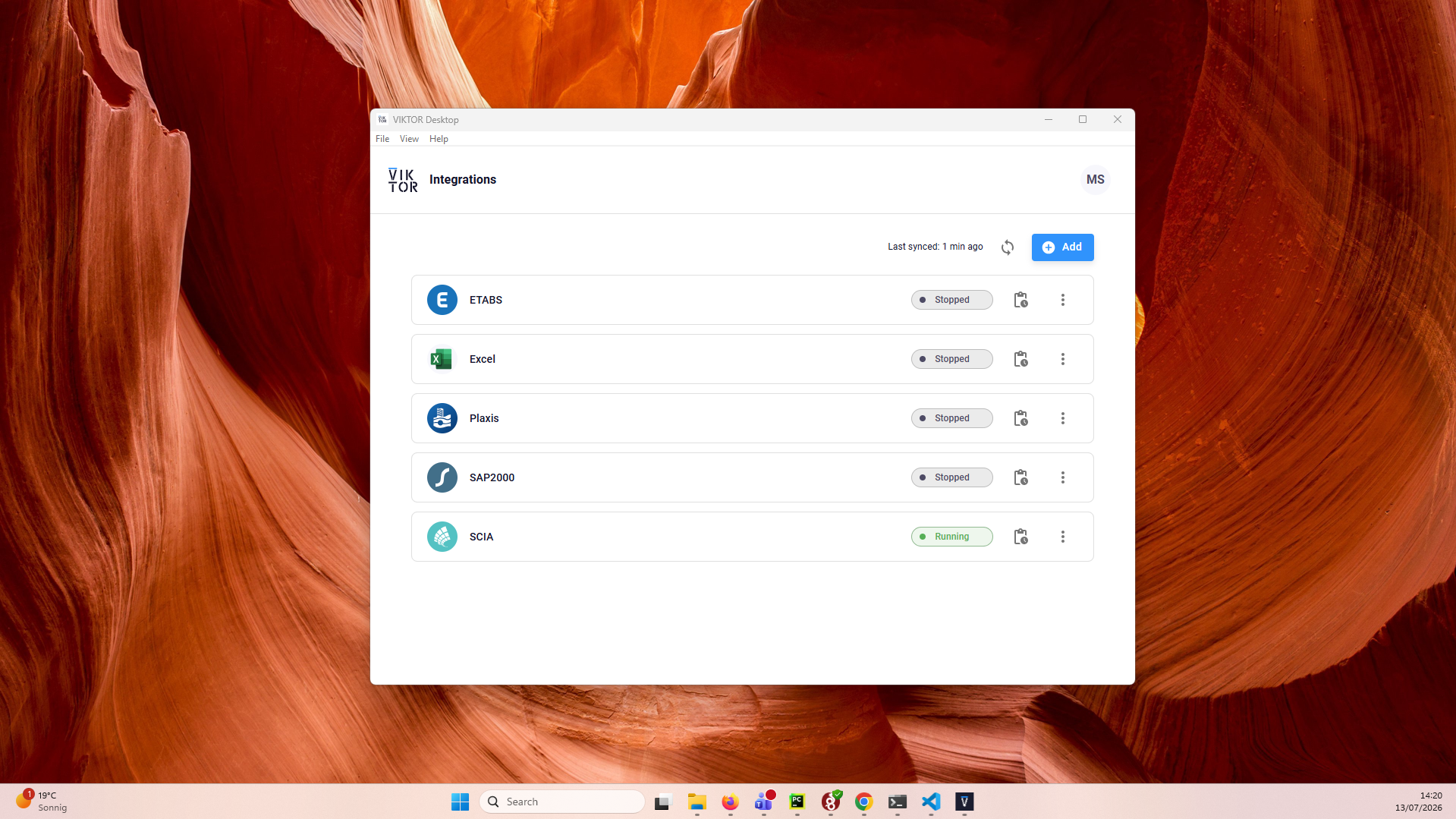 VIKTOR Desktop showing your workers and their status
Supported workers
The workers available to you are shown in VIKTOR Desktop when you add a worker; this list expands over time. For an overview of the software VIKTOR integrates with, see supported software. In addition, the generic worker is available to integrate with any other software that supports command-line interaction.
Personal workers that were installed with the previous per-worker installers are not migrated into VIKTOR Desktop. To fix this, re-install or, if listed, reconfigure these workers via VIKTOR Desktop. See Migrate existing workers to VIKTOR Desktop.
Requirements
- Operating system: Windows (64-bit AMD or Intel processor). macOS and Linux are not supported.
- The third-party software that is to be integrated is installed and licenses are available on the same machine.
- Outgoing TCP access to the internet over port 443.
- A web browser to log in with your VIKTOR account.
Logging in to VIKTOR Desktop uses OAuth 2.1 with PKCE: the app opens the system browser and completes the login
through a temporary redirect to a local loopback address (localhost). No ports need to be opened for incoming
traffic from the network.
Download and install VIKTOR Desktop
- Download the VIKTOR Desktop installer (a signed .msi Microsoft Installer). You can download it directly below, or
from:
- the "My integrations" tab in your personal settings, using the "Download VIKTOR Desktop" button on the "Local software" tab, or
- the editor of an application: when the application has a worker as a dependency and the platform does not detect a connected VIKTOR Desktop (not installed, or not running), the editor offers the download
- Run the installer and complete the installation wizard
- Launch VIKTOR Desktop
Download and install VIKTOR Desktop
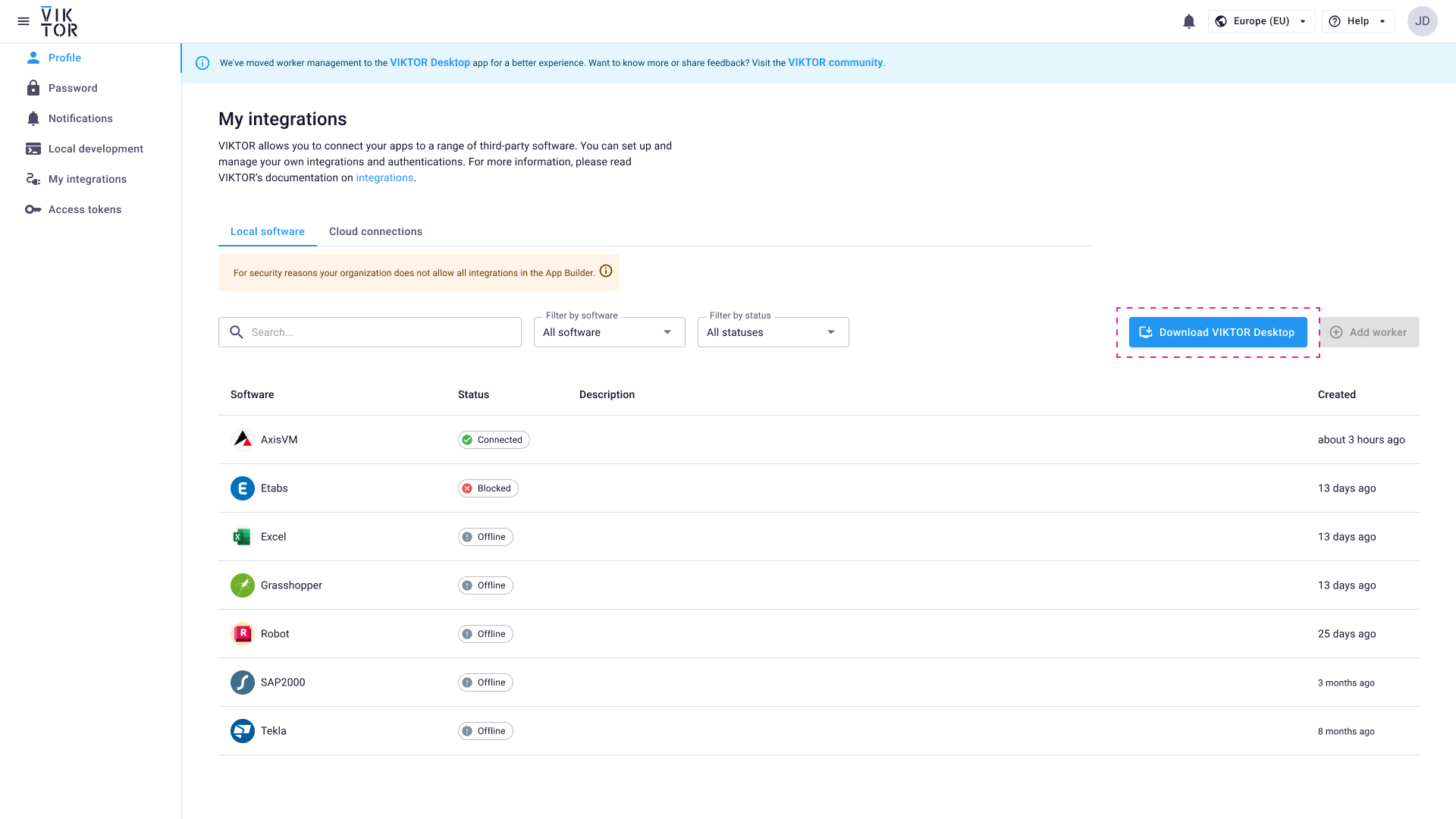 The "My integrations" page with the "Download VIKTOR Desktop" button
You only need to do this once per machine; all your personal workers are managed from within the app. When a new version of VIKTOR Desktop is available, the app prompts you to update; once you confirm, it updates automatically. You never need to download and run the installer again.
Log in
On first launch, VIKTOR Desktop asks you to sign in: paste the URL of your VIKTOR environment, click "Next", and log in with your VIKTOR account in the browser that opens. After logging in, return to the app.
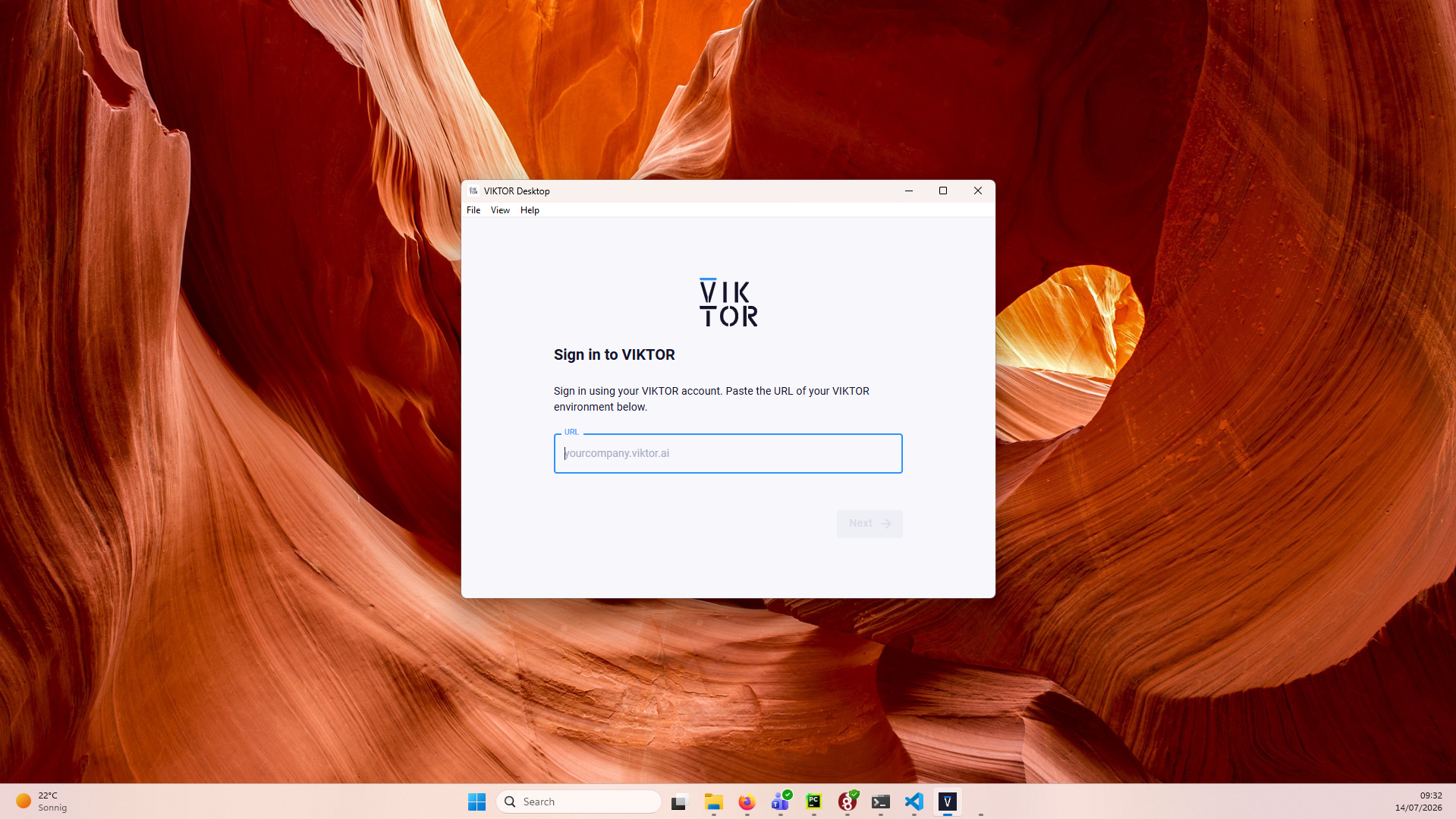 The VIKTOR Desktop sign-in page
You log in once for all your personal workers: no connection keys need to be generated or pasted. To log out, or to switch to a different VIKTOR environment, click your profile in the top-right corner of VIKTOR Desktop and select "Log out".
Add and configure a worker
-
In VIKTOR Desktop, click "Add"
-
Select the software you want to integrate with
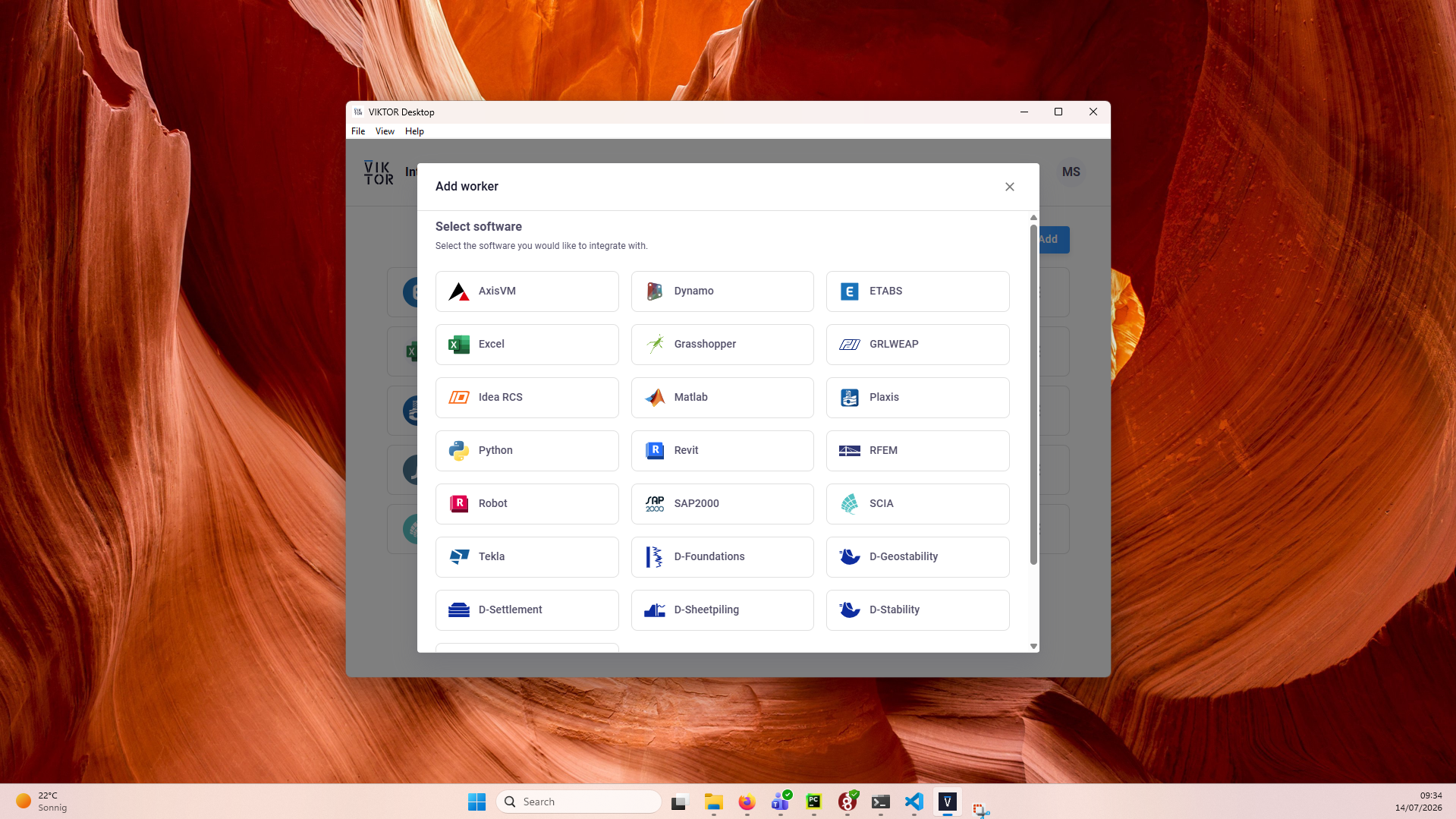 Selecting the software when adding a worker
 -
Follow the instructions to complete the worker configuration. The configuration differs per software:
- For Python-based workers, select the Python environment of your choice by setting the path to its
python.exeas the executable path. This can be your system Python, or the python.exe in a dedicated virtual environment. - For workers that run a local program (e.g. Dynamo), set the path to that executable.
- For the generic worker, VIKTOR Desktop exposes the worker's
config.yamlfile, in which you define the executables, arguments and paths yourself.
- For Python-based workers, select the Python environment of your choice by setting the path to its
The first release of VIKTOR Desktop does not expose the executable arguments for dedicated workers; only the generic
worker allows for arguments (through its config.yaml).
Run and stop workers
Workers are started and stopped inside VIKTOR Desktop; there is no separate terminal window. The worker list shows for each of your workers whether it is "Running" or "Stopped". When a worker update is available, VIKTOR Desktop prompts you to update; once you confirm, the worker updates automatically. There is no installer to rerun.
View logs
Each worker has its own log inside VIKTOR Desktop. Logs are formatted, showing when tasks are started and completed and any errors the worker encounters.
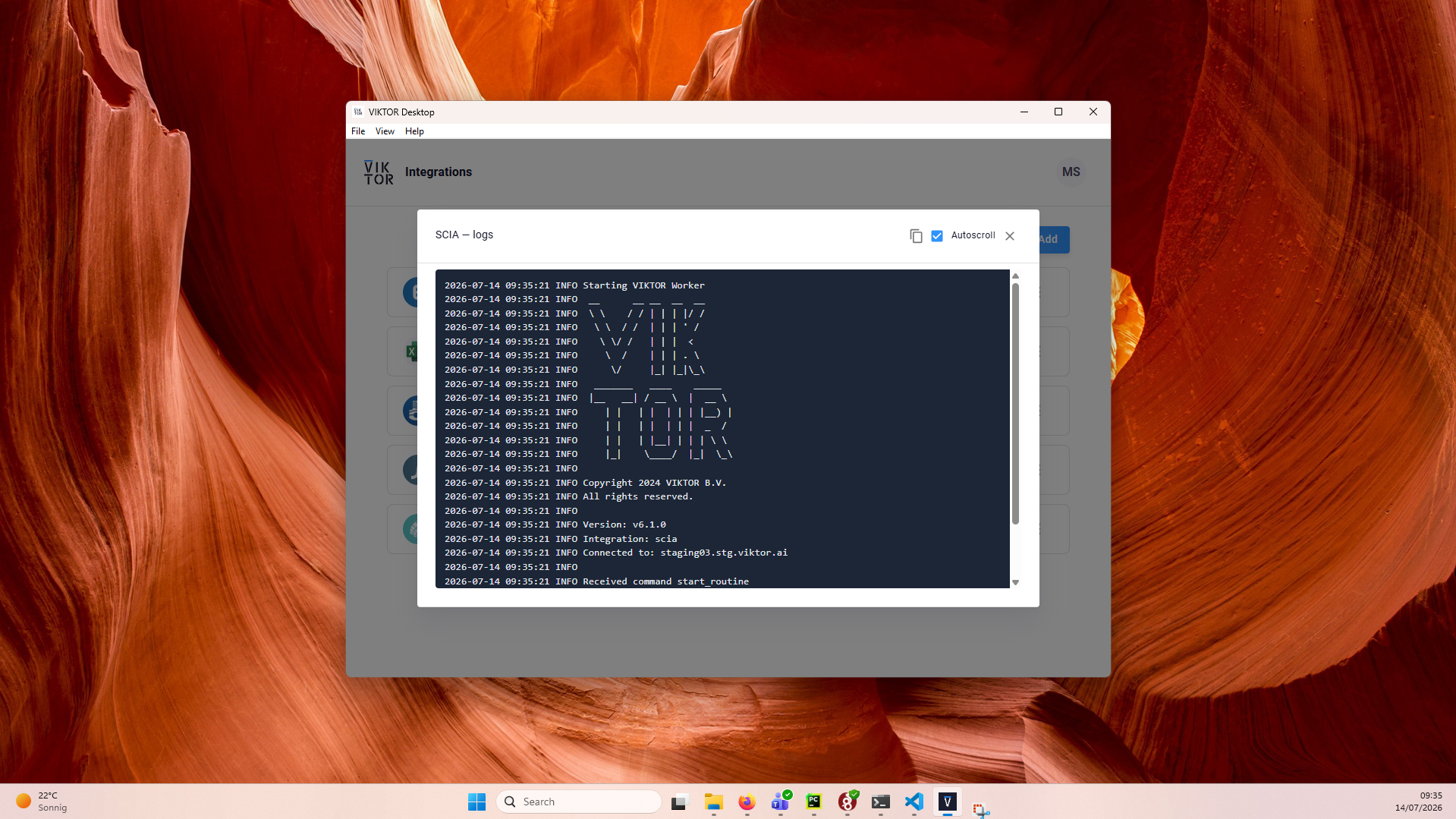 The log view of a worker in VIKTOR Desktop
Worker status in the editor
The editor shows whether your worker is online or offline (see also worker status). If a worker is offline, the editor can open VIKTOR Desktop for you; in VIKTOR Desktop, look up the worker in your worker list and start it. When the platform does not detect a connected VIKTOR Desktop at all, the editor offers to download it.
Migrate existing workers to VIKTOR Desktop
Personal workers that were installed with the previous per-worker installers keep running, but they are not migrated into VIKTOR Desktop: their existing installation and configuration are not taken over. To migrate a personal worker, re-install it by adding and configuring it again in VIKTOR Desktop.
Workers that are listed on the "My integrations" page in your personal settings are reflected in VIKTOR Desktop. To remove a worker from this list, delete it in VIKTOR Desktop.
When you migrate a personal worker to VIKTOR Desktop, uninstall its old installation using the "Add or remove programs" feature of Windows. If both keep running, two workers with potentially different configurations compete for the same tasks, which leads to unpredictable results.
New personal workers can only be added through VIKTOR Desktop: with the release of VIKTOR Desktop, the per-worker installer download and the connection-key flow are no longer available on the "My integrations" page for personal workers.
Organization workers and workers running on (shared) servers continue to use the existing installers.
FAQs
How do I update a worker in VIKTOR Desktop?
When an update is available, VIKTOR Desktop will prompt you with the available update. Confirm the update and the worker will update automatically. There is nothing else that needs to be done once the update is complete.
How do I download and install VIKTOR Desktop?
VIKTOR Desktop can be downloaded from the "My integrations" tab in your personal settings using the "Download VIKTOR Desktop" button. You can also directly download the VIKTOR Desktop from our documentation. See Download and install VIKTOR Desktop.
I am not able to log in to VIKTOR Desktop
Make sure a default browser is available and that the browser can reach your VIKTOR environment. If your organization restricts localhost redirects or uses a proxy, see the note for IT administrators under requirements.
Why is my worker showing as offline when I am in an app?
If the worker is showing as offline in an application it means that VIKTOR Desktop is unable to connect to the application. Check in VIKTOR Desktop that the worker is running, and inspect its log for errors. See run and stop workers.