Bentley iTwin
Bentley iTwin can be integrated with VIKTOR using the OAuth 2.0 workflow for token based authentication and authorization. A general introduction to OAuth 2.0 can be found here.
Prerequisites
To create this integration, you need access to the Bentley developer portal and a Bentley account that can register applications in My Apps.
This tutorial uses a Bentley Web App because VIKTOR's OAuth2Integration expects a confidential client with a client_id, client_secret, and redirect callback.
Make sure the Bentley account and subscription used for testing have access to the required iTwin APIs. For non-production testing, a Bentley Community subscription can be used.
Creating a Bentley application
Open Bentley My Apps and register a new application. This application will serve as the bridge between VIKTOR and your Bentley iTwin account, allowing secure data exchange through OAuth 2.0.
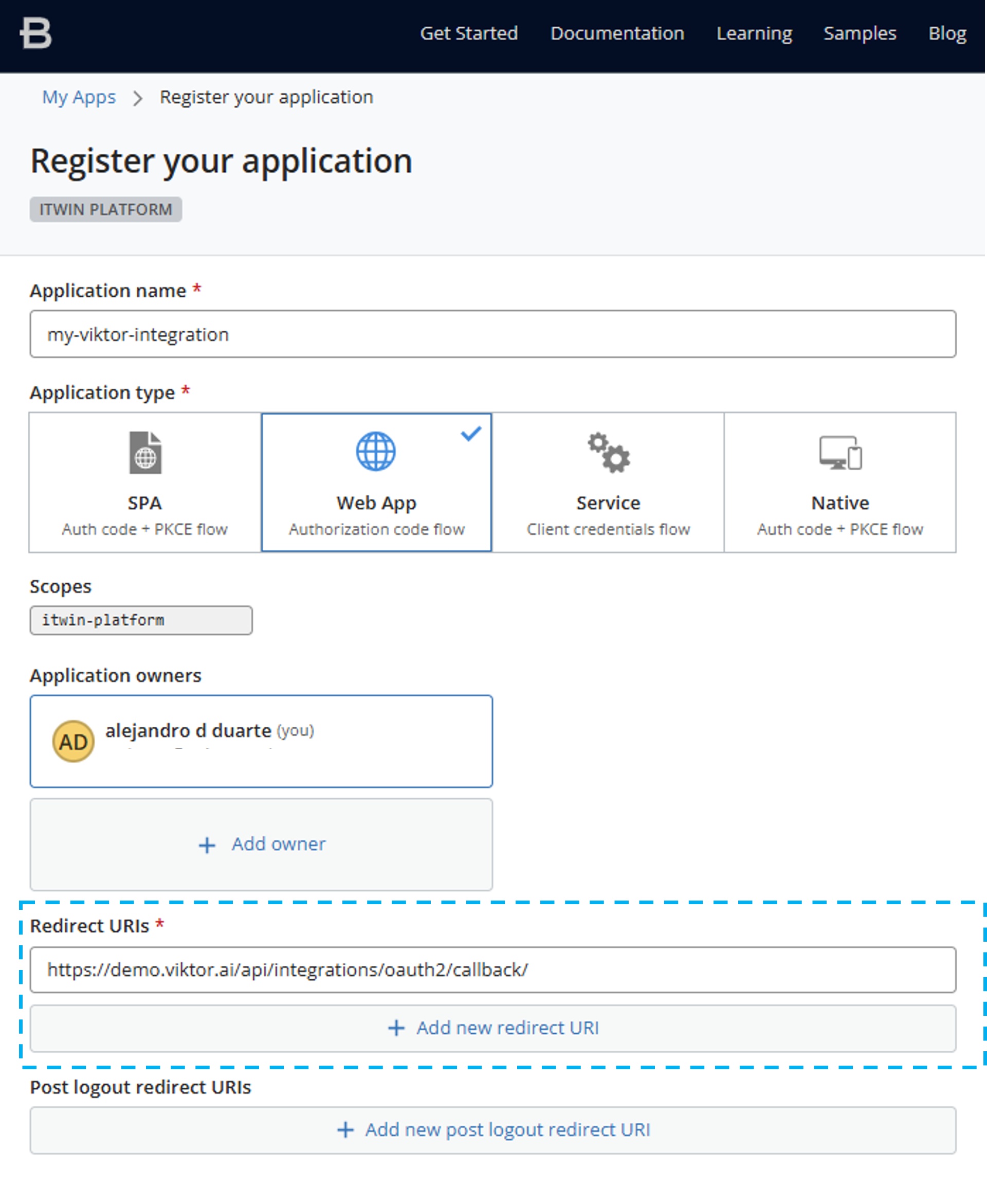
When creating your application in the Bentley portal, configure it with the following settings:
- Application type:
Web App- This type provides the client secret needed for secure server-to-server communication - Scopes:
itwin-platform- This grants access to the iTwin Platform APIs, allowing you to retrieve projects and iModels - Redirect URI:
<your-viktor-environment-url>/api/integrations/oauth2/callback/- This is where Bentley will redirect users after successful authentication
The redirect URI must match your VIKTOR environment URL exactly. For example, if your VIKTOR environment is hosted at demo.viktor.ai, your redirect URI should be:
https://demo.viktor.ai/api/integrations/oauth2/callback/
The screenshot below shows the expected Bentley application setup using demo.viktor.ai as an example. Remember to use your own company's VIKTOR environment URL (e.g., yourcompany.viktor.ai).
After saving the application, copy the following values from Bentley:
Client IDClient Secret
Creating an OAuth 2.0 integration (admin)
After receiving the Client ID and Client Secret, a VIKTOR admin can generate an OAuth 2.0 integration.
Start in the Administrator panel and create a new OAuth 2.0 integration with iTwin as the selected software.
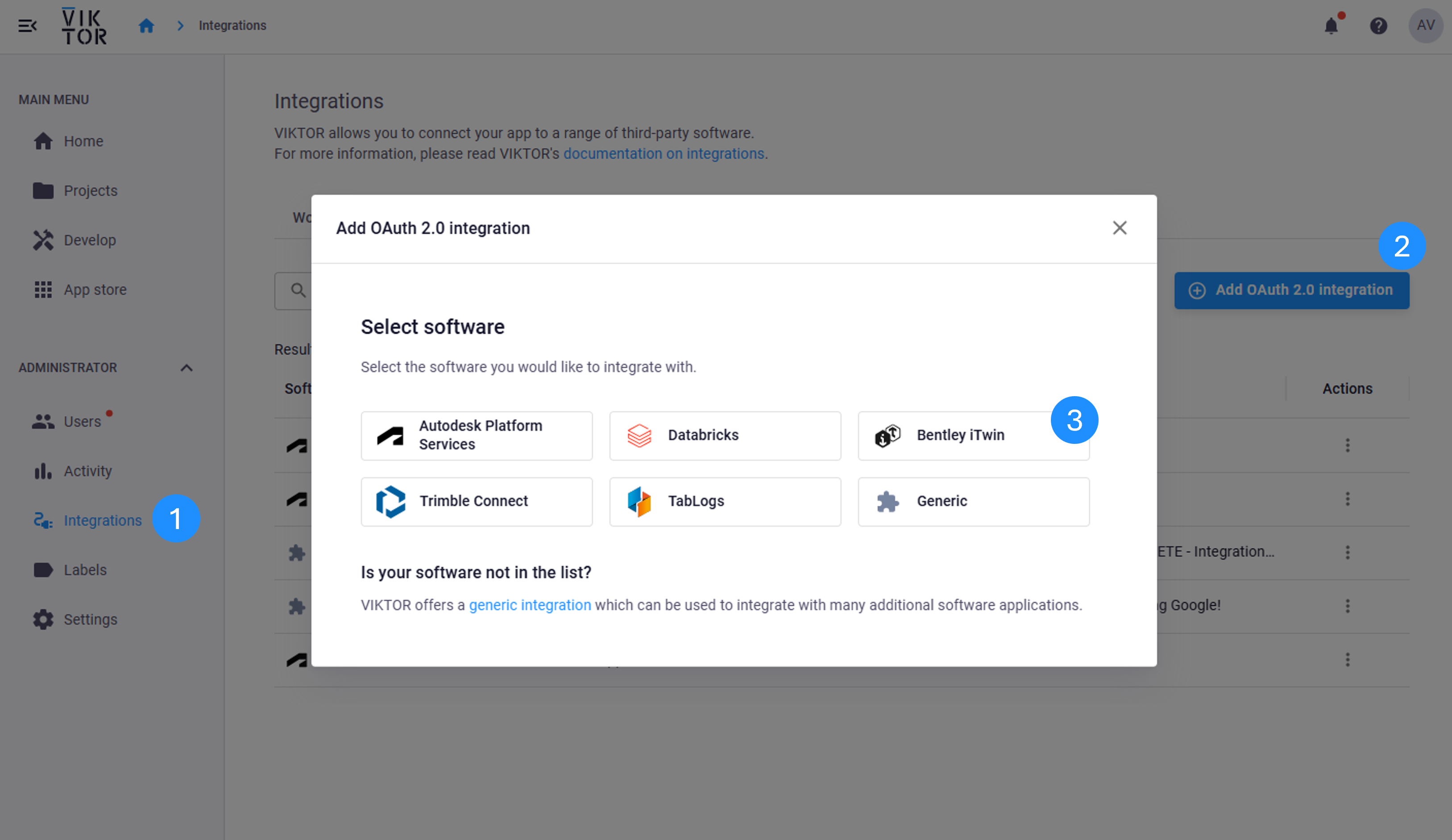
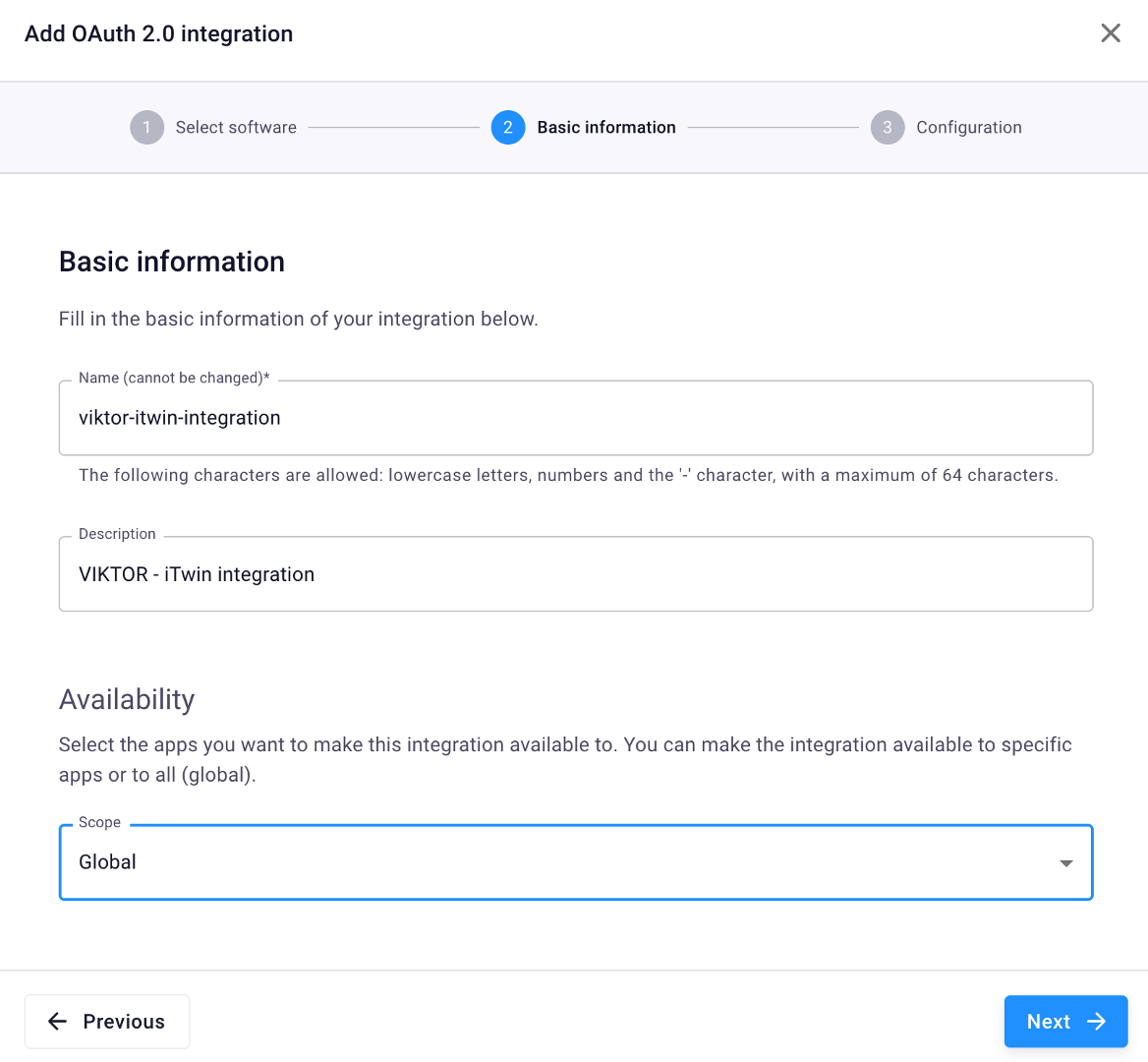
In the Basic Information step, choose a descriptive integration name that clearly identifies this connection. For example, you could use viktor-itwin-integration, bentley-itwin-oauth, or any custom name that makes sense for your organization. This name will be referenced in your application code, so make it memorable and meaningful.
Throughout this guide, we use viktor-itwin-integration as the example integration name. When you see this name in code samples or configuration steps, replace it with your own chosen name.
Add a clear description that explains the purpose of this integration (e.g., "OAuth 2.0 integration for accessing Bentley iTwin projects and iModels"), and assign the integration to the VIKTOR applications that should have access to it.
Then, in the Configuration step, use the Bentley OAuth values shown below:
- Authentication URL:
https://ims.bentley.com/connect/authorize - Token URL:
https://ims.bentley.com/connect/token - Client ID:
<your Bentley client id> - Client Secret:
<your Bentley client secret> - Scopes:
itwin-platformoffline_access
offline_access is optional. If you do not need refresh-token support, you can use only itwin-platform.
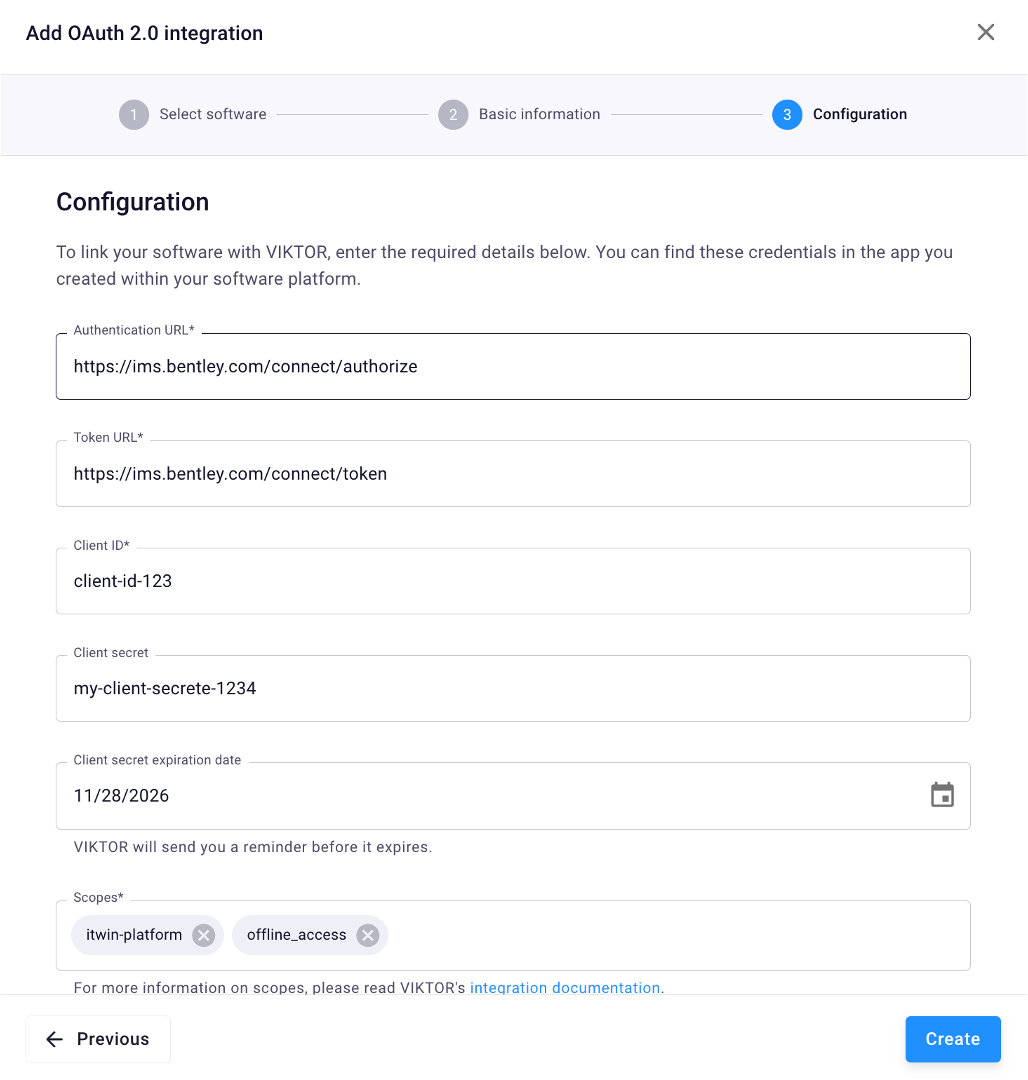
The iTwin Platform uses the universal itwin-platform scope instead of individual API scopes. Access to iTwin data is controlled by the user's assigned roles and permissions, not by granular OAuth scope selection. For more information, see the iTwin authorization documentation.
Implementing the integration
Once an administrator sets up the OAuth 2.0 integration, the developer can start the implementation. You have two alternatives to develop apps that integrate Bentley iTwin:
Using the App Builder
The App Builder provides a no-code approach to create applications with Bentley iTwin integration. You can describe the app in natural language and let the App Builder generate the first version for you.
Use the following prompt:
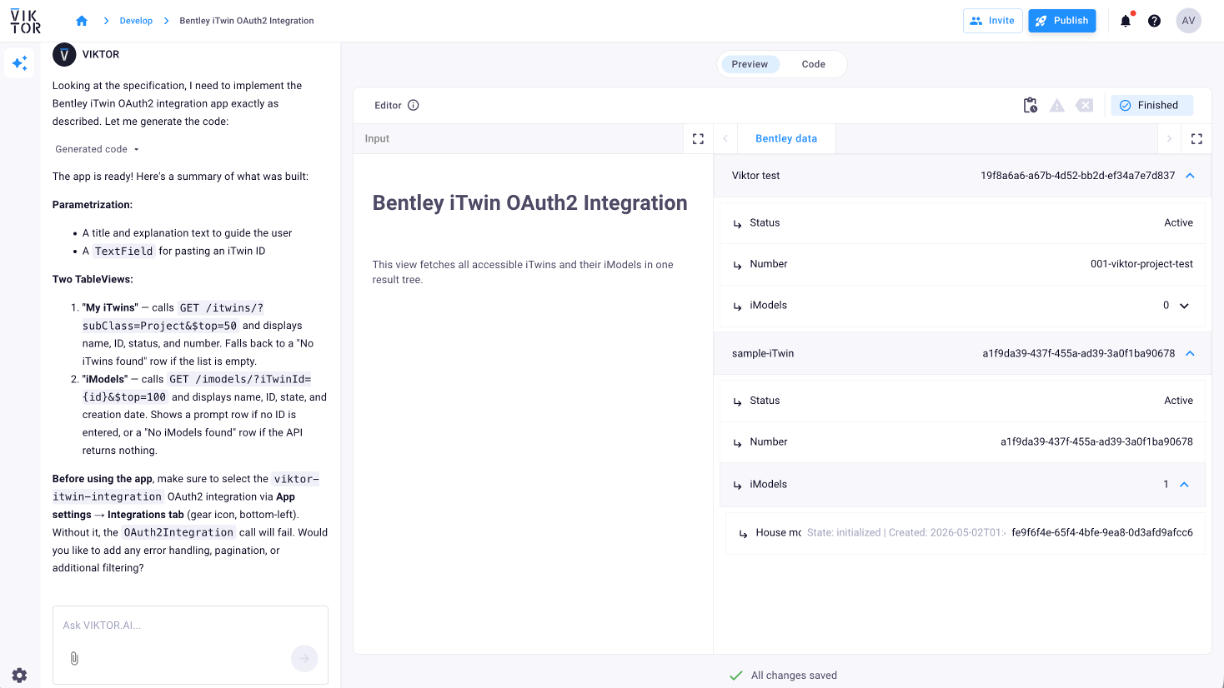
Create a VIKTOR app that uses the OAuth2 integration viktor-itwin-integration to call https://api.bentley.com/itwins/?subClass=Project&$top=50 and https://api.bentley.com/imodels/?iTwinId=<itwin_id>&$top=100, then show all accessible iTwins in a DataView result tree with each iTwin’s status, number, and iModels; for each iModel, show its name, id, state, and created date, and handle empty results with “No iTwins found” or “No iModels found.”
A generated App Builder result can look like this:
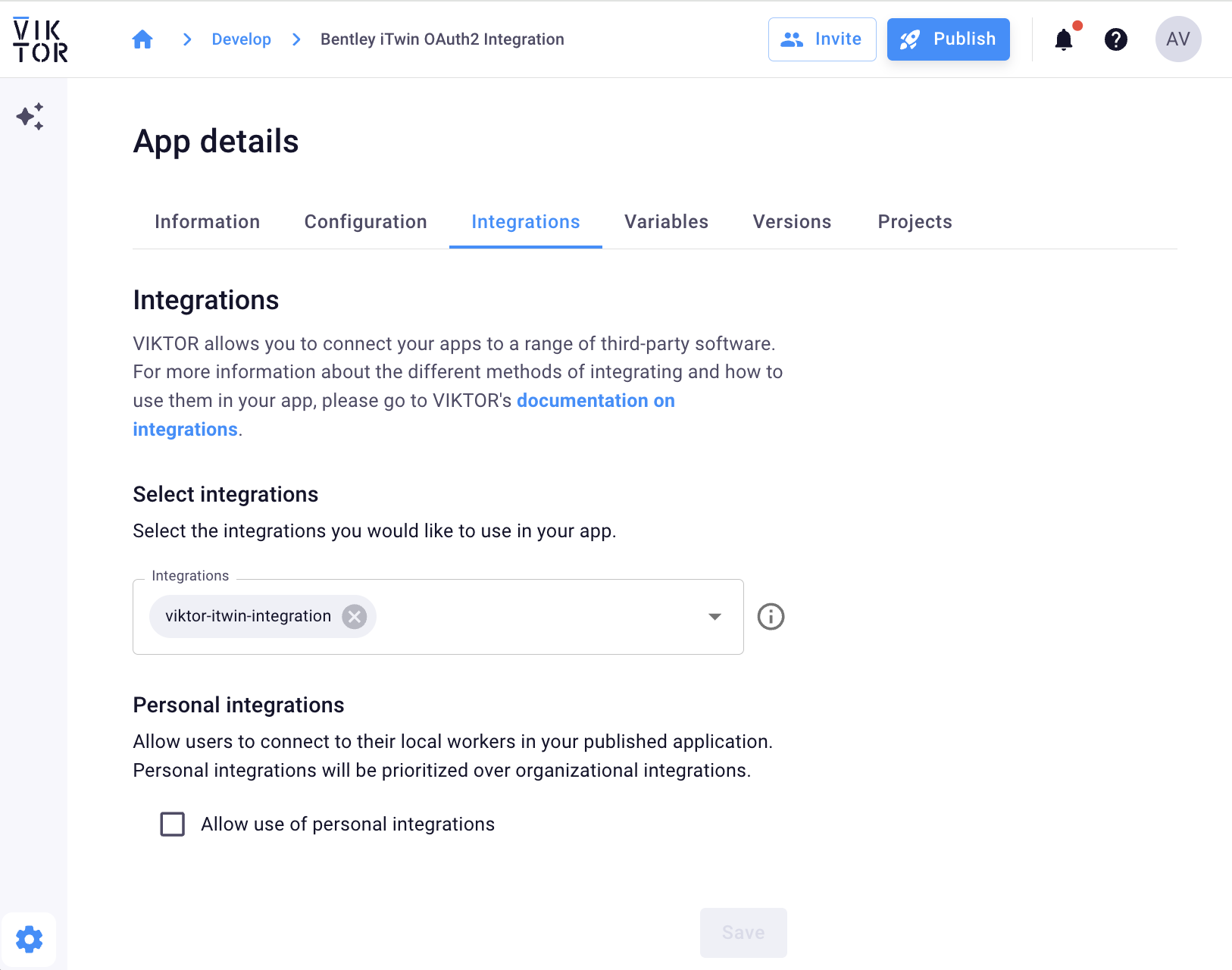
After submitting the prompt, the App Builder will ask you to connect the integration in the app settings:
- Click the
App detailsbutton - Select the integration name
viktor-itwin-integration - Save the current selection
Using local development
For local development, the developer should add the integration name to the app configuration after the administrator has assigned the integration to the app. The platform uses it to show a login button when the user opens the app. Make sure your viktor.config.toml contains the name exactly as configured in the Administrator panel.
Remember to use your own integration name in viktor.config.toml. In the examples below, we continue using viktor-itwin-integration, but you should replace this with the custom name you defined earlier in the Administrator panel.
viktor.config.toml:
app_type = "editor"
python_version = "3.13"
registered_name = "your-app-name"
oauth2_integrations = [
    "viktor-itwin-integration"
]
Then implement the logic that uses the integration in the code. You can use raw REST requests or a Python SDK, as long as it is compatible with the VIKTOR OAuth flow. A popular library is requests. You can add it in your requirements.txt:
viktor
requests
To obtain an access token, instantiate OAuth2Integration with the integration name and call get_access_token. The example below fetches the user's accessible iTwins, then fetches the iModels for each iTwin, and displays everything in a nested DataView.
import requests
import viktor as vkt


class Parametrization(vkt.Parametrization):
    intro = vkt.Text("# Bentley iTwin OAuth2 Integration")
    explanation = vkt.Text(
        "This view fetches all accessible iTwins and their iModels in one result tree."
    )


class Controller(vkt.Controller):
    parametrization = Parametrization

    @vkt.DataView("Bentley data", duration_guess=2)
    def get_bentley_data(self, params, **kwargs):
        token = vkt.external.OAuth2Integration(
            "viktor-itwin-integration"
        ).get_access_token()

        itwin_headers = {
            "Authorization": f"Bearer {token}",
            "Accept": "application/vnd.bentley.itwin-platform.v1+json",
            "Prefer": "return=minimal",
        }
        imodel_headers = {
            "Authorization": f"Bearer {token}",
            "Accept": "application/vnd.bentley.itwin-platform.v2+json",
            "Prefer": "return=representation",
        }

        response = requests.get(
            "https://api.bentley.com/itwins/?subClass=Project&$top=50",
            headers=itwin_headers,
            timeout=15,
        )
        response.raise_for_status()

        itwins = response.json().get("iTwins", [])
        if not itwins:
            return vkt.DataResult(vkt.DataGroup(vkt.DataItem("Result", "No iTwins found")))

        data_items = []
        for itwin in itwins:
            itwin_id = itwin.get("id", "")
            imodel_response = requests.get(
                f"https://api.bentley.com/imodels/?iTwinId={itwin_id}&$top=100",
                headers=imodel_headers,
                timeout=15,
            )
            imodel_response.raise_for_status()
            imodels = imodel_response.json().get("iModels", [])

            imodel_items = [
                vkt.DataItem(
                    imodel.get("displayName", imodel.get("name", "Unnamed iModel")),
                    imodel.get("id", ""),
                    explanation_label=(
                        f"State: {imodel.get('state', '')} | "
                        f"Created: {imodel.get('createdDateTime', '')}"
                    ),
                )
                for imodel in imodels
            ]

            if not imodel_items:
                imodel_items = [vkt.DataItem("iModels", "No iModels found")]

            data_items.append(
                vkt.DataItem(
                    itwin.get("displayName", "Unnamed iTwin"),
                    itwin_id,
                    subgroup=vkt.DataGroup(
                        vkt.DataItem("Status", itwin.get("status", "")),
                        vkt.DataItem("Number", itwin.get("number", "")),
                        vkt.DataItem(
                            "iModels",
                            len(imodels),
                            subgroup=vkt.DataGroup(*imodel_items),
                        ),
                    ),
                )
            )

        return vkt.DataResult(vkt.DataGroup(*data_items))
The integration name in OAuth2Integration must match the value in viktor.config.toml. Make sure the user has access to the relevant Bentley iTwins and iModels in the connected account.
About iTwin.js viewer
This integration provides access to iTwin Platform APIs for data retrieval. Please note that the iTwin.js 3D viewer requires a React framework, so it's not directly embeddable in VIKTOR's WebView component at this time.
Want iTwin.js 3D viewer support in VIKTOR? Submit a feature request on the VIKTOR Community Forum. Your feedback helps us decide what to build next.