Dynamo Sandbox
This guide is only relevant for Dynamo Sandbox, not to be confused with the Dynamo plugin for Revit!
This guide provides the basis information about our Dynamo Sandbox integration.
If you setup this integration for the first time, we recommend to follow the Dynamo tutorial.
A dynamo module has been developed by VIKTOR which can be used for
easy updating of Dynamo input files and processing output files (results + geometry). With a worker
you will also be able to completely automate an integration with Dynamo Sandbox.
For this integration, we recommend using the generic worker. Running a Dynamo script requires passing arguments
to the DynamoWPFCLI executable (the input and output files, and optionally the path to FormIt or Revit for the
geometry export). The dedicated Dynamo worker does not expose these arguments in VIKTOR Desktop, whereas the generic
worker lets you define the executables and their arguments yourself in its config.yaml file.
Add integration to app config
To make the worker integration available through the interface, add the following to your viktor.config.toml:
worker_integrations = [
    "generic",
]
Instructions on how to install the worker:
Install the worker
Follow these steps to install the worker:
- Personal worker
- Organization worker
A personal worker connects the software that is installed on your own machine, for your own use. Personal workers are installed and managed with VIKTOR Desktop:
-
Download and install VIKTOR Desktop and log in with your VIKTOR account, if you haven't done so already
-
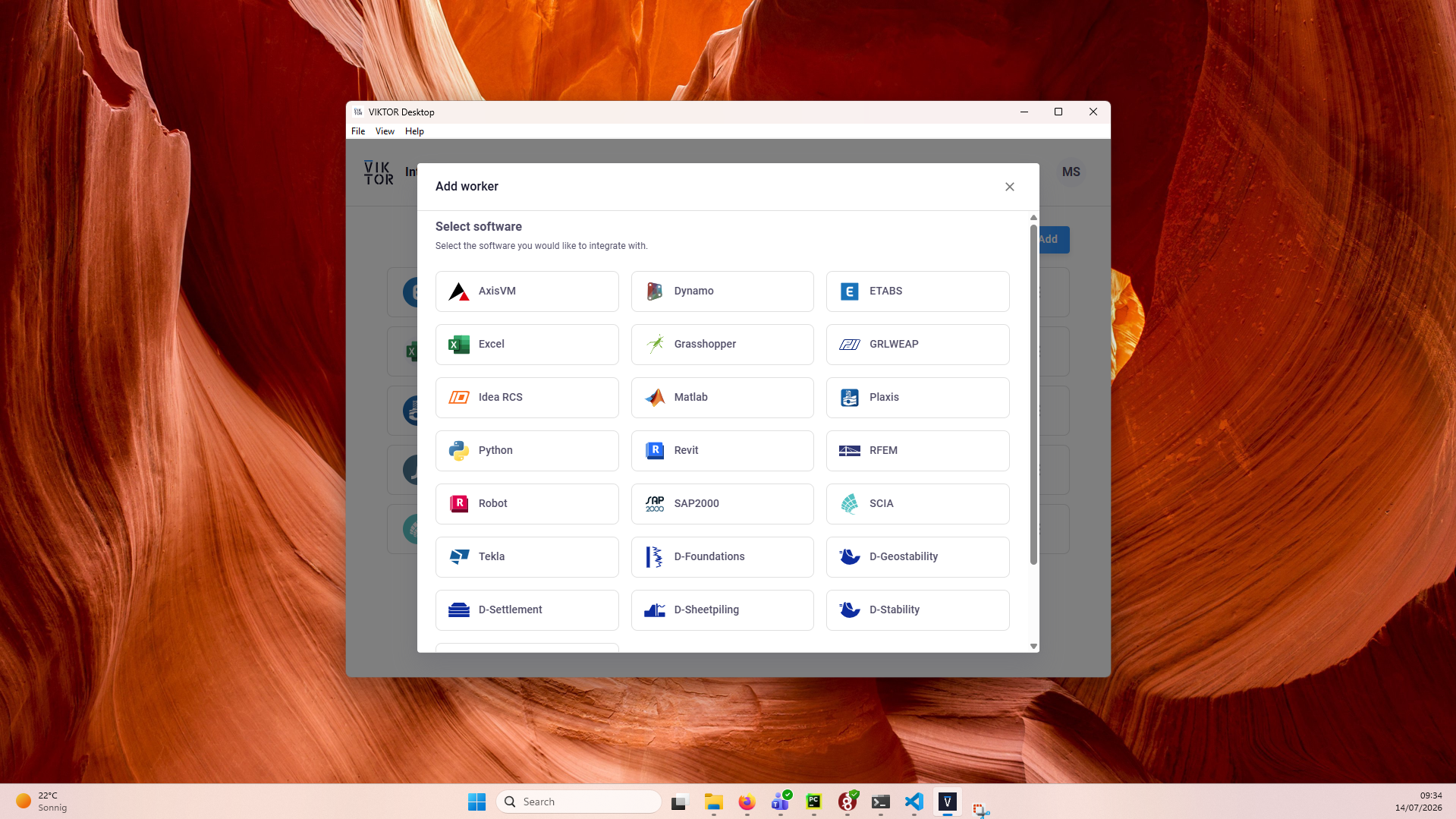
In VIKTOR Desktop, click "Add" and select Generic
-
Define the executables, arguments and paths in the worker's
config.yamlfile, which VIKTOR Desktop exposes when adding the worker -
Start the worker. You can view its logs inside VIKTOR Desktop, and the editor shows when your worker is online
Personal workers that were installed with the previous per-worker installer keep running, but new personal workers can only be added through VIKTOR Desktop: the per-worker installer download and connection-key flow are no longer available for personal use.
An organization worker connects software that runs on a machine managed by your organization, such as a virtual or remote machine, and is shared by the users of the app instance(s) you select.
You need to be an environment administrator in order to install an organization worker.
-
Navigate to the "Integrations" tab in the Administrator panel
-
Click "Add integration"
-
Follow the steps provided in the modal
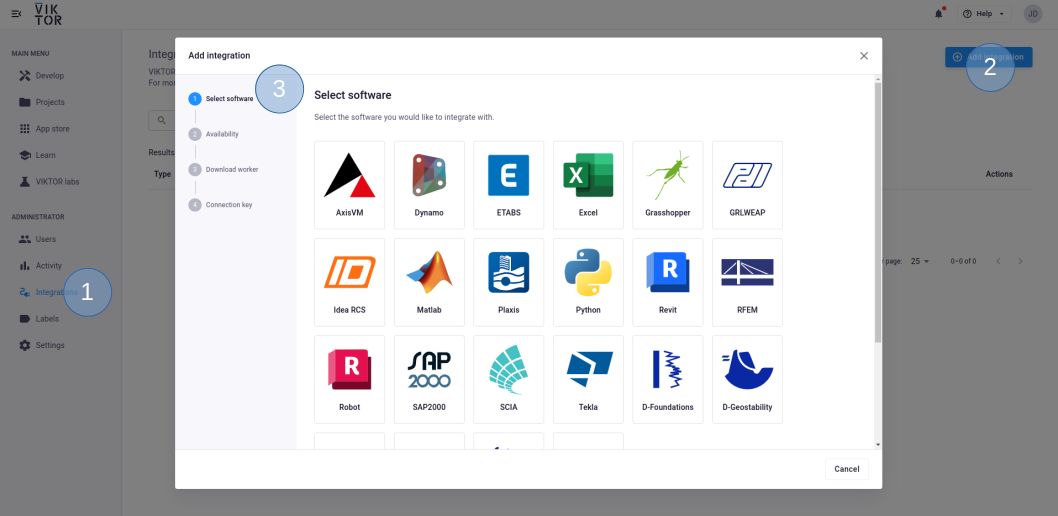
3.1. Select Generic
3.2. Select the app instance(s) the integration should be available to
3.3. Download the worker .msi (Microsoft Installer) and run it on the machine of choice
3.4. Copy the generated connection key and paste it when the installer asks for it. In the browser, you can now click Finish and continue in the installer.
Connection KeyThe generated connection key should be copied immediately as VIKTOR will not preserve this data for security reasons.
-
After installation, define the executables, arguments and paths in the
config.yamlfile, located in the same directory as the worker -
Make sure to launch the integration once the installation is finished. If you closed the integration, you can restart it through the desktop shortcut.
Updating a model
An existing Dynamo model can be passed to VIKTOR's
DynamoFile as shown below. With the update method,
the value of input nodes can be updated. When all inputs have been updated as desired, the generate method can be
used to generate an updated File object.
import viktor as vkt

file = vkt.File.from_path("template.dyn")
dyn_file = vkt.dynamo.DynamoFile(file)

# update input nodes
radius = params.radius
dyn_file.update('Radius', radius)  # input node called "Radius"
...

# generate updated file
input_file = dyn_file.generate()
Running an analysis
Integrating with Dynamo Sandbox can be done using the
DynamoAnalysis class (worker required):
files = [
    ('input.dyn', input_file),
]

# run the analysis
analysis = vkt.dynamo.DynamoAnalysis(files=files, output_filenames=["output.xml", "geometry.json"])
analysis.execute(timeout=60)
The executable_key in the example above refers to the "dynamo" command. This command is part of the worker
configuration: it points to the file location of DynamoWPFCLI.exe (Dynamo Sandbox command-line interface), with
additional arguments specifying where the input model is located and where the results should be exported to. The
command is specified in the worker's configuration file (config.yaml), as shown below. For workers managed with
VIKTOR Desktop, this file is exposed when you add the worker.
For organization workers (installed with the per-worker installer), the file is located in the same directory as the
worker.
See the Dynamo Sandbox documentation for more info on running Dynamo from the command-line.
config.yaml
executables:
  dynamo:
    path: 'C:\path\to\DynamoSandbox\DynamoWPFCLI.exe'
    arguments:
      - '-o'
      - 'input.dyn'
      - '-v'
      - 'output.xml'
maxParallelProcesses: 1
Geometry can also be exported, for which an installation of either "FormIt" or "Revit" is required:
    arguments:
    ...
    - '-gp'
    - 'C:\Program Files\Autodesk\FormIt'  # or Revit
    - '-g'
    - 'geometry.json'
The worker reads the config file once during startup. So when you change the config file, you will need to restart the worker for your changes to take effect.
Processing results
After running the analysis, the output file (.xml) can be obtained using:
output_file = analysis.get_output_file("output.xml", as_file=True)
With the as_file flag, VIKTOR is instructed to return a File object which can directly be passed to the
get_dynamo_result function. The results can then
be obtained by node id, which corresponds to the same node id as the input file.
import viktor as vkt

dyn_file = vkt.dynamo.DynamoFile(file)
...
output_id = dyn_file.get_node_id("Area")  # output node called "Area"
with output_file.open_binary() as f:
    result = vkt.dynamo.get_dynamo_result(f, id_=output_id)
Results will be returned as str type, which means you will need to take care of conversions in the app.
Processing geometry
In a similar matter the geometry file can be obtained after the analysis has been performed. With the helper function
convert_geometry_to_glb, you can convert it
to a GLB type file, which can directly be visualized in a GeometryResult.
import viktor as vkt

@vkt.GeometryView(...)
def geometry_view(self, params, **kwargs):
    ...
    geometry_file = analysis.get_output_file('geometry.json', as_file=True)
    glb_file = vkt.dynamo.convert_geometry_to_glb(geometry_file)
    return vkt.GeometryResult(glb_file)
Testing
DynamoAnalysis.execute needs to be mocked within
the context of (automated) testing.
The viktor.testing module provides the mock_DynamoAnalysis
decorator that facilitate mocking of workers:
import unittest

import viktor as vkt

from viktor.testing import mock_DynamoAnalysis

from app.my_entity_type.controller import MyEntityTypeController


class TestMyEntityTypeController(unittest.TestCase):
    @mock_DynamoAnalysis(get_output_file={
        'result.xml': vkt.File.from_path('test_file.xml'),  # <name>: <File>
        'result.json': vkt.File.from_path('test_file.json'),
        ...
    })
    def test_analysis(self):
        MyEntityTypeController().analysis()
For the decorator's input parameters the following holds:
- If a Sequence type is provided, the next entry is returned for each corresponding method call. When a call is performed on a depleted iterable, an Exception is raised.
- If a single object is provided, the object is returned each time the corresponding method is called (endlessly).
- If None is provided (default), a default File/BytesIO object (with empty content) is returned each time the corresponding method is called (endlessly).