Matlab
Matlab can be executed through command-line instructions, which allows executing complete Matlab scripts. These scripts can, for example, be generated dynamically within VIKTOR. See the Matlab documentation for more info on running Matlab from the command-line.
Add integration to app config
To make the worker integration available through the interface, add the following to your viktor.config.toml:
worker_integrations = [
    "matlab",
]
Instructions on how to install the worker:
Install the worker
Follow these steps to install the worker:
- Personal worker
- Organization worker
A personal worker connects the software that is installed on your own machine, for your own use. Personal workers are installed and managed with VIKTOR Desktop:
-
Download and install VIKTOR Desktop and log in with your VIKTOR account, if you haven't done so already
-
In VIKTOR Desktop, click "Add" and select Matlab
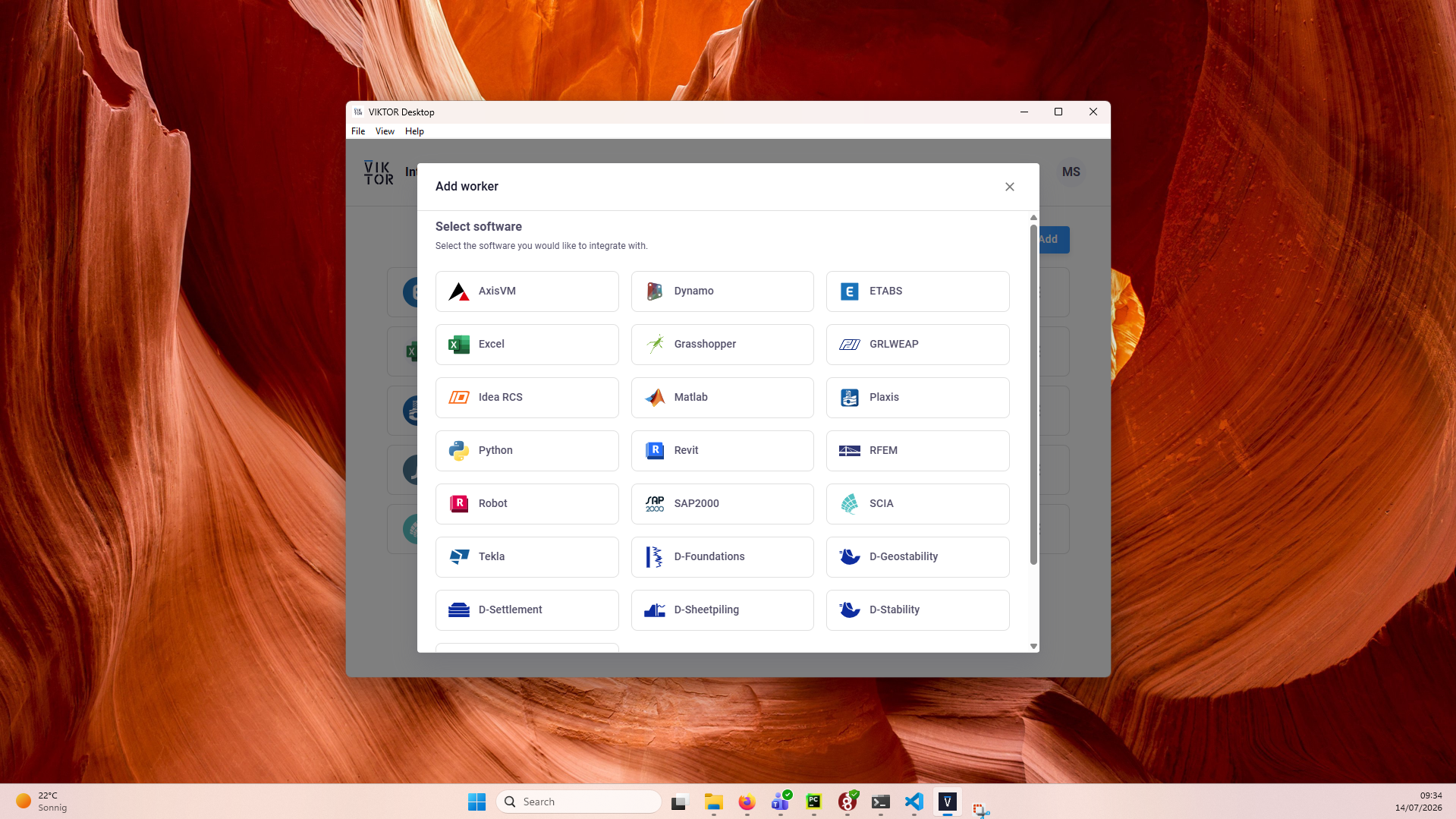
- Set the path to the Matlab executable as the executable path
-
Start the worker. You can view its logs inside VIKTOR Desktop, and the editor shows when your worker is online
Personal workers that were installed with the previous per-worker installer keep running, but new personal workers can only be added through VIKTOR Desktop: the per-worker installer download and connection-key flow are no longer available for personal use.
An organization worker connects software that runs on a machine managed by your organization, such as a virtual or remote machine, and is shared by the users of the app instance(s) you select.
You need to be an environment administrator in order to install an organization worker.
-
Navigate to the "Integrations" tab in the Administrator panel
-
Click "Add integration"
-
Follow the steps provided in the modal
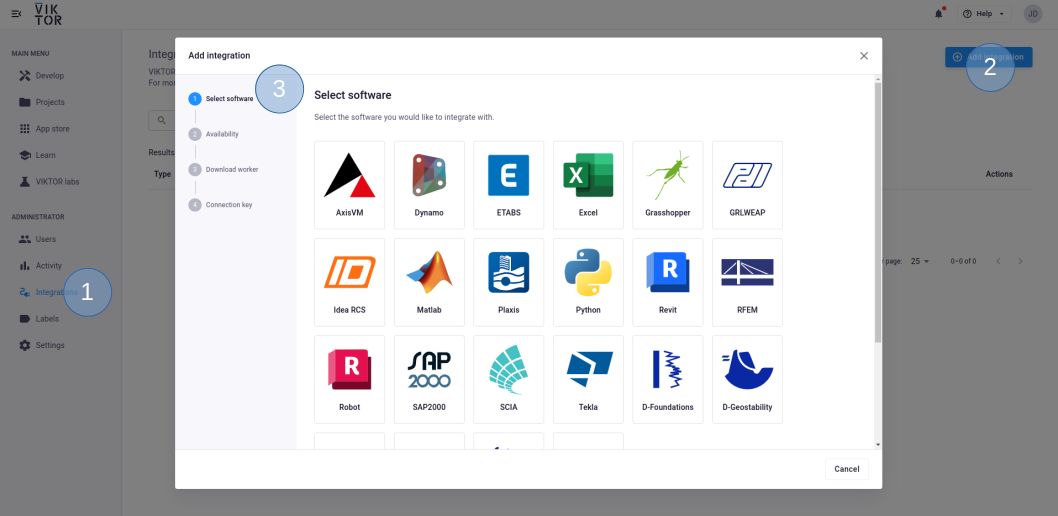
3.1. Select Matlab
3.2. Select the app instance(s) the integration should be available to
3.3. Download the worker .msi (Microsoft Installer) and run it on the machine of choice
3.4. Copy the generated connection key and paste it when the installer asks for it. In the browser, you can now click Finish and continue in the installer.
Connection KeyThe generated connection key should be copied immediately as VIKTOR will not preserve this data for security reasons.
- In the installer wizard, select the Matlab executable
-
Make sure to launch the integration once the installation is finished. If you closed the integration, you can restart it through the desktop shortcut.
App code
import viktor as vkt

# Generate the input file(s)
files = [
    ('input1.txt', file1),
    ('input2.txt', file2)
]

# Run the analysis and obtain the output file
analysis = vkt.matlab.MatlabAnalysis(files=files, output_filenames=["output.txt"])
analysis.execute(timeout=60)
output_file = analysis.get_output_file("output.txt")
Testing
MatlabAnalysis.execute needs to be mocked within
the context of (automated) testing.
The viktor.testing module provides the mock_MatlabAnalysis
decorator that facilitate mocking of workers:
import unittest

import viktor as vkt

from viktor.testing import mock_MatlabAnalysis

from app.my_entity_type.controller import MyEntityTypeController


class TestMyEntityTypeController(unittest.TestCase):
    @mock_MatlabAnalysis(get_output_file={
        'result.xml': vkt.File.from_path('test_file.xml'),  # <name>: <File>
        'result.json': vkt.File.from_path('test_file.json'),
        ...
    })
    def test_analysis(self):
        MyEntityTypeController().analysis()
For the decorator's input parameters the following holds:
- If a Sequence type is provided, the next entry is returned for each corresponding method call. When a call is performed on a depleted iterable, an Exception is raised.
- If a single object is provided, the object is returned each time the corresponding method is called (endlessly).
- If None is provided (default), a default File/BytesIO object (with empty content) is returned each time the corresponding method is called (endlessly).