STAAD.Pro
Introduction
This guide explains how to connect a VIKTOR app to Bentley STAAD.Pro with the VIKTOR Python worker. The worker runs a Python script on a Windows machine that has STAAD.Pro installed and licensed.
The worker
A worker is a program that connects the VIKTOR platform to third-party software running outside the platform. You can install the worker on your local machine or a remote server, but STAAD.Pro must be installed where the worker is located. Your VIKTOR app will handle the communication between the web app and the worker as shown in the following diagram:
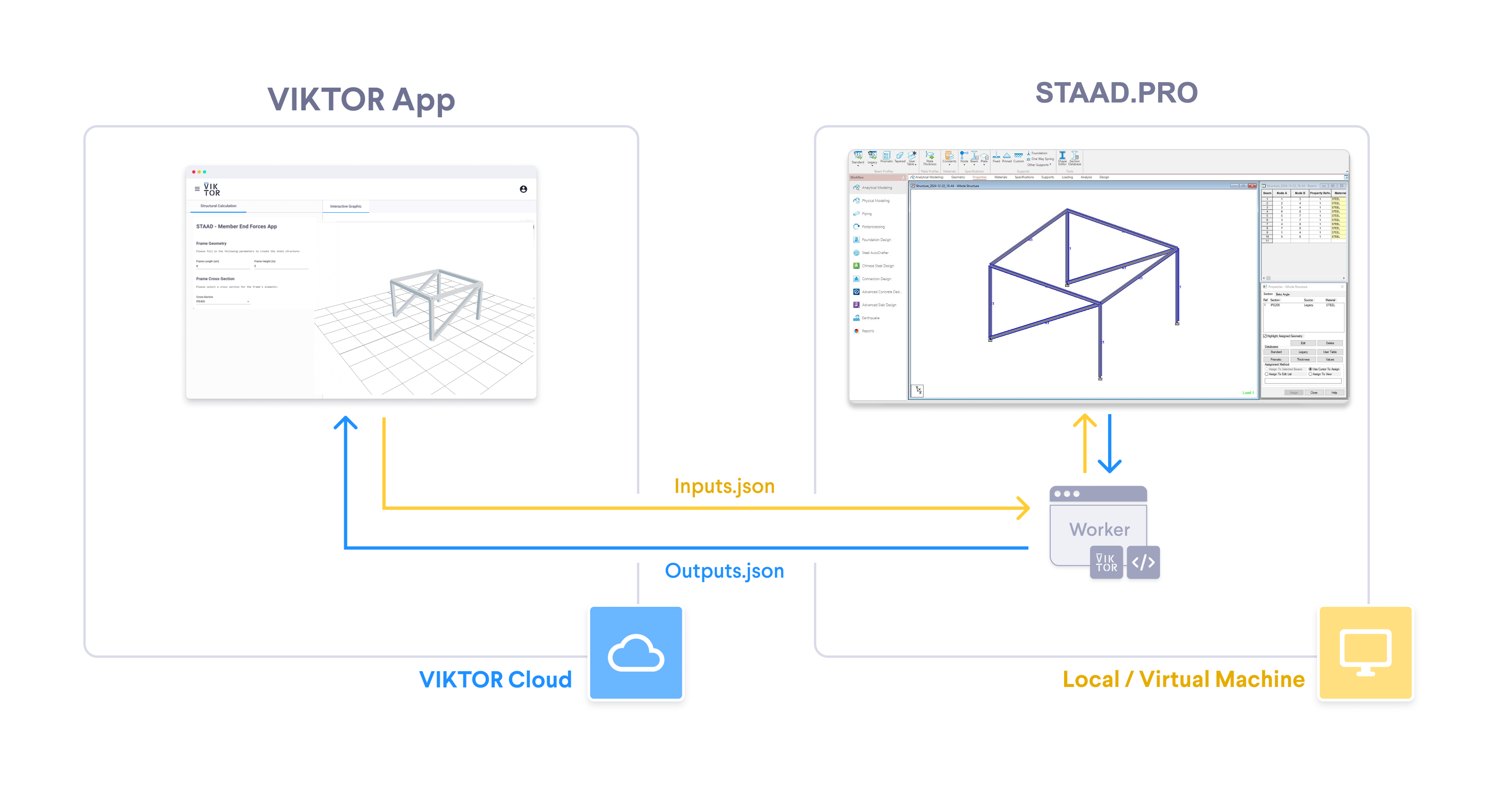
Here is what happens during the integration:
- The user enters input parameters in the
VIKTOR UI. - The
app.pyin the VIKTOR app sends these parameters to the worker. - The worker runs a Python script on the worker machine.
- The Python script creates the model in STAAD.Pro, runs the analysis, and writes the results to
output.json. - The worker sends
output.jsonback to your VIKTOR app. VIKTOR UIdisplays the result of the calculation.
Add integration to app config
To make the worker integration available through the interface, add the following to your viktor.config.toml:
worker_integrations = [
    "python",
]
Instructions on how to install an organization worker can be found here.
Install the Python worker
Follow these steps to install the worker:
- Personal worker
- Organization worker
A personal worker connects the software that is installed on your own machine, for your own use. Personal workers are installed and managed with VIKTOR Desktop:
-
Download and install VIKTOR Desktop and log in with your VIKTOR account, if you haven't done so already
-
In VIKTOR Desktop, click "Add" and select
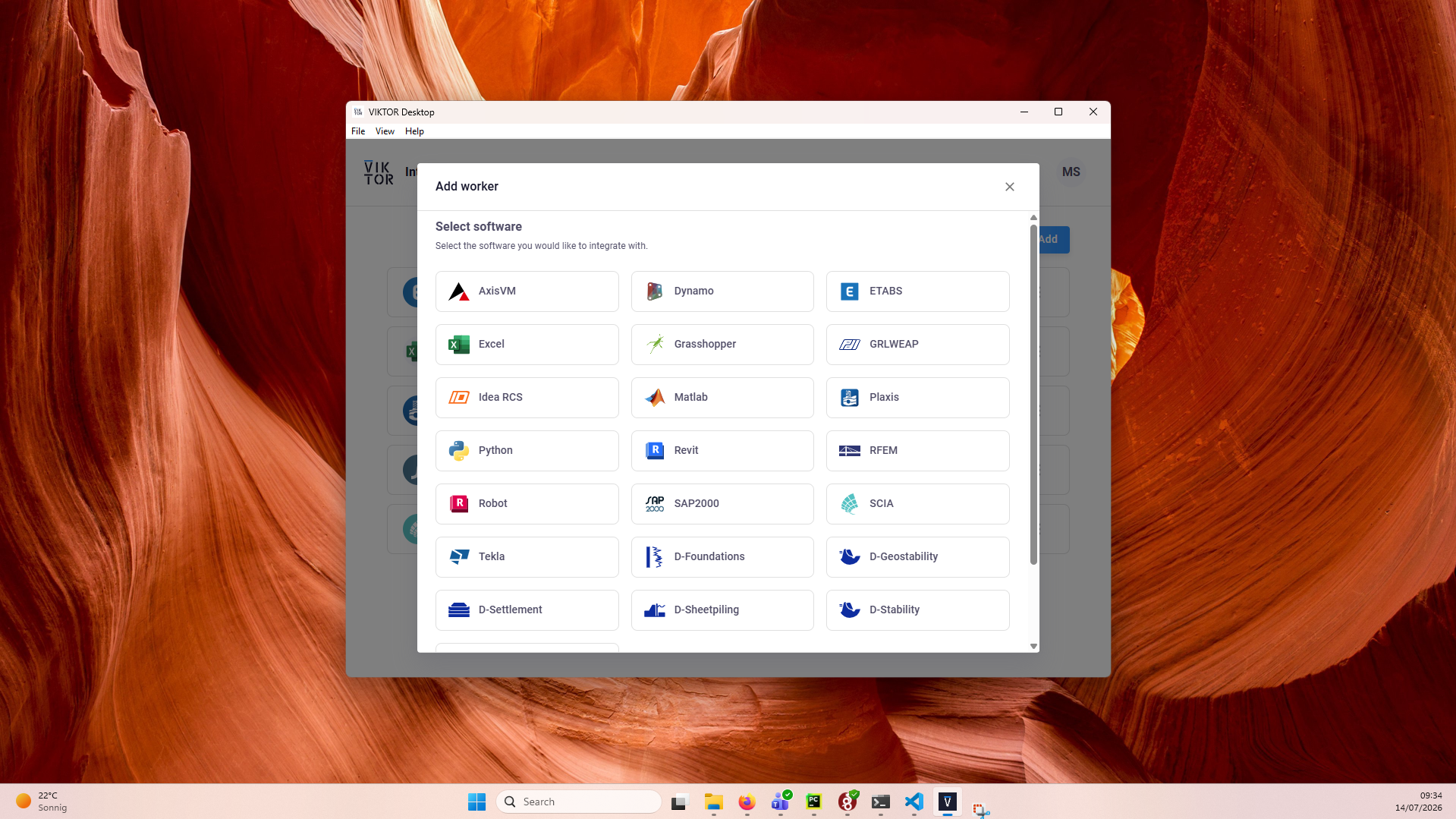
-
Select the Python environment of your choice by setting the path to its
python.exeas the executable path. This can be your system Python, or the python.exe in a dedicated virtual environmenttipYour default Python environment can usually be found in
C:\Users\Username\AppData\Local\Programs\Python\Python31X\python.exeIf you cannot find it, try running the following command in your terminal
where python -
Start the worker. You can view its logs inside VIKTOR Desktop, and the editor shows when your worker is online
Personal workers that were installed with the previous per-worker installer keep running, but new personal workers can only be added through VIKTOR Desktop: the per-worker installer download and connection-key flow are no longer available for personal use.
An organization worker connects software that runs on a machine managed by your organization, such as a virtual or remote machine, and is shared by the users of the app instance(s) you select.
You need to be an environment administrator in order to install an organization worker.
-
Navigate to the "Integrations" tab in the Administrator panel
-
Click "Add integration"
-
Follow the steps provided in the modal
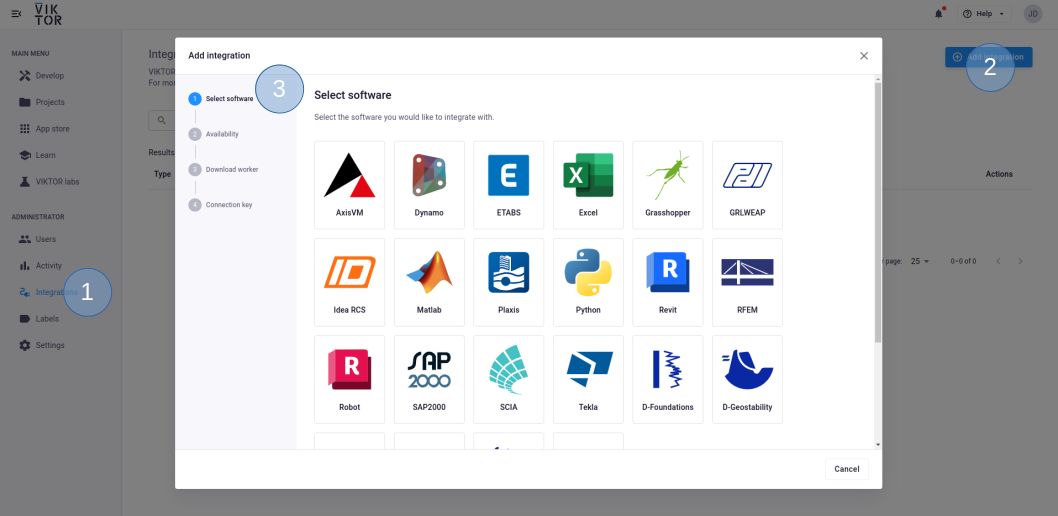
3.1. Select
3.2. Select the app instance(s) the integration should be available to
3.3. Download the worker .msi (Microsoft Installer) and run it on the machine of choice
3.4. Copy the generated connection key and paste it when the installer asks for it. In the browser, you can now click Finish and continue in the installer.
Connection KeyThe generated connection key should be copied immediately as VIKTOR will not preserve this data for security reasons.
-
In the installer wizard, select the Python executable of your choice, this can be your system Python, or the python.exe in a dedicated virtual environment
tipYour default Python environment can usually be found in
C:\Users\<Username>\AppData\Local\Programs\Python\Python31X\python.exe.If you cannot find it, try running
where pythonin your terminal. -
Make sure to launch the integration once the installation is finished. If you closed the integration, you can restart it through the desktop shortcut.
Set up the Python environment on the worker
The Python worker will execute the script that communicates with STAAD.Pro. Install the STAAD.Pro Python dependencies in the same Python environment that you selected during worker setup (in VIKTOR Desktop, or the installer wizard for organization workers).
Use openstaadpy for STAAD.Pro 2025 or newer:
pip install git+https://github.com/BentleySystems/openstaadpy.git
For older STAAD.Pro versions (<2025), use the COM-based workflow:
pip install pywin32 comtypes
You can find a complete guide here
Connecting your app to the worker
You can use the following app.py template to set up the communication with your worker.
In the current state you will need to add some code to the 'Parametrization' class as well as functions to generate 'inputs.json'.
The code to generate 'output.json' needs to be added to the 'run_staad_model.py' file (see next section).
If you would like an example of these feel free to follow our STAAD.Pro tutorial.
from viktor.external.python import PythonAnalysis
from viktor.core import File
from pathlib import Path

class Parametrization(vkt.Parametrization):
    # add your parameters here

class Controller(vkt.Controller):
    ...
    # Add a function inside the Controller to create an `inputs.json` file.

    def run_staad(self, params, **kwargs):
        input_json = json.dumps([nodes, lines, cross_section])
        script_path = Path(__file__).parent / "run_staad_model.py"

        staad_analysis = PythonAnalysis(
            script=File.from_path(script_path),
            files=[("inputs.json", BytesIO(input_json.encode("utf-8")))],
            output_filenames=["output.json"],
        )
        staad_analysis.execute(timeout=300)

        output_file = staad_analysis.get_output_file("output.json")
        # Further logic to handle the output.json data
The following template can be used to define the content of your run_staad_model.py to communicate with the worker and your VIKTOR app:
# run_staad_model.py
import json
from pathlib import Path

def create_staad_model():
    """
    1. Your code reads the inputs.json file and
    uses the content for structural analysis in STAAD.Pro.
    """

    input_json = Path.cwd() / "inputs.json"
    with open(input_json) as jsonfile:
        data = json.load(jsonfile)

    """
    2. Add your logic here for the analysis
    using the STAAD.Pro API, possibly through openstaadpy.
    """

    outputs = {
        "some_result": 123  # Example placeholder data
    }

    """
    3. Store the results of your analysis
    in the output.json file to be sent to
    your VIKTOR app.
    """

    output_file = Path.cwd() / "output.json"
    with open(output_file, "w") as jsonfile:
        json.dump(outputs, jsonfile)

create_staad_model()
Conclusion
By following this guide, you have learned how to set up your worker for use with STAAD.Pro. With the provided templates, you are ready to integrate STAAD.Pro into your VIKTOR app and automate design and analysis tasks. Want to dive right in and build a complete STAAD.Pro automation? Follow our STAAD.Pro tutorial.