Autodesk Forma Site Design
Autodesk Forma Site Design can be integrated with VIKTOR through Autodesk Platform Services (APS). A VIKTOR app can read Forma proposals and terrain, create geometry, and publish the result as a new proposal revision.
The connection uses an APS OAuth 2.0 integration in VIKTOR and a Forma extension service account. The same APS client ID links the VIKTOR integration, Autodesk Construction Cloud (ACC), and the Forma extension.
| Component | Purpose |
|---|---|
| APS application | Provides the client ID, client secret, callback URL, API access, and OAuth scopes |
| VIKTOR OAuth 2.0 integration | Authenticates each VIKTOR user and provides an APS access token to the app |
| ACC custom integration | Grants the APS application access to the required ACC account, hub, and projects |
| Forma extension service account | Authorizes the APS application to call Forma APIs for the selected Forma projects |
What you can do with the Forma APIs
After setting up the APS, ACC, and Forma connections, a VIKTOR app can use the Forma APIs to read project data, process it in a custom workflow, and publish results back to Forma.
| Capability | What it enables |
|---|---|
| Proposals and revisions | List the proposals in a Forma project, retrieve their URNs, and work with a specific proposal revision. |
| Elements | Retrieve Forma elements by URN and inspect the elements that make up a proposal. |
| Terrain | Find the terrain attached to a proposal and download its geometry for visualization or spatial calculations. |
| Basic geometry | Create geometry elements, such as building volumes, using data generated or processed in VIKTOR. |
| Proposal updates | Attach created elements to a new proposal revision while preserving the existing terrain, base, and proposal elements. |
These capabilities can be used to create workflows such as:
- Comparing and reporting on Forma proposals in a VIKTOR interface.
- Using terrain bounds to validate or generate a site layout.
- Creating geometry from engineering calculations or design rules.
- Reviewing generated geometry in VIKTOR before publishing it to a new Forma proposal revision.
Forma API requests are project- and region-specific. They require the Forma project ID as authcontext, the correct US or EMEA region, and complete element or proposal URNs when referencing existing data.
Before you begin
You need:
- VIKTOR administrator access to create and assign an OAuth 2.0 integration.
- Access to an APS application and its client ID and client secret.
- ACC Account Administrator access to add a custom integration.
- Access to the target Forma project and permission to create and install an extension.
An ACC custom integration does not replace the Forma extension service account. Both use the same APS client ID, but they grant access at different layers.
Set up the integration
1. Create the APS application and VIKTOR integration
Follow Creating an OAuth 2.0 integration (admin) to create the APS application and configure and assign the Autodesk Platform Services integration in VIKTOR. Use forma-site as the integration name throughout this guide.
2. Add the APS client ID to the ACC account
Follow Integration with Autodesk Construction Cloud (ACC) to register the same APS client ID as a custom integration in the ACC account. For a video walkthrough of the APS, ACC, and Forma setup, see Integrate your VIKTOR app with Autodesk Construction Cloud.
3. Create and install the Forma extension
The APS client ID must also be registered as a service account on a Forma extension.
-
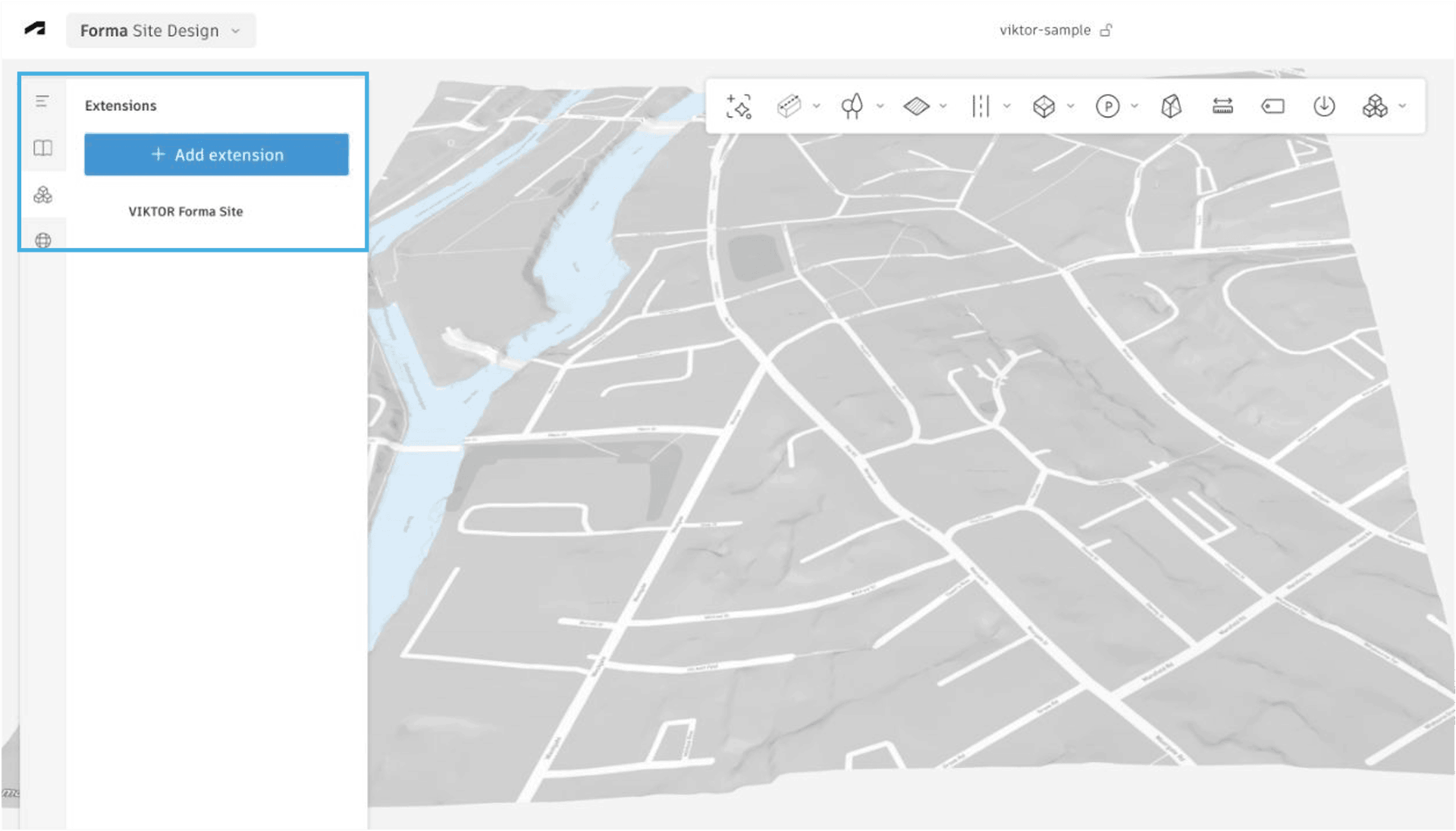
Open the target Forma project and go to Extensions → Add extension.
-
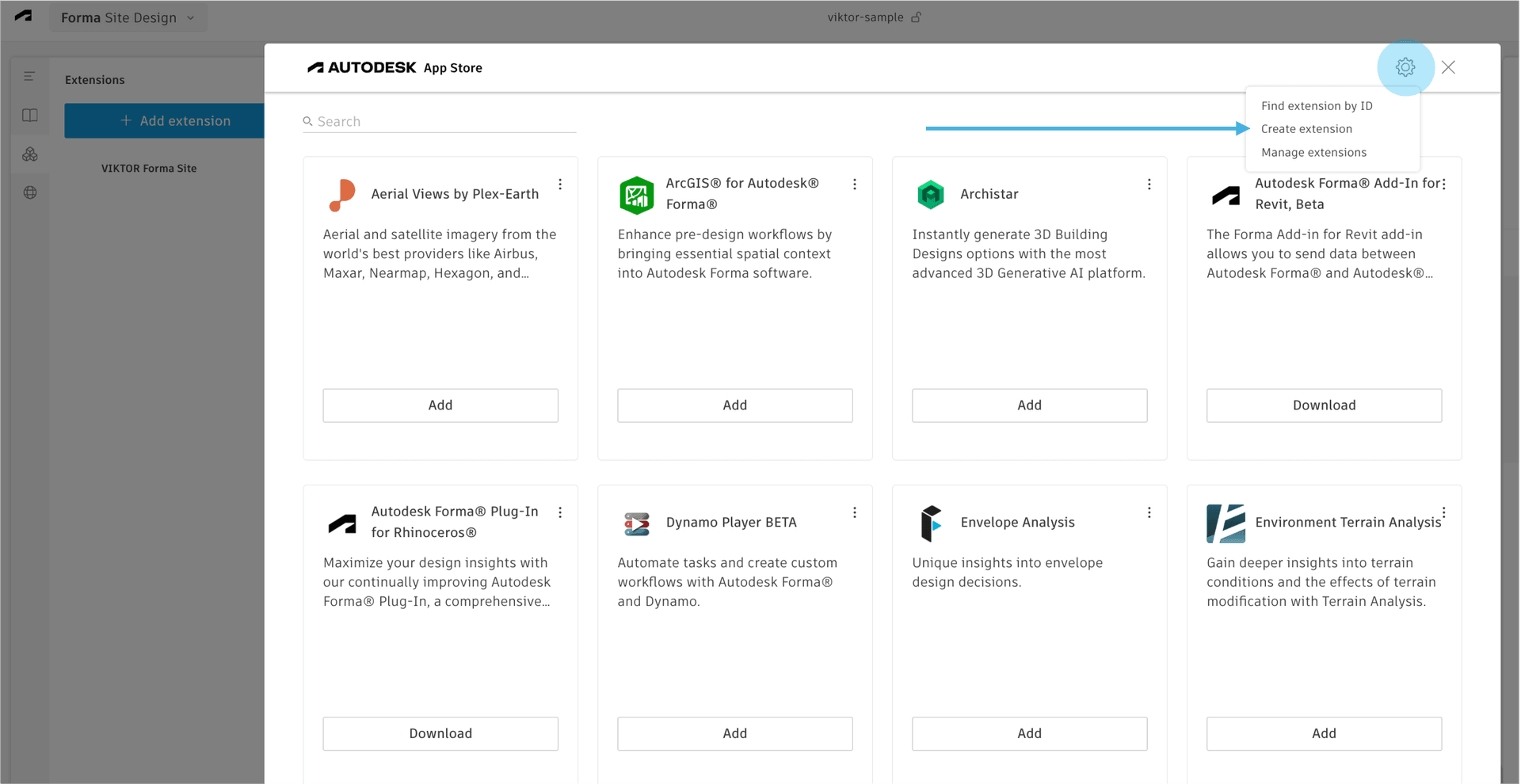
In the Autodesk App Store dialog, select the settings icon in the upper-right corner and choose Create extension.
-
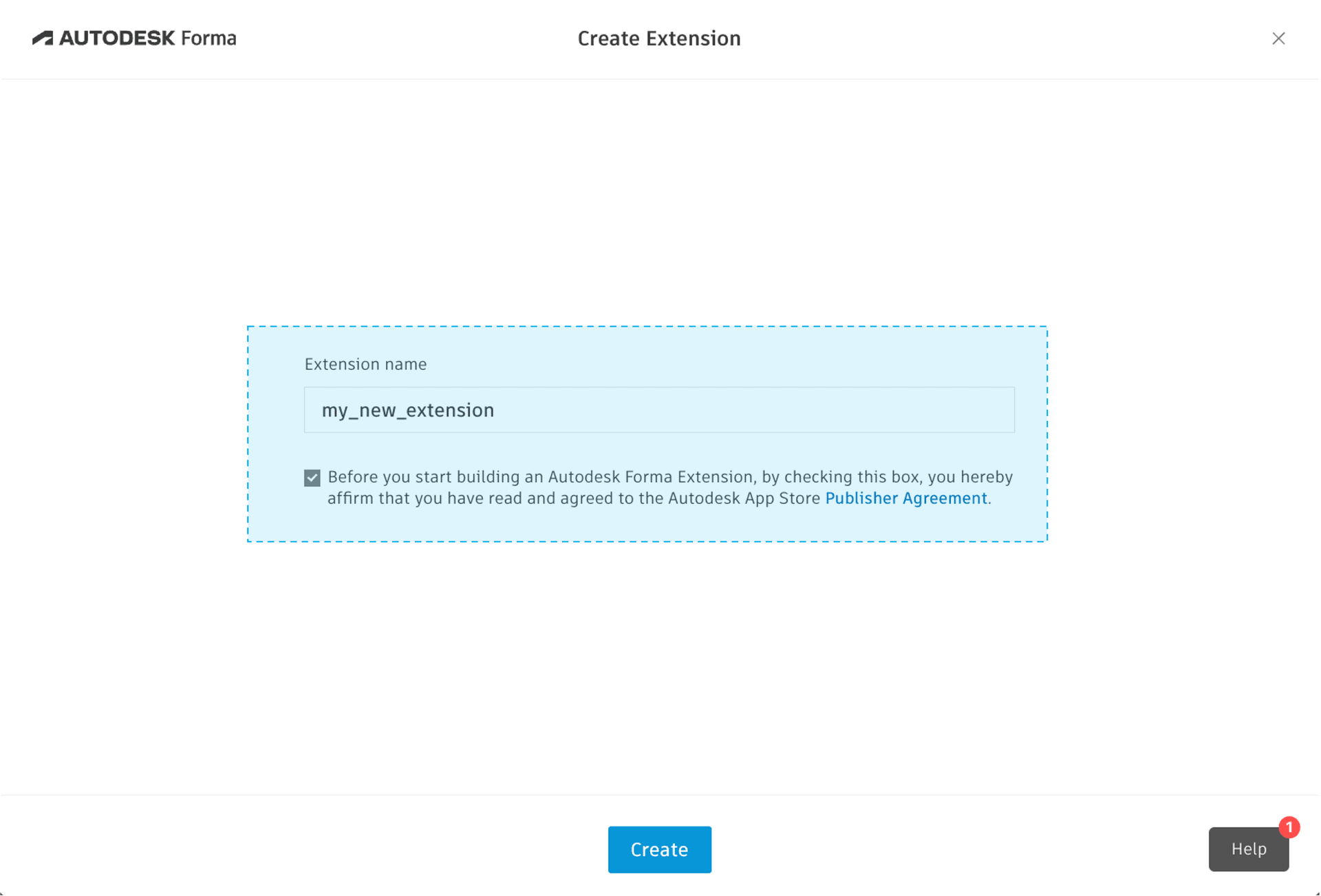
Name the extension, accept the Publisher Agreement, and select Create.
-
Set the extension owner to the APS application used by the VIKTOR integration. In this guide, that application is Application: forma-site-autodesk. Limit access to the required Forma projects, or allow all Forma users when appropriate.
noteforma-site-autodeskis the display name assigned when the APS application was created on the APS applications page. Your APS application may have a different name; select the application whose client ID is used by the VIKTOR integration.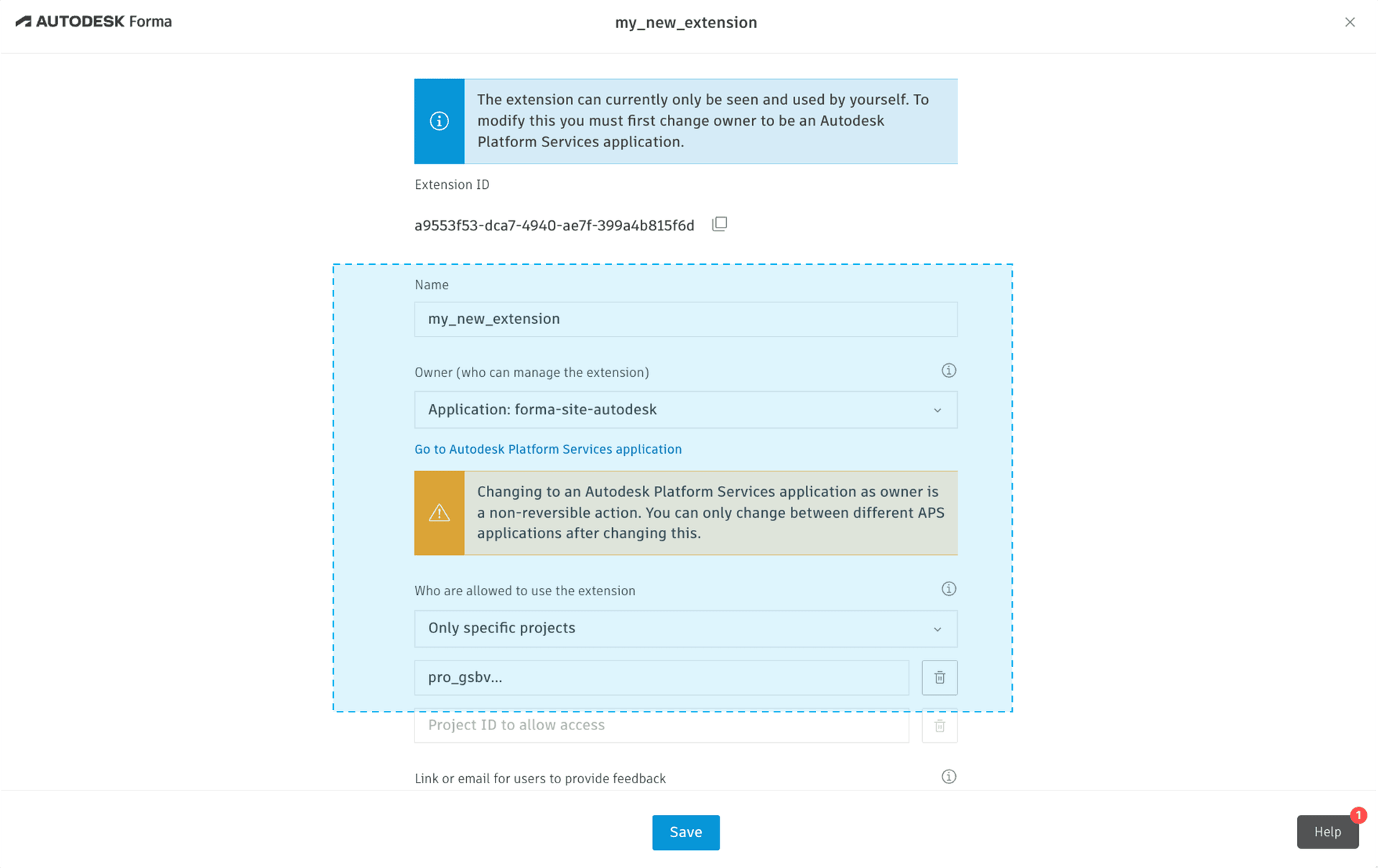 note
noteOwner (who can manage the extension) provides these options:
-
Myself only: the current Autodesk user owns and manages the extension.
-
Application: APS application name: transfers ownership of the extension to the selected APS application. This guide uses Application: forma-site-autodesk; select the APS application associated with your own VIKTOR OAuth 2.0 integration.
-
Manage APS Applications: opens the APS application management page.
Who are allowed to use the extension provides these options:
-
Only specific projects: limits the extension to the selected Forma projects.
-
All users of Forma: makes the extension available to all Forma users in the environment.
This setting controls where the extension can be used; it does not replace installing the extension in each target project.
warningTransferring extension ownership to an APS application is non-reversible. Confirm that you selected the APS application associated with your VIKTOR integration before saving.
-
Open the extension Integration settings, add a service account, and enter the same APS client ID used in VIKTOR and ACC.
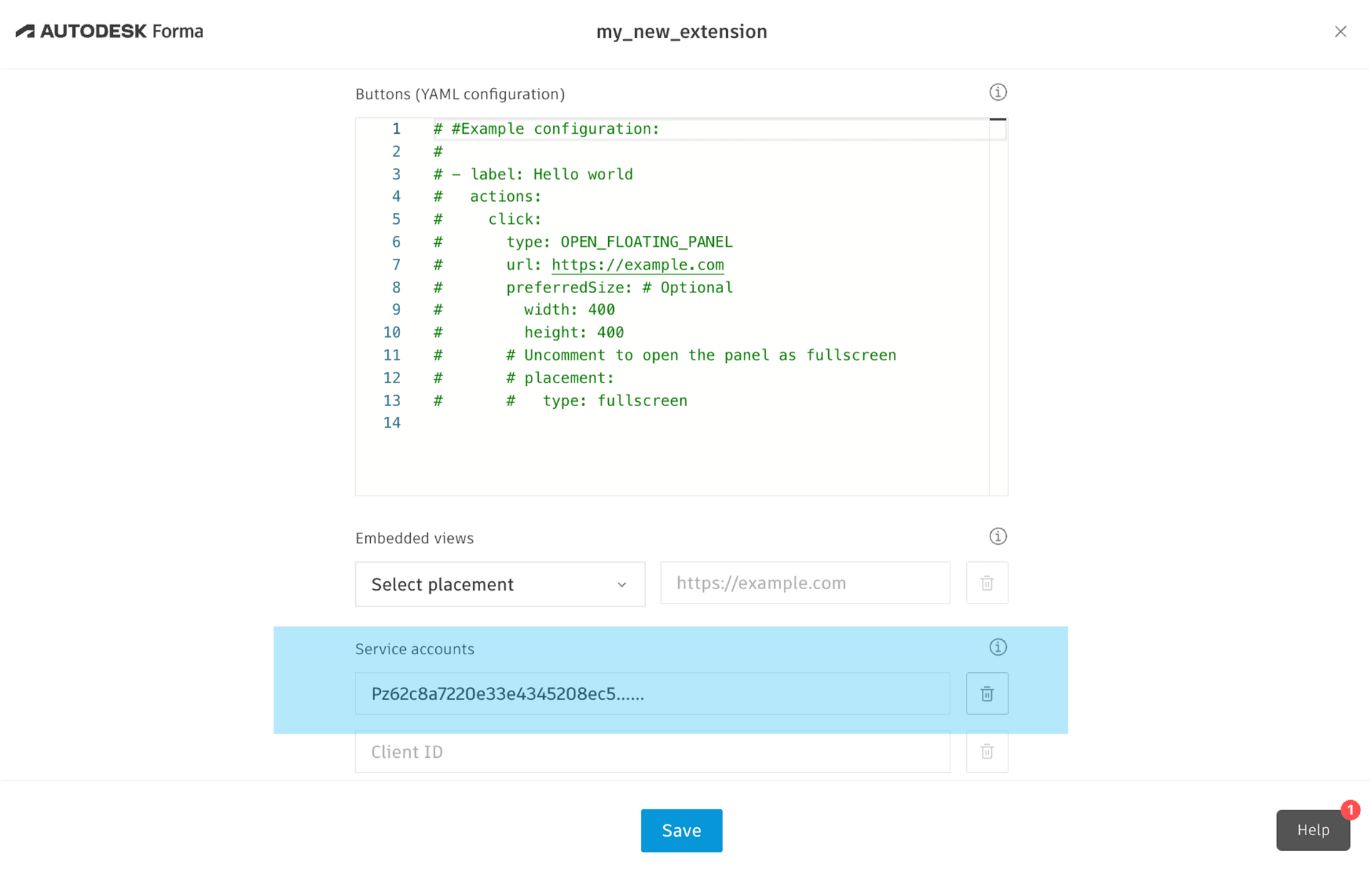
- Save the extension, return to the target project's Extensions catalog, and install it. Install the extension in every Forma project that the VIKTOR app needs to access.
The extension does not need buttons, embedded views, endpoints, or bundles for a VIKTOR app that calls the Forma APIs directly. The service-account configuration provides the required API authorization.
Use the integration in a VIKTOR app
You have two alternatives for developing an app that integrates with Autodesk Forma Site Design:
Using the App Builder
The App Builder can generate the proposal lookup app from a natural-language prompt. Before submitting the prompt, make sure the Autodesk Platform Services integration is available in your VIKTOR environment.
Use the following prompt:
Create a simple VIKTOR app that retrieves Autodesk Forma proposal alternatives using Python,
requests, and the configured OAuth 2.0 integration named "forma-site". Add an H1 heading named
"Application", a short description, a text input named "Forma project/site ID" explaining that
the value usually starts with `pro_` and comes from the Forma project URL, a "Forma region"
selector with US and EMEA options and EMEA selected by default, and a DataView named "Forma
proposals" with a "Load proposals" button. Do not include a real project ID or hard-coded default.
Request `https://developer.api.autodesk.com/forma/proposal/v1alpha/proposals` with the entered ID
as `authcontext`, a limit of 20, the selected region in `X-Ads-Region`, and a 30-second timeout. The
JSON response contains a `results` collection in which each proposal has a display name, a fallback
name, and its complete URN; show these as DataItems, using the display name first, the fallback name
second, and "Unnamed proposal" otherwise. Show "No proposals found" when the collection is empty,
validate missing input with a clear UserError, and present safe user-facing request errors without
exposing tokens or raw API responses.
After submitting the prompt, assign the integration to the app:
- Open App details in the App Builder.
- Open the Integrations tab and select the OAuth 2.0 integration named
forma-site. - Save the selection and connect the integration when prompted.
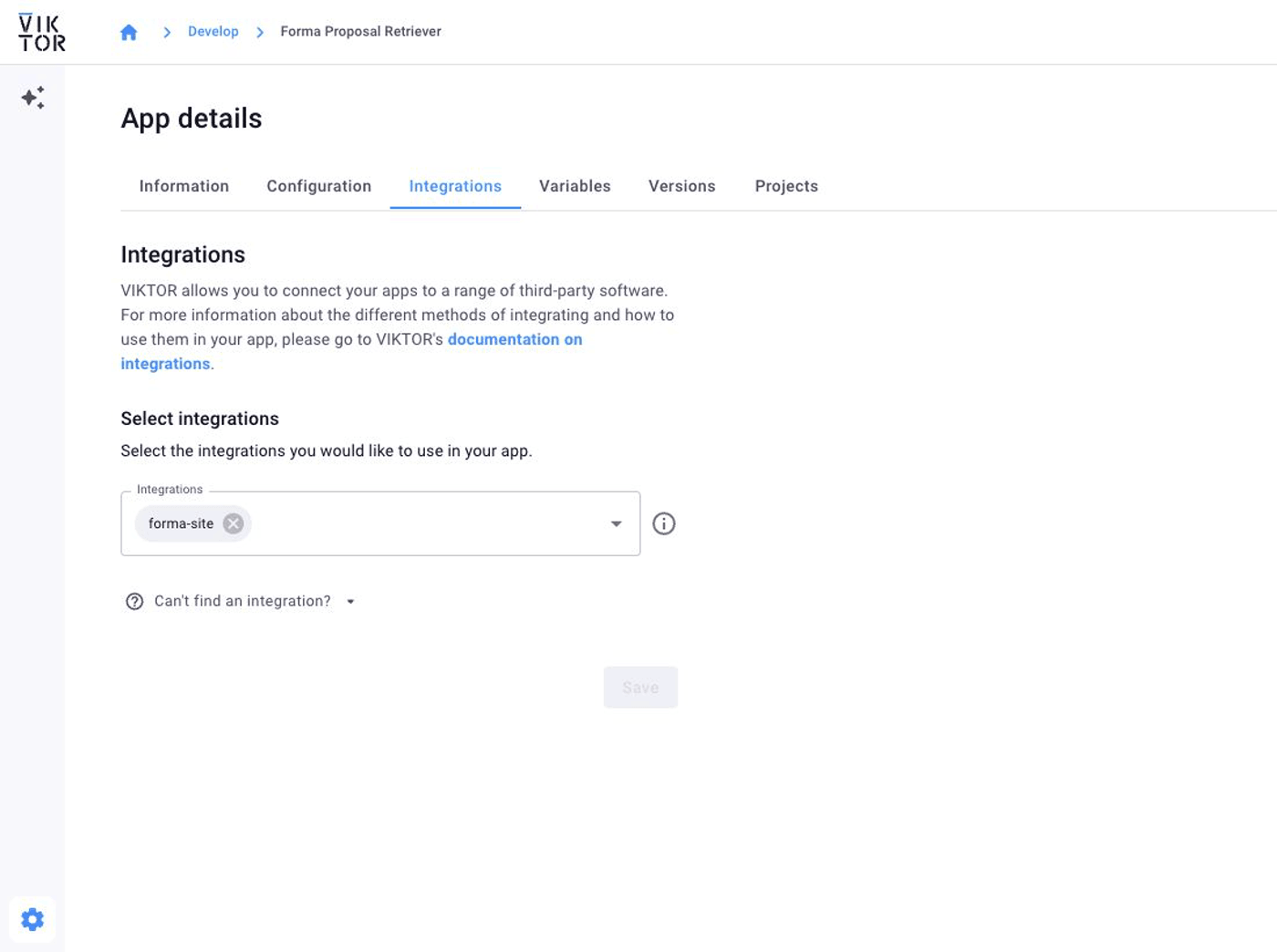
If your administrator used a different integration name, replace forma-site in the prompt with that exact name.
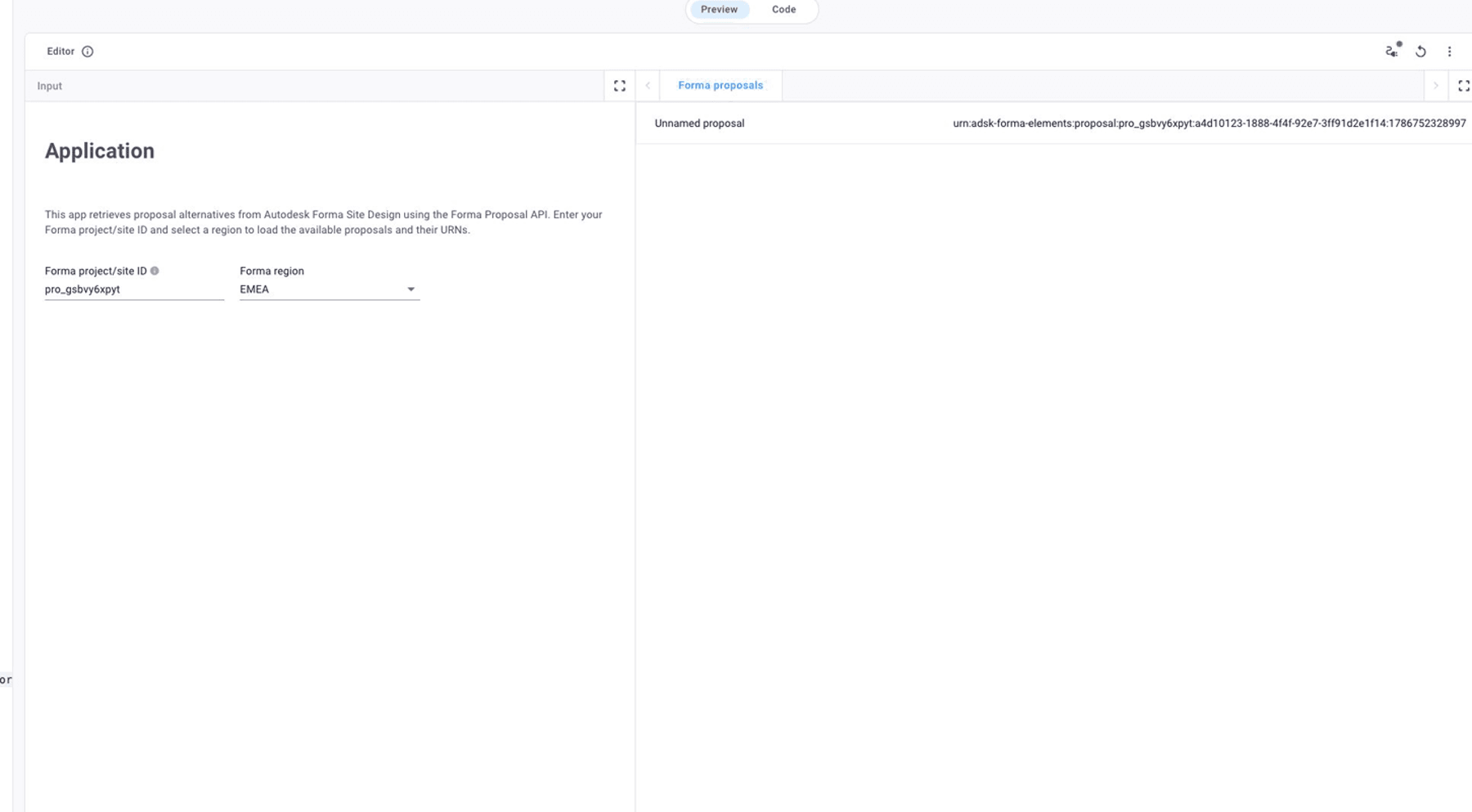
A generated App Builder result can look like this:
Using local development
The following small VIKTOR app retrieves the proposal alternatives in a Forma project and displays each proposal URN in a DataView:
import requests
import viktor as vkt

FORMA_API_URL = "https://developer.api.autodesk.com"
APS_INTEGRATION_NAME = "forma-site"


class Parametrization(vkt.Parametrization):
    introduction = vkt.Text(
        """# Application

Retrieve proposal alternatives and their URNs from an Autodesk Forma Site Design project.
"""
    )
    project_id = vkt.TextField(
        "Forma project/site ID",
        description="Copy the pro_... value from the Forma project URL.",
    )
    region = vkt.OptionField(
        "Forma region",
        options=["US", "EMEA"],
        default="EMEA",
    )


class Controller(vkt.Controller):
    label = "Forma proposal URNs"
    parametrization = Parametrization

    @vkt.DataView(
        "Forma proposals",
        duration_guess=5,
        update_label="Load proposals",
        description="Lists proposal URNs for the entered Forma project/site ID.",
    )
    def proposal_urns(self, params, **kwargs):
        project_id = str(params.project_id or "").strip()
        if not project_id:
            raise vkt.UserError(
                "Enter a Forma project/site ID before loading proposals."
            )

        access_token = vkt.external.OAuth2Integration(
            APS_INTEGRATION_NAME
        ).get_access_token()
        try:
            response = requests.get(
                f"{FORMA_API_URL}/forma/proposal/v1alpha/proposals",
                params={"authcontext": project_id, "limit": "20"},
                headers={
                    "Authorization": f"Bearer {access_token}",
                    "X-Ads-Region": str(params.region),
                },
                timeout=30,
            )
            response.raise_for_status()
        except requests.RequestException as exc:
            raise vkt.UserError(
                "Could not retrieve Forma proposals. Check the project/site ID, "
                "region, and integration access."
            ) from exc

        proposals = response.json().get("results", [])
        proposal_items = [
            vkt.DataItem(
                proposal.get("displayName")
                or proposal.get("name")
                or "Unnamed proposal",
                proposal.get("urn", ""),
            )
            for proposal in proposals
        ]
        if not proposal_items:
            proposal_items = [vkt.DataItem("Proposals", "No proposals found")]

        return vkt.DataResult(vkt.DataGroup(*proposal_items))
Declare the APS OAuth 2.0 integration in viktor.config.toml:
app_type = "simple"
python_version = "3.12"
registered_name = "forma-site"
oauth2_integrations = [
    "forma-site",
]
The value forma-site in oauth2_integrations and OAuth2Integration must exactly match the name of the Autodesk Platform Services integration created in the VIKTOR Administrator panel.
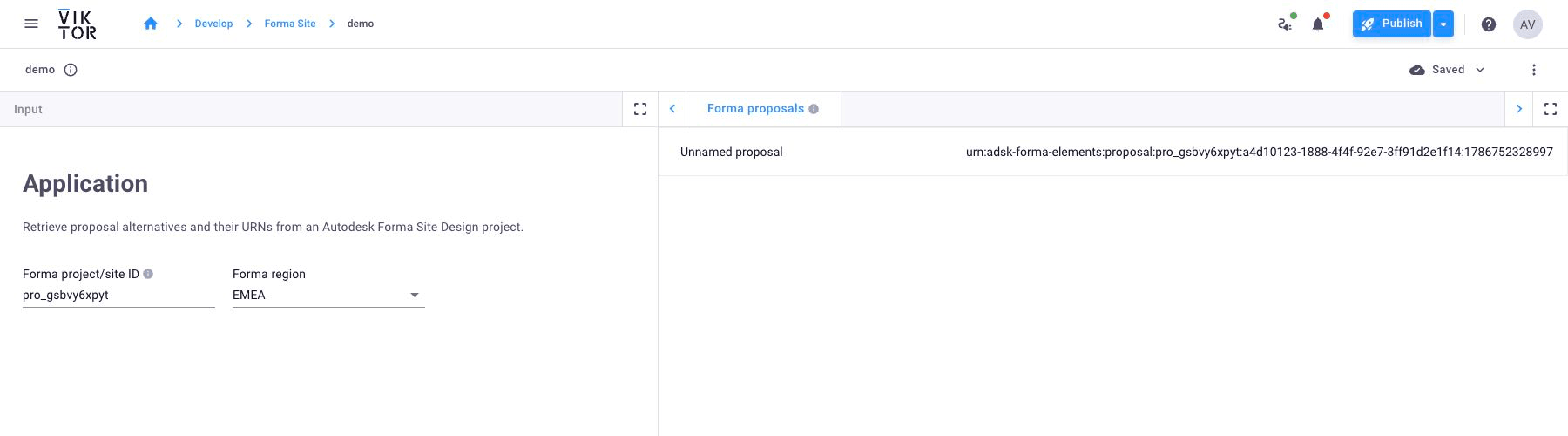
Enter the project/site ID from the Forma URL and select the matching region. The view then lists the available proposal alternatives and their complete URNs.
Keep these request requirements in mind:
authcontextis the Forma project or site ID, which normally starts withpro_and can be copied from the Forma URL.X-Ads-Regionmust match the project region:USorEMEA.- A complete proposal URN includes its revision:
urn:adsk-forma-elements:proposal:<project-id>:<proposal-id>:<revision-id>. - Use the latest proposal revision before publishing changes. A stale revision cannot be updated.
Troubleshooting
| Problem | Check |
|---|---|
403 AccessDeniedException | Verify the VIKTOR APS integration, ACC custom integration, Forma extension service account, project access, and selected region. |
| The ACC integration works but Forma rejects the request | Confirm that the Forma extension has the APS client ID configured as a service account and is installed in the target project. |
| The project cannot be found | Verify the authcontext project ID and whether X-Ads-Region is set to US or EMEA. |
| Geometry is not visible | Confirm that the created element URNs were attached to a new proposal revision, then reload Forma Site Design. |
| A proposal update fails | Load the latest complete proposal URN before publishing; an older revision may be stale. |