Microsoft Fabric
- A Microsoft Entra tenant and permission to register an app, or an administrator who can do this for you.
- A VIKTOR environment administrator who can create OAuth 2.0 integrations.
- Power BI. You need access to the workspace and semantic model. To run queries, the signed-in user needs Read and Build permissions on the model. Your tenant must enable Dataset Execute Queries REST API. See Power BI query permissions.
- OneLake. You need a lakehouse in a workspace on active Fabric capacity. The signed-in user needs read access to the data, and your tenant must allow external access to OneLake. See OneLake tenant settings and lakehouse permissions.
Microsoft Fabric is Microsoft's cloud platform for data and analytics. It includes tools to collect data with pipelines, process it in notebooks, query it in SQL warehouses, and build reports in Power BI. Teams organize these items in workspaces. OneLake is the shared storage layer for Fabric data, including lakehouse files and tables. See Microsoft Fabric overview and OneLake overview.
| What your VIKTOR app needs to do | API to use |
|---|---|
| Browse Fabric workspaces and find items such as lakehouses, notebooks, or semantic models. | Fabric REST API |
| Run a DAX query on a Power BI semantic model. The model can use data in OneLake or another data source. | Power BI REST API |
| List or read files in a lakehouse. | OneLake through the Azure Data Lake Storage API |
Each API in the table uses a different access token. In VIKTOR, create one OAuth 2.0 integration for each API your app calls. The scopes in each integration identify the target API and the permissions to request. For example, an app that uses the Fabric REST API to find a lakehouse and OneLake to read its files needs two VIKTOR integrations. Both can use the same Microsoft Entra app registration. See Microsoft Entra access tokens.
Follow the setup steps:
- Register an app in Microsoft Entra.
- Add API permissions.
- Create the VIKTOR integrations.
- Implement the integration.
Register an app in Microsoft Entra
- Open Microsoft Entra app registrations and sign in to your organization.
- Select New registration.
- Enter a name, select the supported account types, and select Web as the redirect platform.
- Enter the callback URL of your VIKTOR environment and select Register.
- On the Overview page, copy the Application (client) ID and Directory (tenant) ID.
The callback URL has this format. Replace <your-viktor-environment> with your environment host and keep the final slash:
https://<your-viktor-environment>/api/integrations/oauth2/callback/
For more details, see Registering an application in Microsoft Entra.
For this guide, register an application named viktor-fabric-integration, as shown below. Use your own tenant and VIKTOR callback URL.
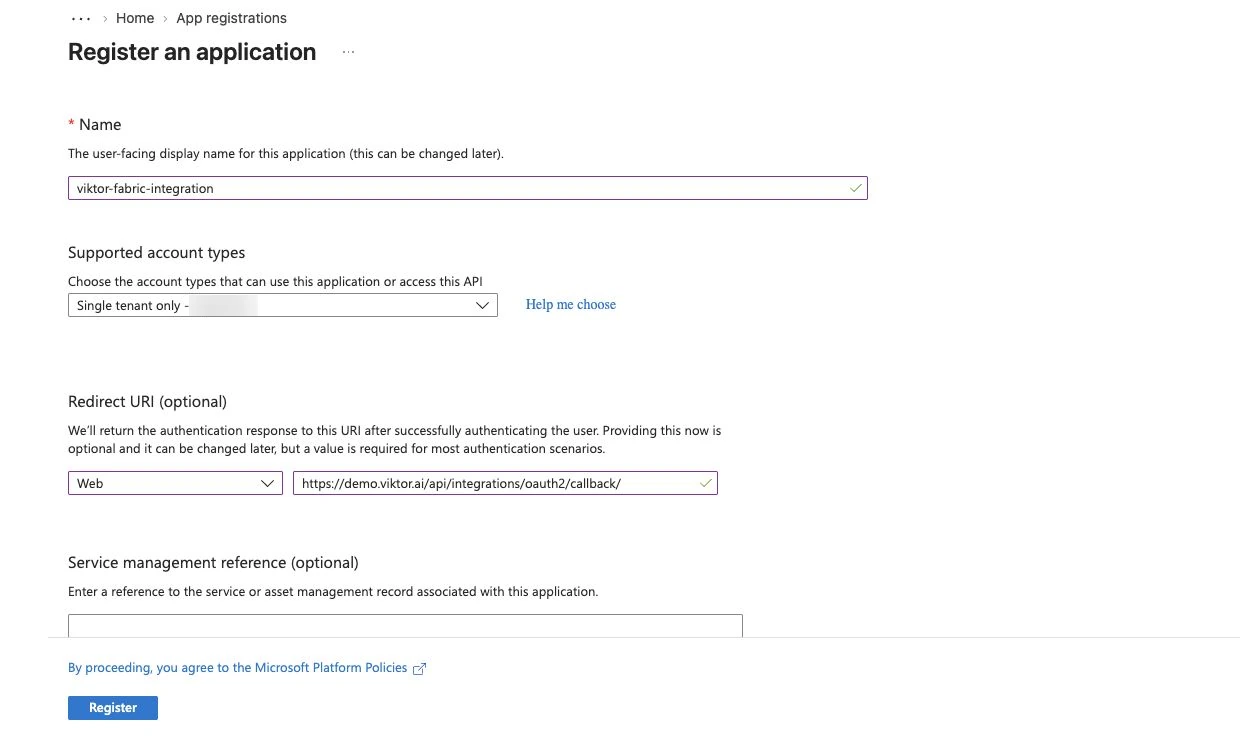
The screenshots use demo.viktor.ai as an example. Replace it with the address of your VIKTOR environment when you configure the callback URL and open the integration settings.
Create a client secret
-
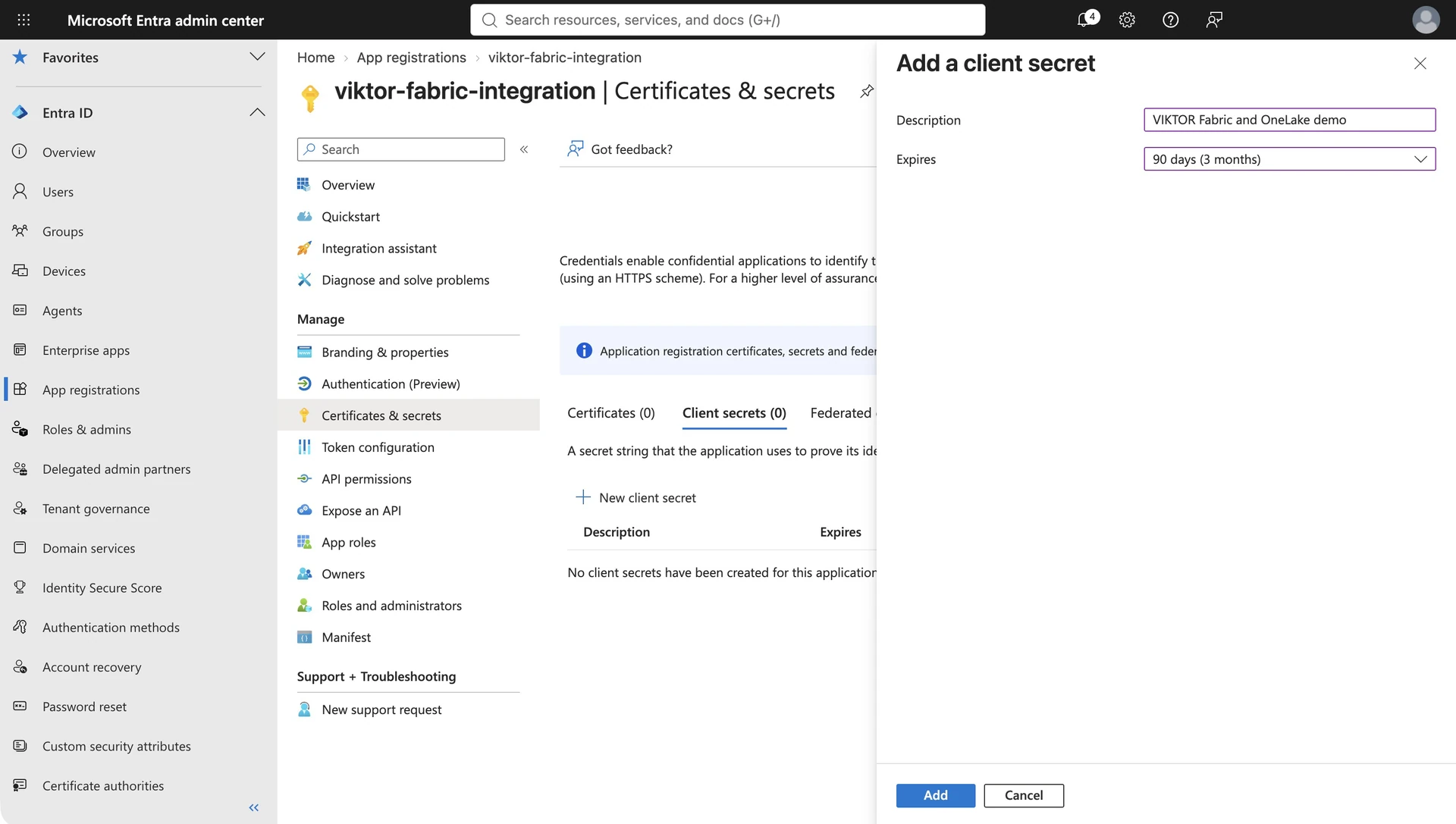
In the app registration, go to Certificates & secrets > Client secrets and select New client secret.
-
Enter a description, select when the secret expires, and select Add.
-
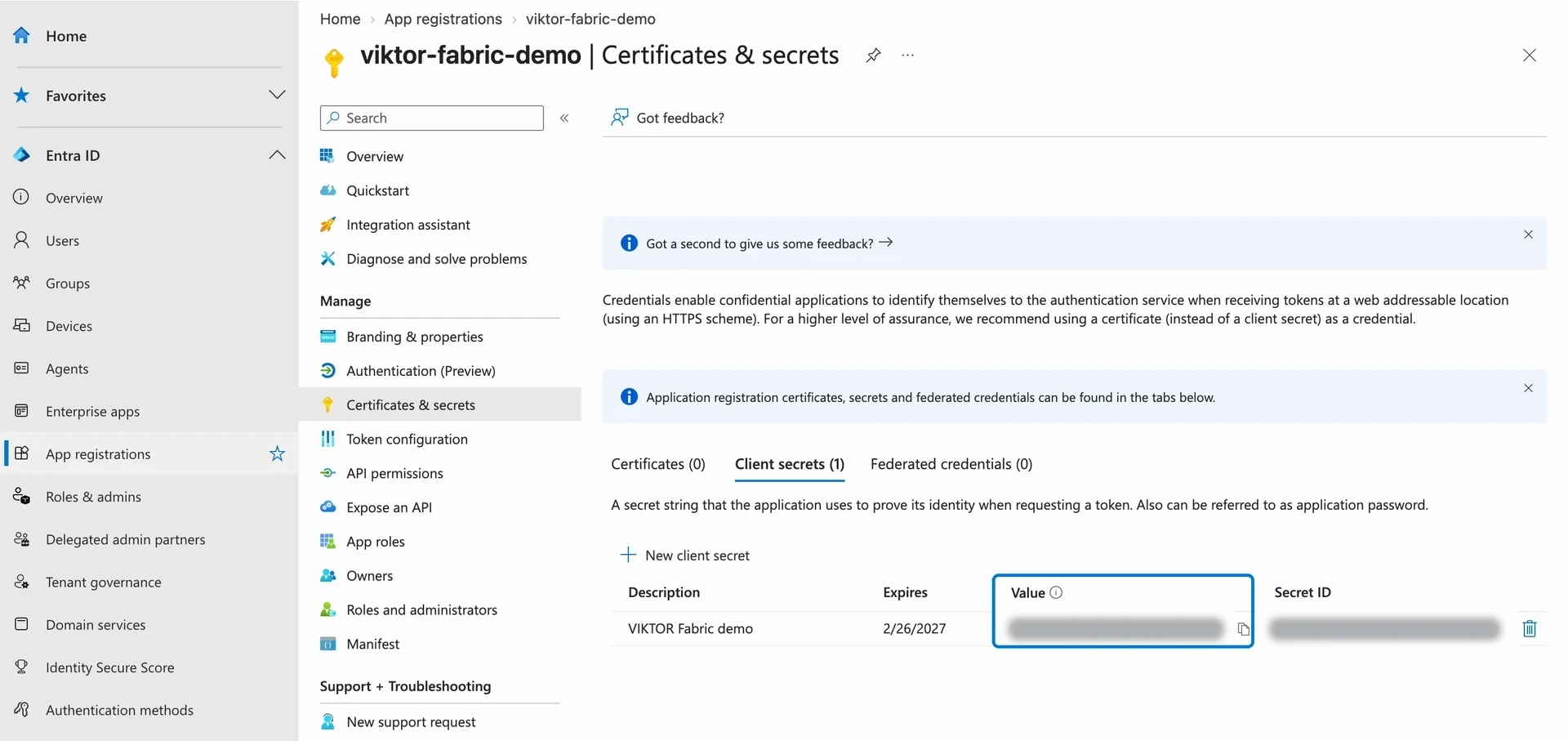
In the Client secrets table, select the copy icon in the Value column. Use this value as the Client secret in VIKTOR. You cannot view the value again after you leave the page.
Add API permissions
Add delegated permissions so VIKTOR can use the APIs on behalf of the signed-in user. You can add the permissions from both tabs to the same Microsoft Entra app registration.
- Open Microsoft Entra app registrations.
- Select your app registration.
- Select API permissions > Add a permission.
- Power BI Service
- Azure Storage (OneLake)
-
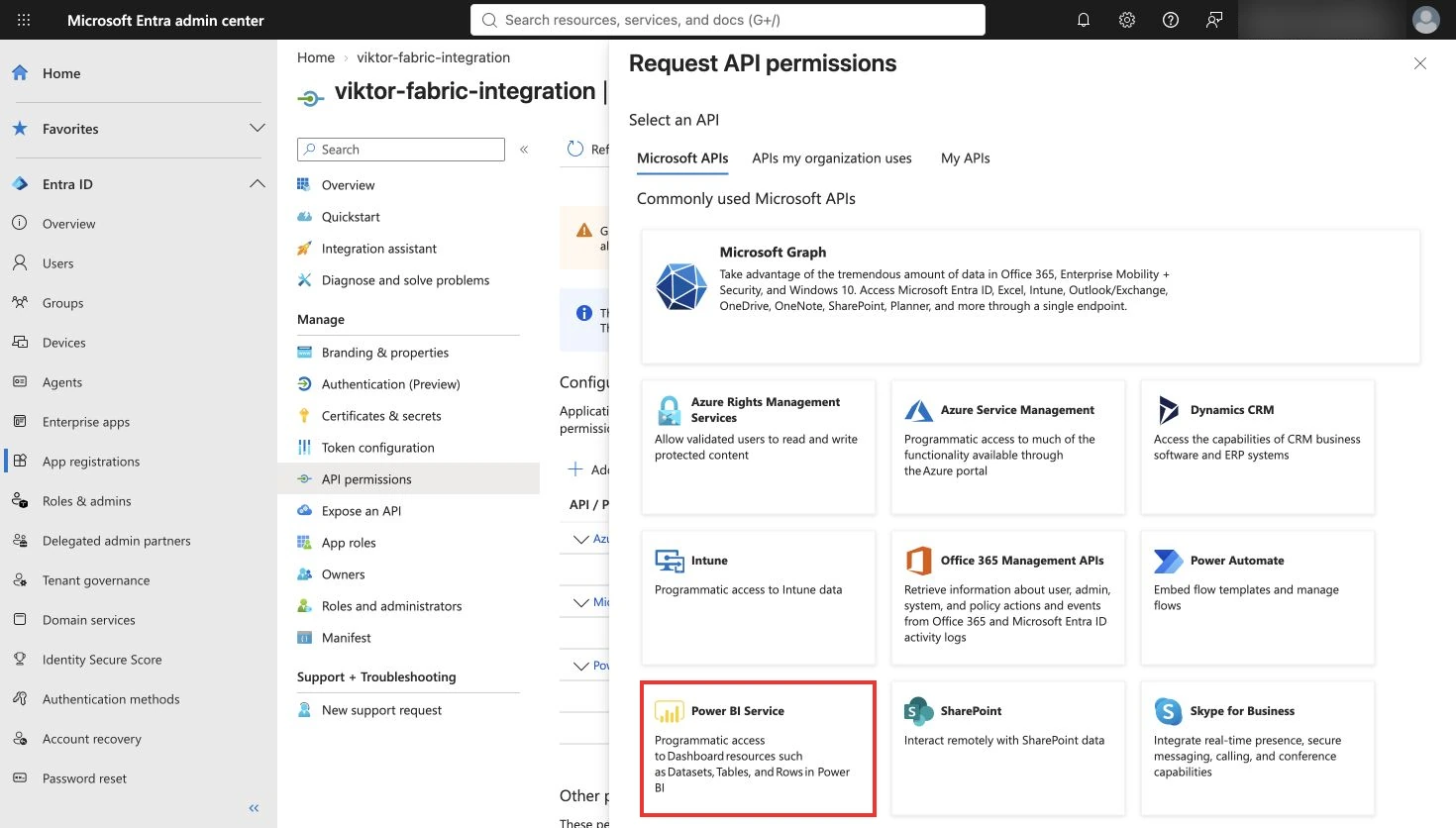
In Request API permissions, open Microsoft APIs and select Power BI Service. In this picker, Power BI Service also includes delegated permissions for the Fabric REST API.
-
Select Delegated permissions. To list workspaces in Power BI or Fabric, search for
Workspace.Read.Alland select its checkbox. The Fabric REST API also uses this permission to list items in a workspace. See List Fabric workspace items.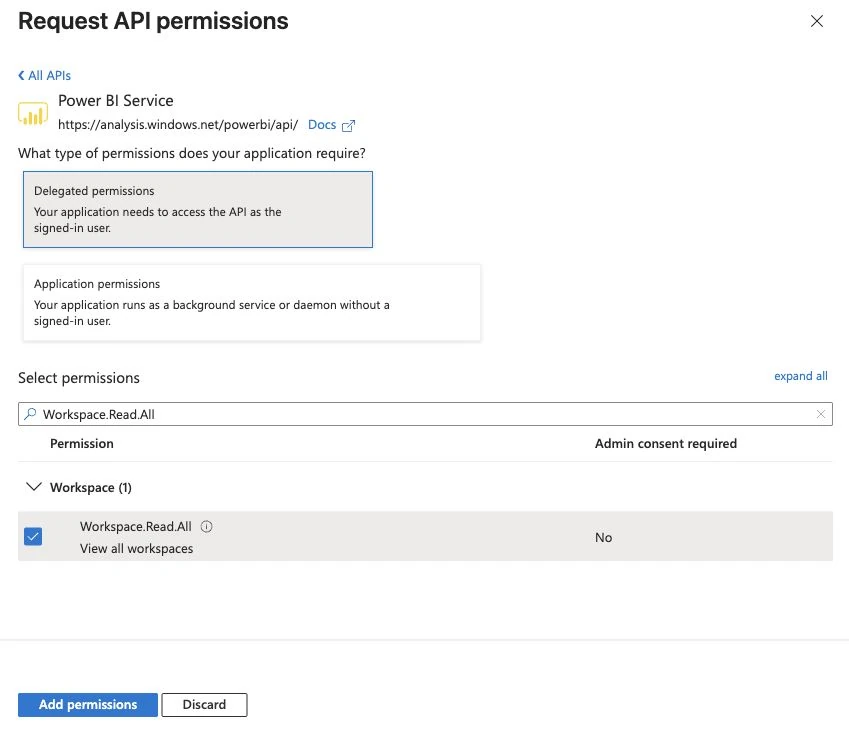
-
If your app reads or queries Power BI semantic models, search for
Dataset.Read.Allin the same panel and select its checkbox. To run a query, the signed-in user also needs Read and Build permissions on the model. See Power BI query permissions.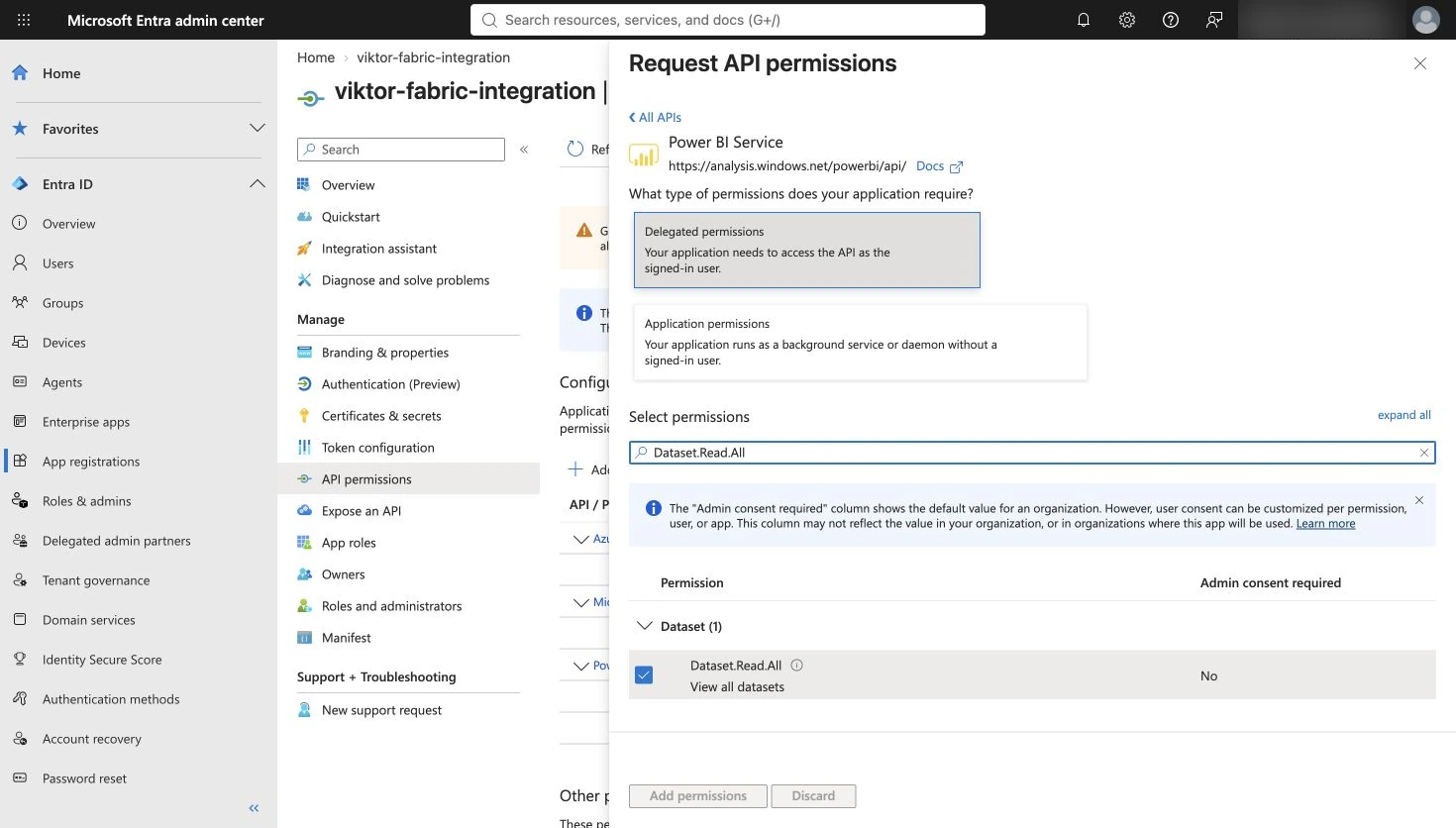
-
Select Add permissions to save your selection.
-
In Request API permissions, select Azure Storage. OneLake provides the storage in Fabric. You select Azure Storage in Entra because the OneLake file API uses Azure Storage access tokens. See OneLake authorization.
-
Select Delegated permissions. Search for
user_impersonationand select its checkbox. This permission lets the app use the signed-in user's access to read or write files in OneLake.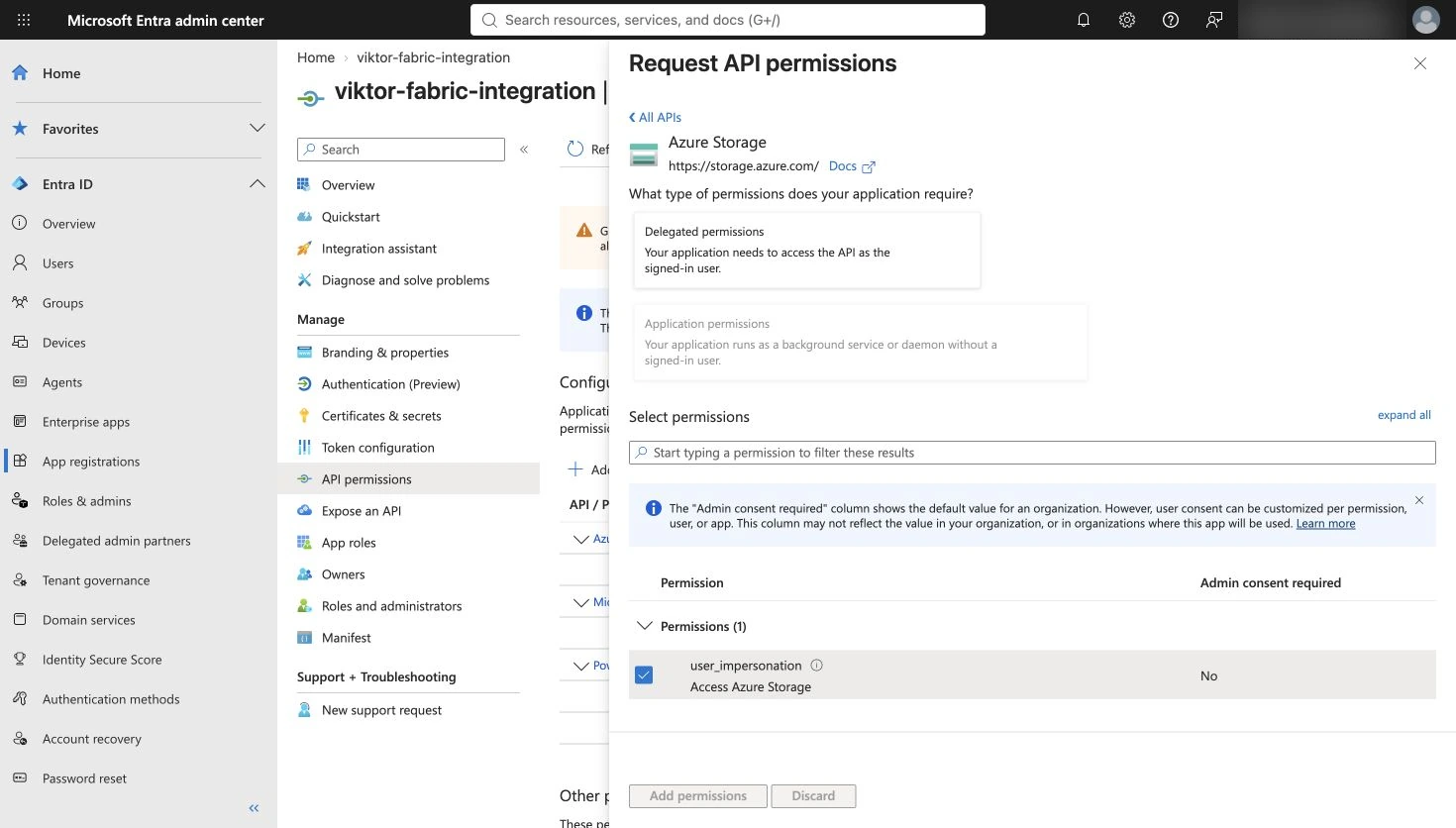
-
Select Add permissions to save your selection.
Return to API permissions and check the Configured permissions list. Each permission appears under its API. The screen below shows an app registration with permissions for both Power BI Service and Azure Storage.
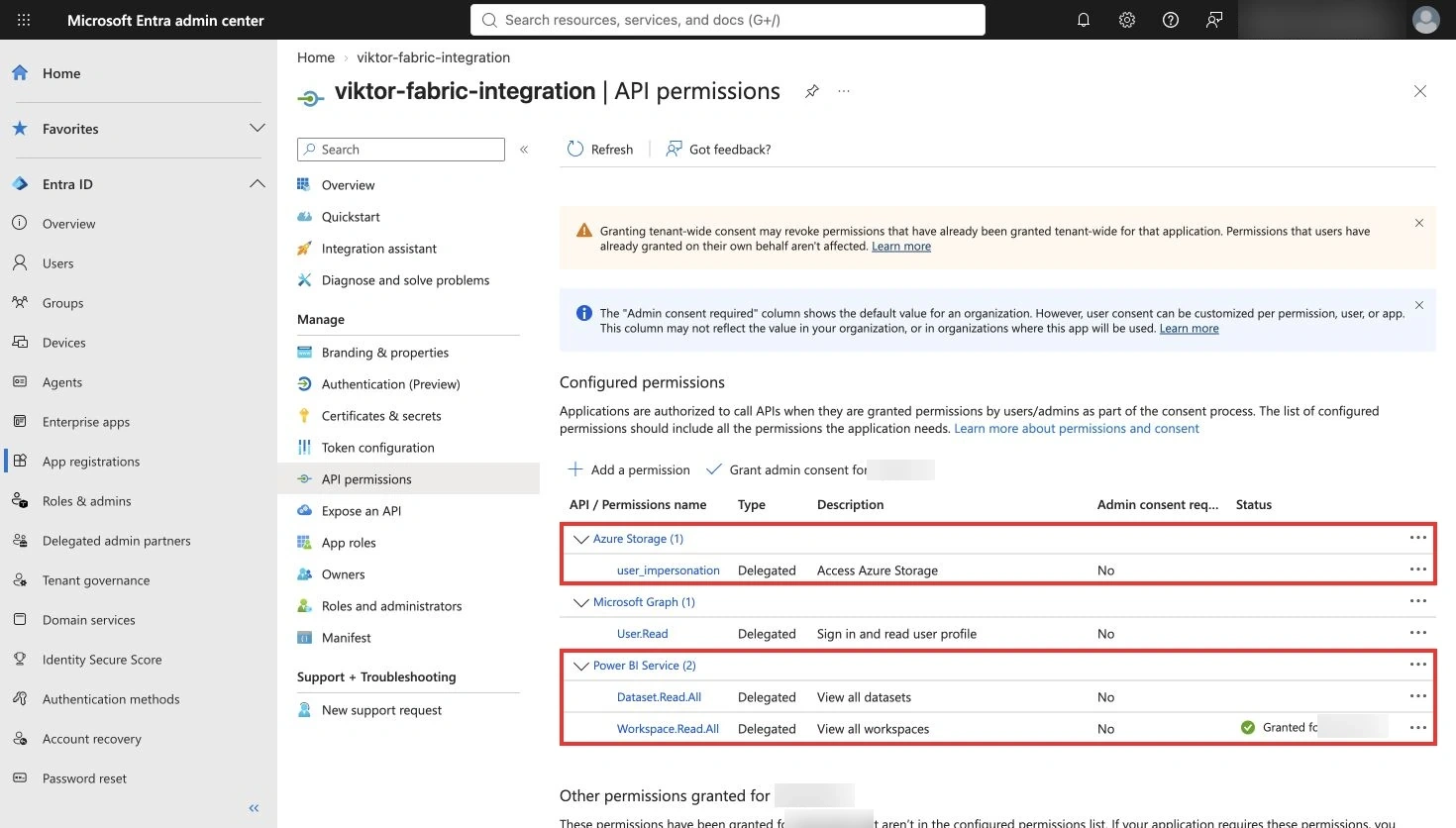
If your organization requires administrator consent, ask a Microsoft Entra administrator to grant it. Give users access to the workspaces, semantic models, or files that the app uses.
Create the VIKTOR integrations
Create a separate Generic OAuth 2.0 integration in VIKTOR for each API your app calls. For example, if your app queries Power BI and reads OneLake files, create both power-bi and microsoft-onelake.
If you use the same Microsoft Entra app registration for both, use the same Authentication URL, Token URL, Client ID, and Client secret. Give each integration its own name and use the scopes for its API.
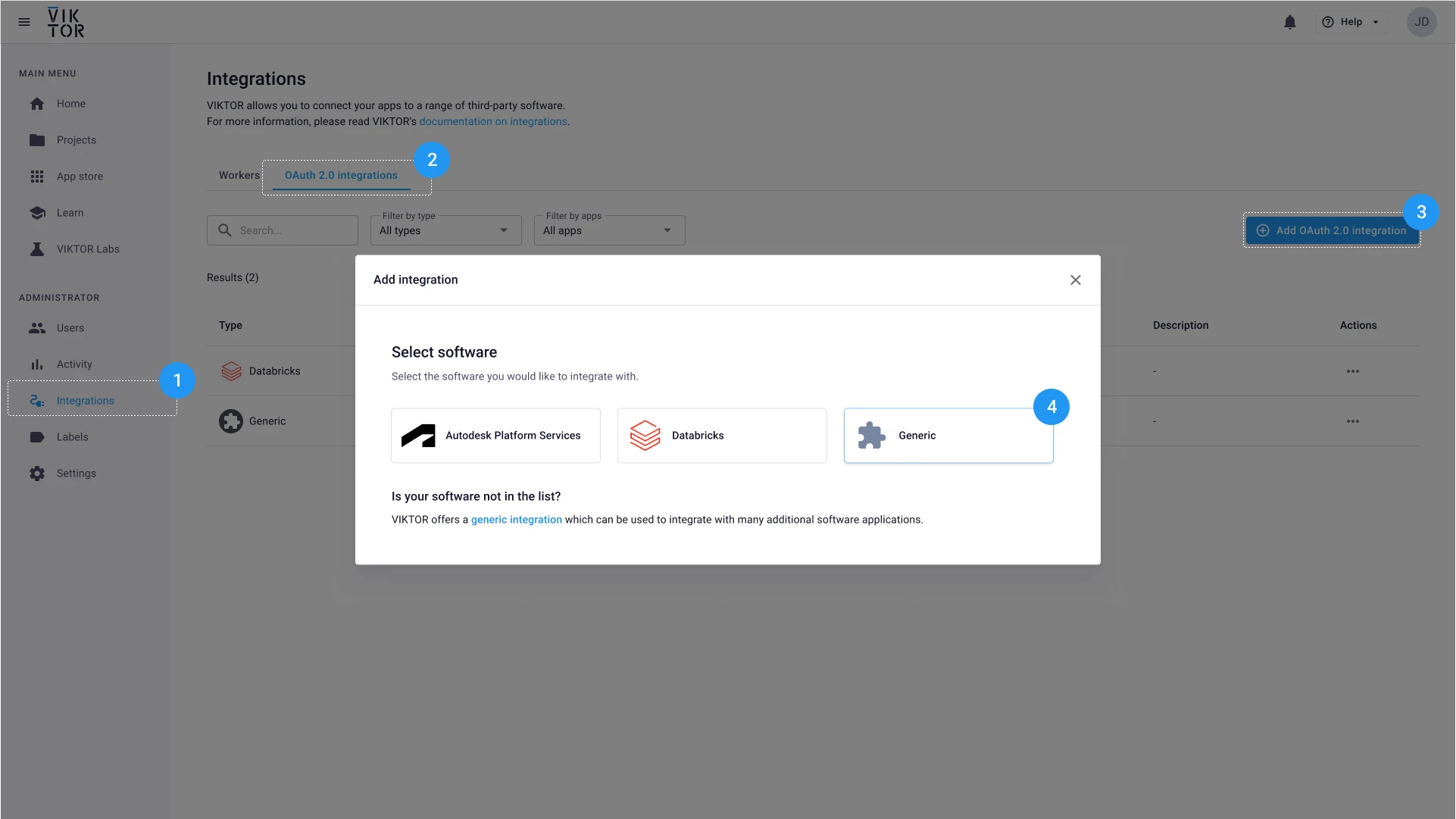
- Open your VIKTOR environment and select Administrator > Integrations > OAuth 2.0. On demo.viktor.ai, open VIKTOR integrations.
- Select Add OAuth 2.0 integration > Generic.
- Enter a name and select the VIKTOR apps that can use the integration.
- Select Next and enter the authentication URL, token URL, client ID, client secret, and the scopes for the target API.
- Select Create. Repeat for each API that your app needs.
For more details, see Creating an OAuth 2.0 integration.
In the Add OAuth 2.0 integration dialog, select Generic.
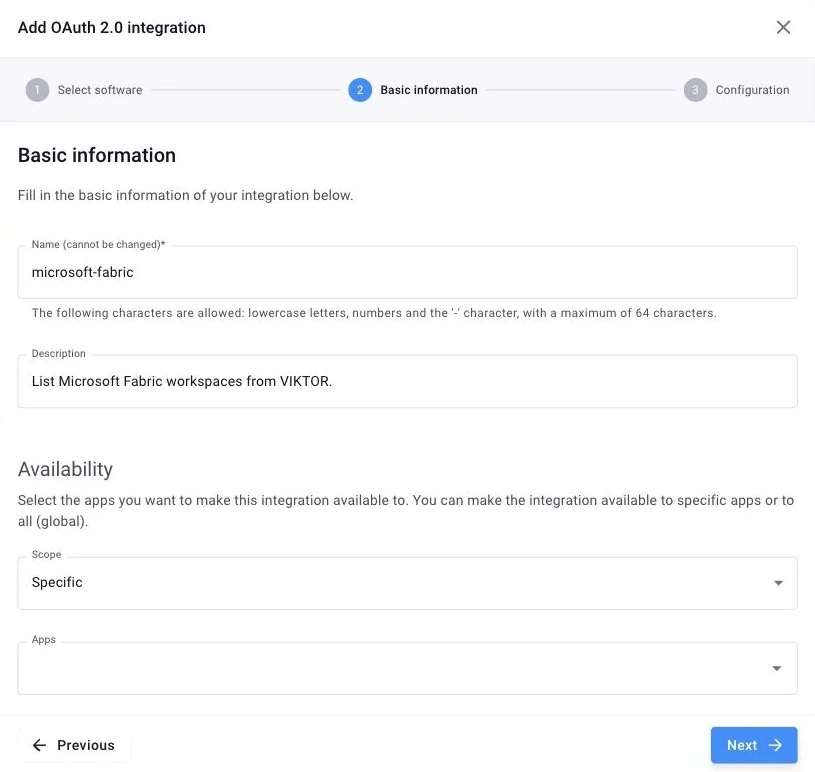
In Basic information, enter an integration name and select the VIKTOR apps that can use it. The image shows a Fabric integration; use a distinct name for each integration you create.
To limit the integration to selected apps, set Scope to Specific and select those apps.
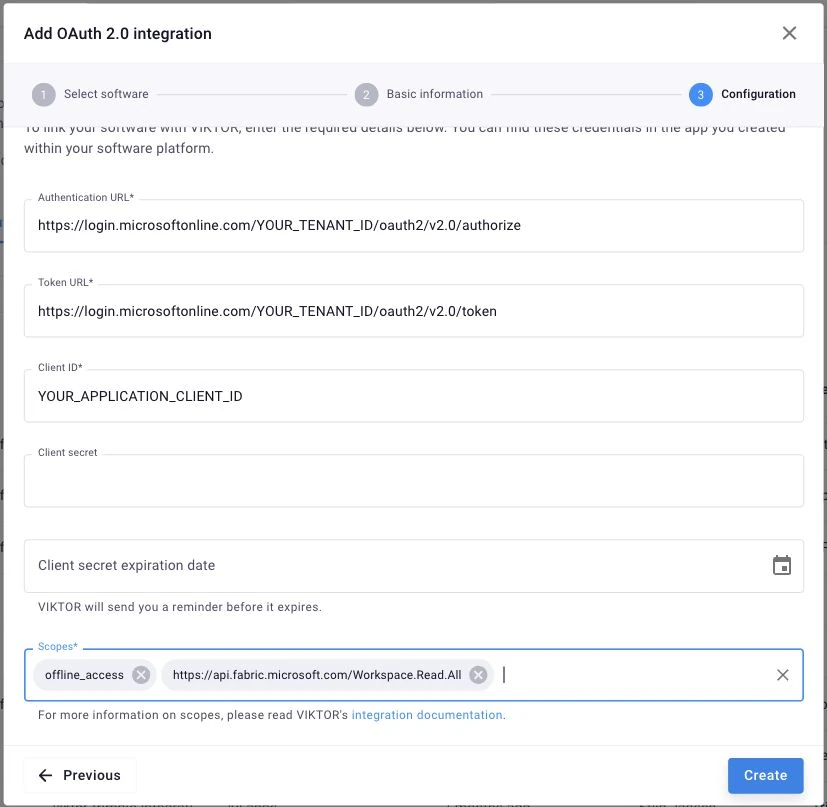
In Configuration, enter the following values. Replace <tenant-id> with your Directory (tenant) ID.
| Field | Value |
|---|---|
| Authentication URL | https://login.microsoftonline.com/<tenant-id>/oauth2/v2.0/authorize |
| Token URL | https://login.microsoftonline.com/<tenant-id>/oauth2/v2.0/token |
| Client ID | The Application (client) ID from Entra |
| Client secret | The client secret value from Entra |
Enter each scope separately and press Enter after each value.
Configure API scopes
Use the Fabric REST API to list Fabric items such as lakehouses, Power BI to query semantic models, and OneLake to access files.
- Fabric REST API
- Power BI
- OneLake
To list Fabric workspaces and their items, create an integration such as microsoft-fabric with these scopes:
offline_access
https://api.fabric.microsoft.com/Workspace.Read.All
See List workspaces for the required access and response format. Other Fabric API operations can require additional permissions. See Fabric REST API scopes.
Other Fabric REST API scopes
Use the https://api.fabric.microsoft.com/ prefix for these scopes in VIKTOR. Check Required Delegated Scopes for the operation in the Fabric REST API reference.
| Scope | What it allows |
|---|---|
Workspace.ReadWrite.All | Read and write workspaces. |
Item.Read.All, Item.ReadWrite.All | Read Fabric items, or read and write them. |
Item.Execute.All, Item.Reshare.All | Execute or reshare eligible Fabric items. |
Lakehouse.Read.All, Notebook.Read.All | Read the specified item type. |
Other Fabric services
Fabric also includes Data Factory, Data Engineering, Data Science, Data Warehouse, Databases, and Real-Time Intelligence. The Fabric REST APIs can manage supported items and jobs in these services. Some services expose other interfaces, such as SQL or service-specific APIs, with their own permissions and access requirements. Choose the API for the operation you need.
To list workspaces and read or query semantic models, create an integration such as power-bi with these scopes:
offline_accesshttps://analysis.windows.net/powerbi/api/Workspace.Read.Allhttps://analysis.windows.net/powerbi/api/Dataset.Read.All
The Power BI integration configuration shows both scopes in VIKTOR:
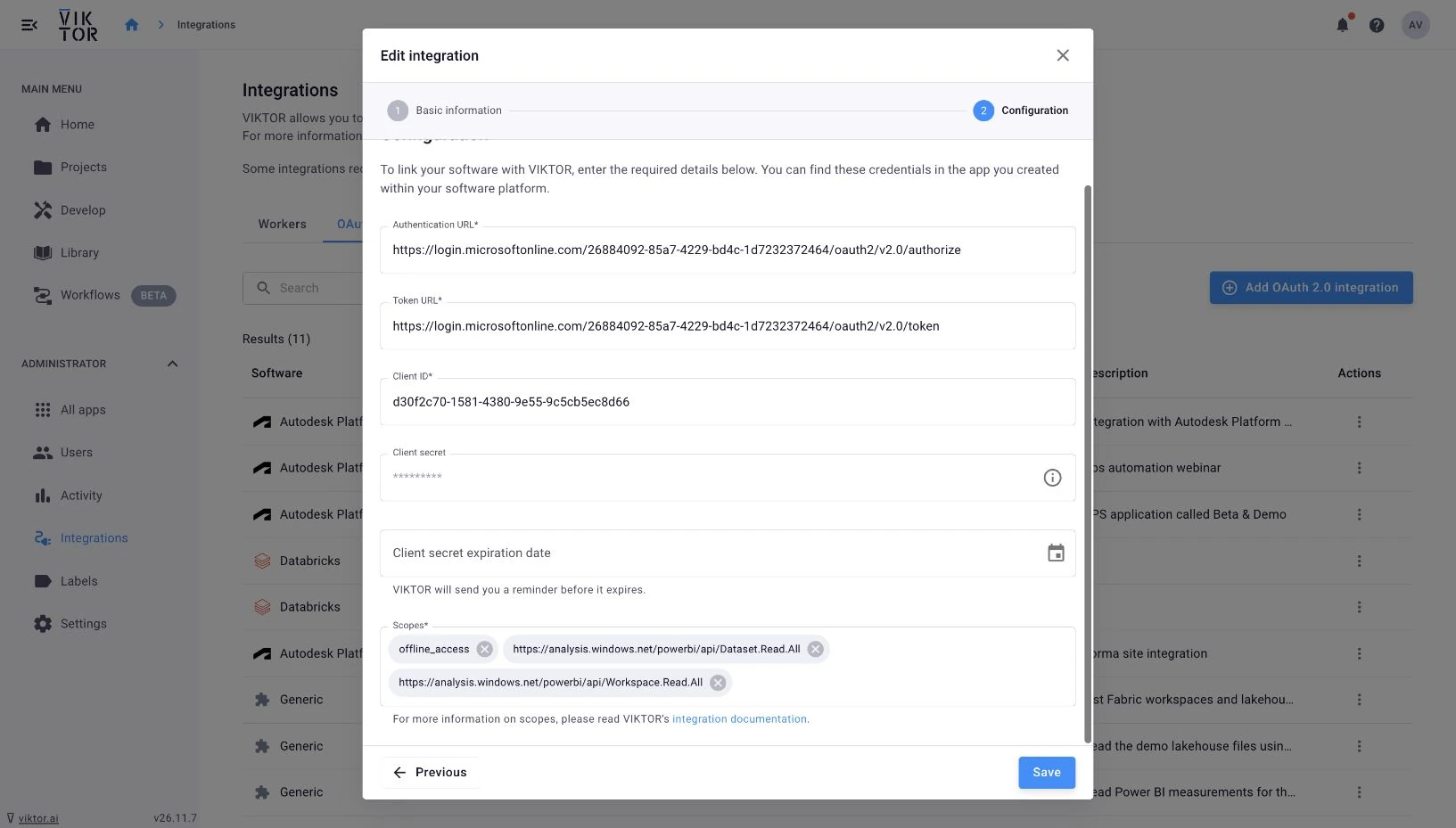
The Power BI REST API calls a workspace a group and a semantic model a dataset. Use Get Groups and Get Datasets In Group to find available workspaces and models. To query a model, see Execute Queries In Group. Use the personal workspace endpoint for My workspace.
Other Power BI scopes
Use the https://analysis.windows.net/powerbi/api/ prefix for these scopes in VIKTOR. Check Required Scope for the operation in the Power BI REST API reference.
| Scope | What it allows |
|---|---|
Dataset.ReadWrite.All | Read and write semantic models where the user has access. |
Report.Read.All, Report.ReadWrite.All | Read reports, or read and write them. |
Dashboard.Read.All, Dashboard.ReadWrite.All | Read dashboards, or read and write them. |
Workspace.ReadWrite.All | Read and write workspaces. |
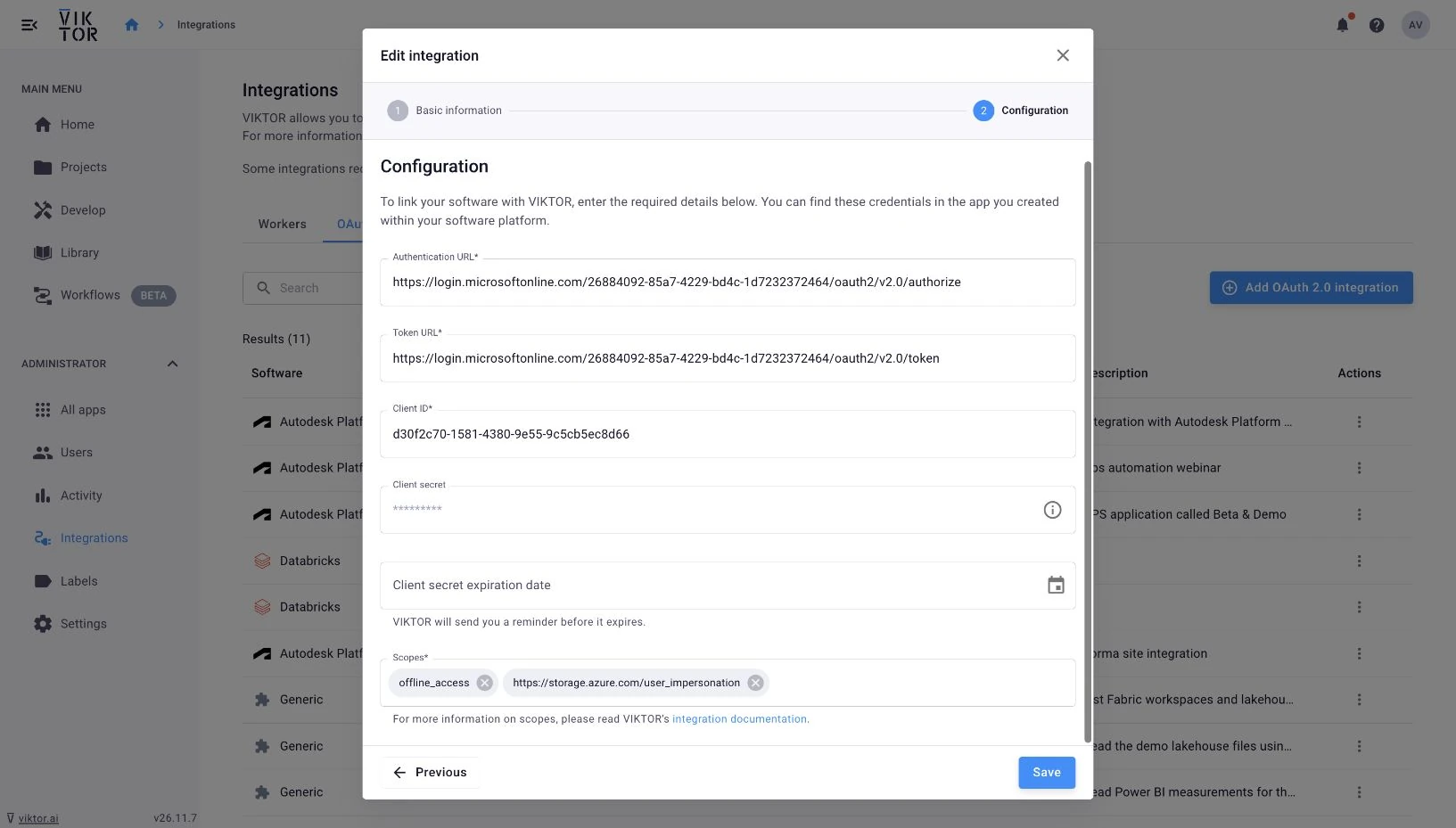
To access OneLake through the storage API, create an integration such as microsoft-onelake with these scopes:
offline_access
https://storage.azure.com/user_impersonation
The OneLake integration configuration shows the storage scope in VIKTOR:
OneLake uses Azure Data Lake Storage-compatible APIs. You can address a file by workspace ID, item ID, and path. See Connecting to OneLake for URL formats and access requirements. You do not need a separate Azure Storage account for OneLake.
Ask a Fabric administrator to check Tenant settings > OneLake > Users can access data stored in OneLake with apps external to Fabric for your users. The users also need access to the lakehouse data. See OneLake data security.
Implementing the integration (Developer)
Use this requirements.txt for all three examples.
viktor
requests
Set registered_name to your app's registered name. Use the same integration name in oauth2_integrations and OAuth2Integration. Connect the integration from the app's Integrations menu.
- Fabric REST API
- Power BI
- OneLake
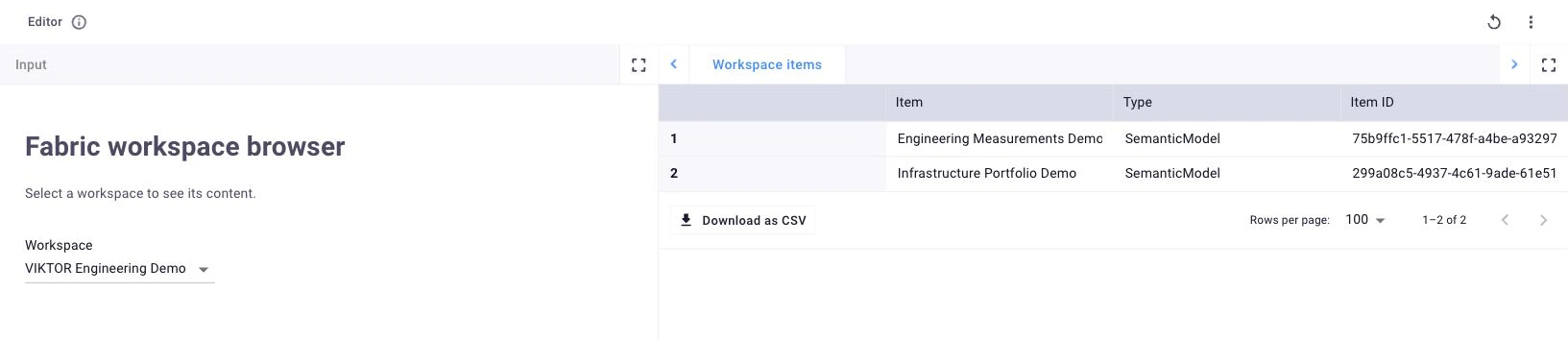
This app lists the workspaces available to the signed-in user. Select a workspace to see its items, such as lakehouses, notebooks, and reports. Both requests use Workspace.Read.All through the same Fabric REST API integration.
- Create an app with this
viktor.config.toml.
app_type = "editor"
python_version = "3.13"
registered_name = "your-app-name"
oauth2_integrations = ["microsoft-fabric"]
- Add this code to
app.py:
import requests
import viktor as vkt


def list_fabric_entries(path):
    token = vkt.external.OAuth2Integration("microsoft-fabric").get_access_token()
    url = f"https://api.fabric.microsoft.com/v1/{path}"
    headers = {"Authorization": f"Bearer {token}"}
    entries = []
    query = {}

    while True:
        response = requests.get(url, headers=headers, params=query, timeout=30)
        response.raise_for_status()
        page = response.json()
        entries.extend(page["value"])
        continuation = page.get("continuationToken")
        if not continuation:
            return entries
        query = {"continuationToken": continuation}


def workspace_options(params, **kwargs):
    return [
        vkt.OptionListElement(value=workspace["id"], label=workspace["displayName"])
        for workspace in list_fabric_entries("workspaces")
    ]


class Parametrization(vkt.Parametrization):
    workspace = vkt.OptionField("Workspace", options=workspace_options)


class Controller(vkt.Controller):
    parametrization = Parametrization

    @vkt.TableView("Workspace items")
    def workspace_items(self, params, **kwargs):
        if not params.workspace:
            raise vkt.UserError("Select a workspace.")
        items = list_fabric_entries(f"workspaces/{params.workspace}/items")
        return vkt.TableResult(
            [[item["displayName"], item["type"], item["id"]] for item in items],
            column_headers=["Item", "Type", "Item ID"],
        )
-
Start the app, connect the Fabric integration, select a workspace, and open Workspace items. You need at least the Viewer role for the selected workspace. See List workspaces and List items.
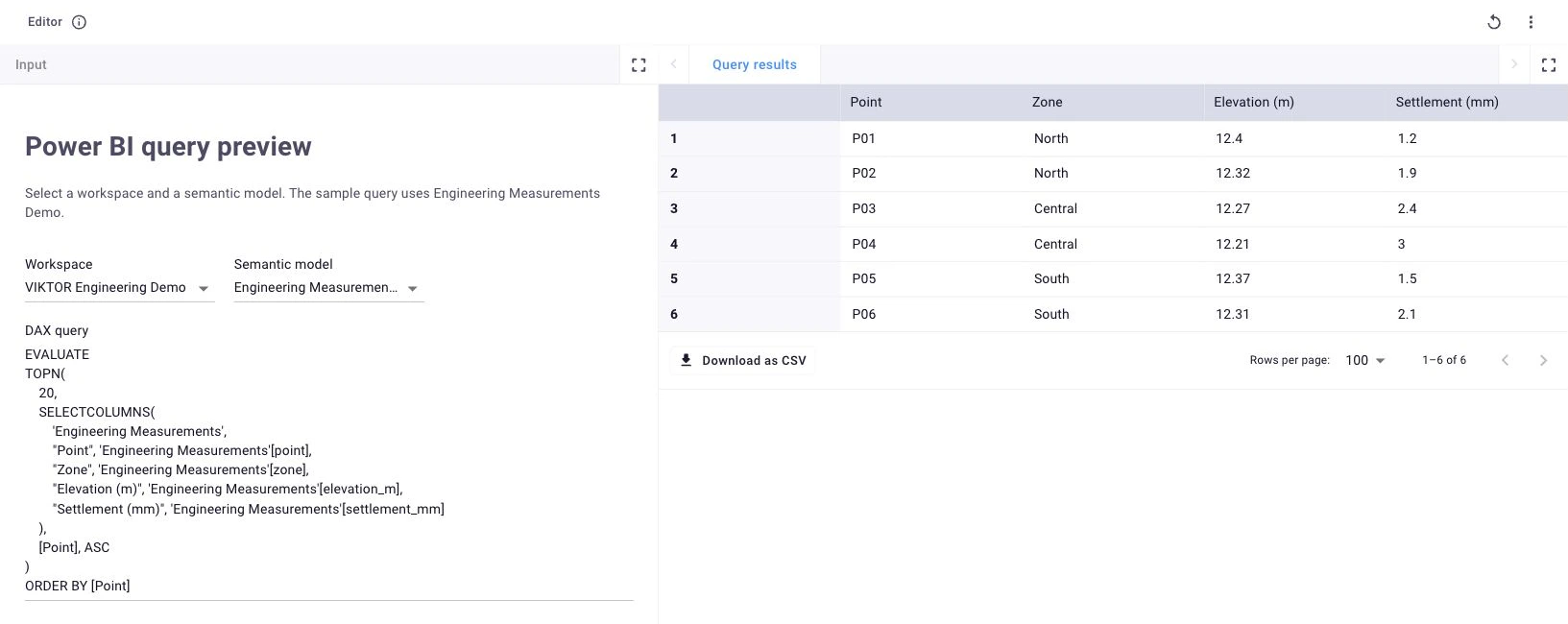
Select a shared workspace and a semantic model. The app runs a DAX query and displays the rows in a table. The example query returns up to 20 rows from the Engineering Measurements table. Change the query to use a table in your model.
Use Workspace.Read.All to list workspaces and Dataset.Read.All to list and query semantic models. The signed-in user needs Read and Build permissions on the selected model.
- Create an app with this
viktor.config.toml.
app_type = "editor"
python_version = "3.13"
registered_name = "your-app-name"
oauth2_integrations = ["power-bi"]
- Add this code to
app.py:
import requests
import viktor as vkt


def power_bi(method, path, **options):
    token = vkt.external.OAuth2Integration("power-bi").get_access_token()
    response = requests.request(
        method,
        f"https://api.powerbi.com/v1.0/myorg/groups{path}",
        headers={"Authorization": f"Bearer {token}"},
        timeout=30,
        **options,
    )
    response.raise_for_status()
    return response.json()


def workspace_options(params, **kwargs):
    return [
        vkt.OptionListElement(value=workspace["id"], label=workspace["name"])
        for workspace in power_bi("GET", "")["value"]
    ]


def model_options(params, **kwargs):
    if not params.workspace:
        return []
    return [
        vkt.OptionListElement(value=model["id"], label=model["name"])
        for model in power_bi("GET", f"/{params.workspace}/datasets")["value"]
    ]


class Parametrization(vkt.Parametrization):
    workspace = vkt.OptionField("Workspace", options=workspace_options)
    model = vkt.OptionField("Semantic model", options=model_options)
    query = vkt.TextAreaField("DAX query", default="EVALUATE TOPN(20, 'Engineering Measurements')")


class Controller(vkt.Controller):
    parametrization = Parametrization

    @vkt.TableView("Query results", duration_guess=5)
    def query_results(self, params, **kwargs):
        if not params.workspace or not params.model or not params.query:
            raise vkt.UserError("Select a workspace and a model, then enter a DAX query.")
        result = power_bi(
            "POST",
            f"/{params.workspace}/datasets/{params.model}/executeQueries",
            json={"queries": [{"query": params.query}], "serializerSettings": {"includeNulls": True}},
        )
        rows = result["results"][0]["tables"][0].get("rows", [])
        columns = list(rows[0]) if rows else ["No rows returned"]
        return vkt.TableResult(
            [[row.get(column) for column in columns] for row in rows],
            column_headers=columns,
        )
-
Start the app, connect Power BI, and select a workspace and semantic model. Open Query results to see the rows. See List workspaces, List semantic models, and Run a DAX query.
This app lists files in a lakehouse and lets the user select and download one. It uses user_impersonation and requires a lakehouse on active Fabric capacity. Add files to the lakehouse Files area before you run the app.
The app uses the workspace ID and lakehouse ID to list files in Files and its subfolders. The OptionField shows the available file paths. When the user selects a file and chooses Download file, the controller requests its contents with the OneLake access token. The example does not use a Power BI token.
- Create an app with this
viktor.config.toml.
app_type = "editor"
python_version = "3.13"
registered_name = "your-app-name"
oauth2_integrations = ["microsoft-onelake"]
- Add this code to
app.py. Replace the workspace ID and lakehouse ID with your values.
from urllib.parse import quote

import requests
import viktor as vkt


workspaceId = "your-workspace-id"
lakehouseId = "your-lakehouse-id"
workspaceUrl = f"https://onelake.dfs.fabric.microsoft.com/{workspaceId}"


def listFiles(params, **kwargs):
    token = vkt.external.OAuth2Integration("microsoft-onelake").get_access_token()
    headers = {"Authorization": f"Bearer {token}", "x-ms-version": "2023-11-03"}
    query = {"resource": "filesystem", "recursive": "true", "directory": f"{lakehouseId}/Files"}
    files = []

    while True:
        response = requests.get(workspaceUrl, headers=headers, params=query, timeout=60)
        response.raise_for_status()
        files.extend(
            path["name"] for path in response.json().get("paths", [])
            if str(path.get("isDirectory", False)).lower() != "true"
        )
        continuation = response.headers.get("x-ms-continuation")
        if not continuation:
            return files
        query["continuation"] = continuation


class Parametrization(vkt.Parametrization):
    text = vkt.Text("# OneLake files\nConnect OneLake and select a file to download.")
    file = vkt.OptionField("File", options=listFiles)
    download = vkt.DownloadButton("Download file", method="downloadFile")


class Controller(vkt.Controller):
    parametrization = Parametrization

    def downloadFile(self, params, **kwargs):
        if not params.file:
            raise vkt.UserError("Select a file first.")
        token = vkt.external.OAuth2Integration("microsoft-onelake").get_access_token()
        url = f"{workspaceUrl}/{quote(params.file, safe='/')}"
        response = requests.get(
            url,
            headers={"Authorization": f"Bearer {token}", "x-ms-version": "2023-11-03"},
            timeout=60,
        )
        response.raise_for_status()
        return vkt.DownloadResult(vkt.File.from_data(response.content), params.file.rsplit("/", 1)[-1])
- Start the app, connect OneLake, select a file, and select Download file. See List paths and OneLake URI syntax.
FAQs
Why does Microsoft sign-in fail?
Check the redirect URI, client secret, and API permissions in Entra and VIKTOR. Reconnect the integration after changing scopes.
If Microsoft reports AADSTS650052, ask your Entra administrator to check that the API is available in the tenant and that consent is granted. If the error names a missing Azure Storage service principal, check Enterprise applications. See Microsoft's consent troubleshooting.
Why does my Power BI query return 403 Forbidden?
Use the Power BI token with Dataset.Read.All. Check the user's workspace access, Read and Build permissions on the semantic model, and the Dataset Execute Queries REST API tenant setting.
Why does OneLake return 403 Forbidden?
Use the Azure Storage token from your OneLake integration. Check that the workspace has active Fabric capacity, that the user can read the lakehouse data, and that the tenant allows external OneLake access. See OneLake data access.
Why does OneLake return 401 Unauthorized?
Check that the OneLake integration requests https://storage.azure.com/user_impersonation, then reconnect it.
Why does OneLake return 404 Not Found?
Check the workspace ID, lakehouse ID, and file path. You can also copy the file URL from its properties in Fabric. See Copy a OneLake file URL.