Tutorial - AutoCAD Plant 3D
Level: Intermediate
Time: 30–45 min
Prerequisites:
- A VIKTOR account with access to the App Builder, or the VIKTOR CLI for local development.
- Access to an ACC project with published Plant 3D data and a viewable DWG.
- An Autodesk Platform Services OAuth 2.0 integration available in your VIKTOR environment.
The Plant 3D integration is in Beta. Validate the generated tables, quantities and viewer highlights against your source model before using the results in a project.
Introduction
In this tutorial, you will build apps that use published Plant 3D data from ACC / Forma to review equipment, color valves in a drawing, prepare a quantity takeoff and explore asset relationships. You will use four prompts in the App Builder, each creating a separate app with guided inputs, tables, charts and a drawing viewer.
If you prefer to write Python, open the Local development tab to build a 3D equipment overview app step by step with the VIKTOR CLI. The complete code is included.
1. Set up the integration
First, you will set up the connection your apps will use to access Plant data in ACC / Forma. Follow the APS OAuth integration setup, then connect the same APS application to ACC.
Next, check that your Plant project has been published to the AEC Data Model. Your apps will query these published data sets. Uploading a standalone DWG does not create a Plant data set. If you need to publish your project, follow Autodesk's Query AutoCAD Plant 3D Project Data instructions.
Existing projects may not be processed automatically by the AEC Data Model. Publish the Plant project again, or publish an updated version, to trigger processing. Once processing is complete, check for the published data sets in the next section.
2. Understand the two Plant data sets
Plant 3D publishes two main data sets to the AEC Data Model. Each data set is represented by an element group with its own element group ID. The app uses that ID to query its records.
| Data set | What it contains |
|---|---|
| P&ID Data Set | Process and instrumentation records, such as equipment, lines, valves, instruments and their relationships. |
| 3D Piping Data Set | 3D model records, such as pipes, fittings, valves and equipment, with their published properties. |
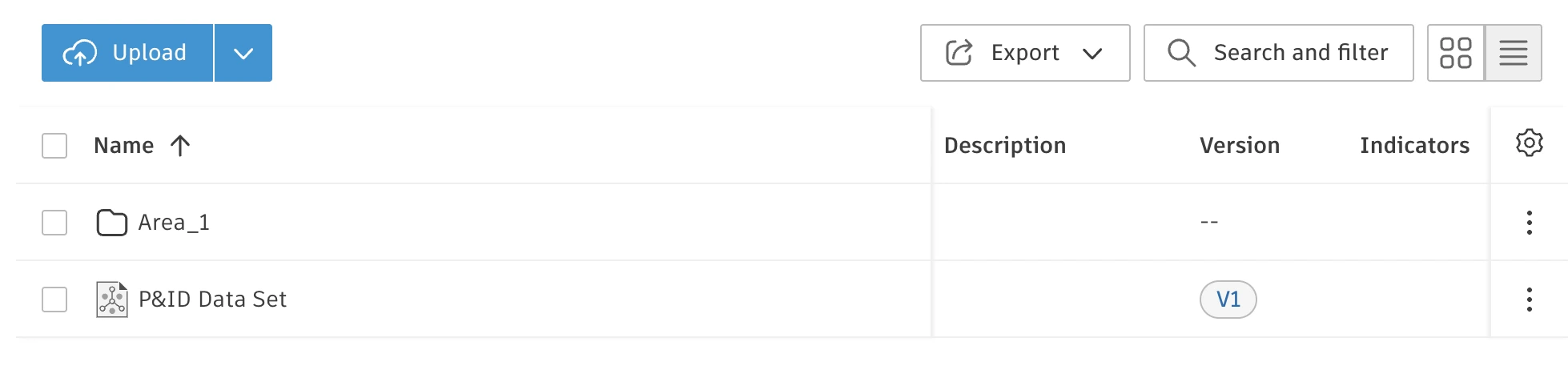
The published data sets appear as separate entries in the ACC / Forma Files tool. A P&ID Data Set looks like this:
A 3D Piping Data Set appears alongside the published 3D drawings and folders:
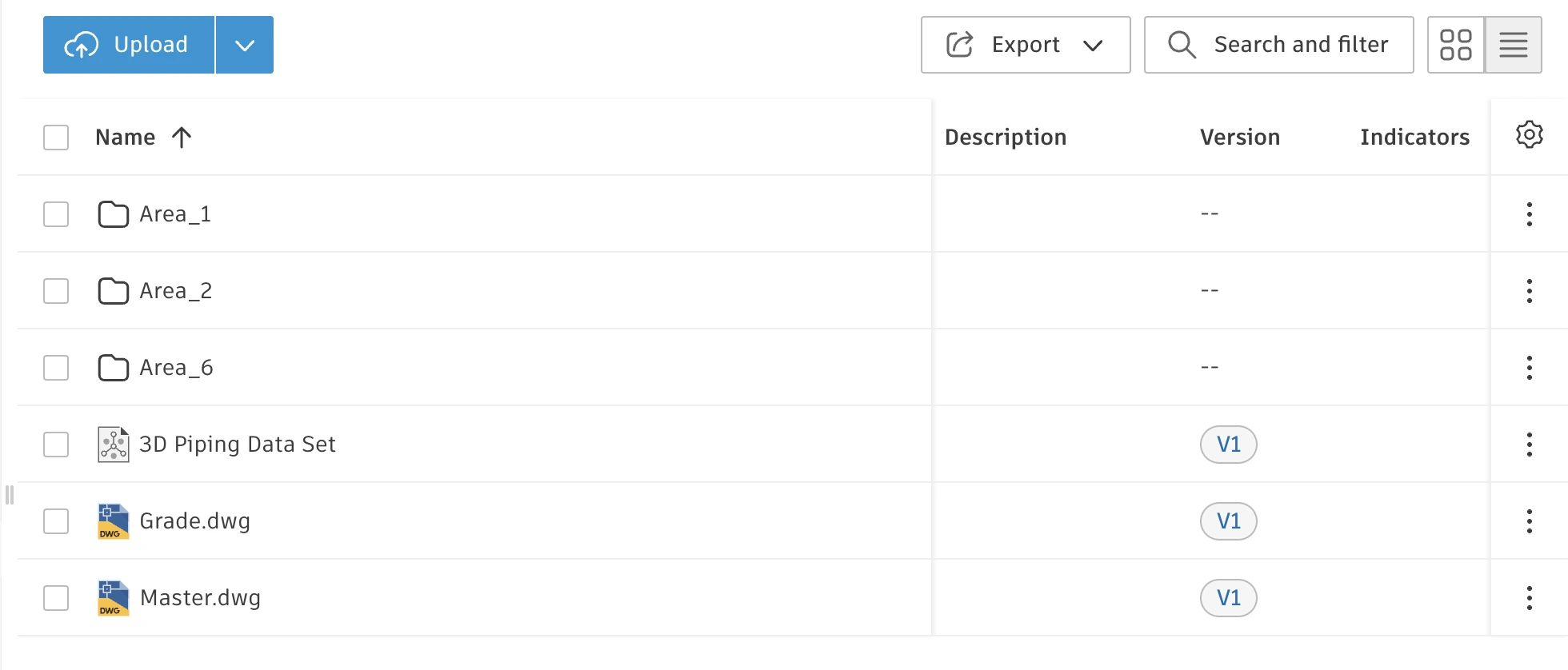
The App Builder assumes the data sets use their default names: P&ID Data Set and 3D Piping Data Set. Do not rename these entries.
3. Work with selections and scope
The App Builder generates the inputs and code to read records through the AEC Data Model API and display the DWG with the APS Viewer SDK.
In the apps you will build:
- Select a DWG from the Plant project's published folders using
AutodeskFileField. - The App Builder uses the file's project and folder context to find the Plant publication root and discover its P&ID and 3D Piping data sets.
- Choose which data set to query from a dropdown.
- Open the viewer to display the same selected DWG.
In the generated app, the DWG and data-set selections have different purposes:
| You select | The app uses it to |
|---|---|
| A DWG file in ACC / Forma | Find the Plant publication from its project and folder context, and display that drawing in the APS viewer. |
| A published Plant data set | Read the equipment, pipes, valves or relationships needed for the report. These records can cover several drawings. |
3.1. Set the report scope
The App Builder will use the scope specified in your prompt to determine which records the app retrieves:
- Drawing scope: records linked to one DWG (prompt 2).
- Data-set scope: matching records in one complete selected data set (prompts 1, 3 and 4).
- Project scope: records across several selected data sets in a project.
We recommend starting with drawing or data-set scope so you can verify the results more easily before expanding to several data sets (project scope).
4. Choose your approach
- Prompt guide
- Local development
To build your first app, click the arrow on a prompt to open it in the App Builder. Before submitting the prompt, replace [YOUR-APS-INTEGRATION-NAME-HERE] with the exact name of your configured integration. Connect that integration in the generated app, then follow its input and button instructions.
Prompt 1: Review equipment across one P&ID data set
The first app creates an equipment inventory for one published P&ID data set. The App Builder uses the prompt to generate the app's inputs, API queries and result views. The app queries the AEC Data Model API for Equipment and its child classes in the selected data set. You do not need to write the query yourself. Use the table to review asset IDs and Tags, and the bar chart to compare counts by concrete class: the specific equipment type, such as a pump or vessel.



Plant 3D P&ID equipment overview
When the app is ready, select a published 2D P&ID DWG and open the viewer first. The viewer can display the drawing before you load a data set. Its colors come from the DWG; prompt 2 adds colors based on queried properties in a 3D drawing.
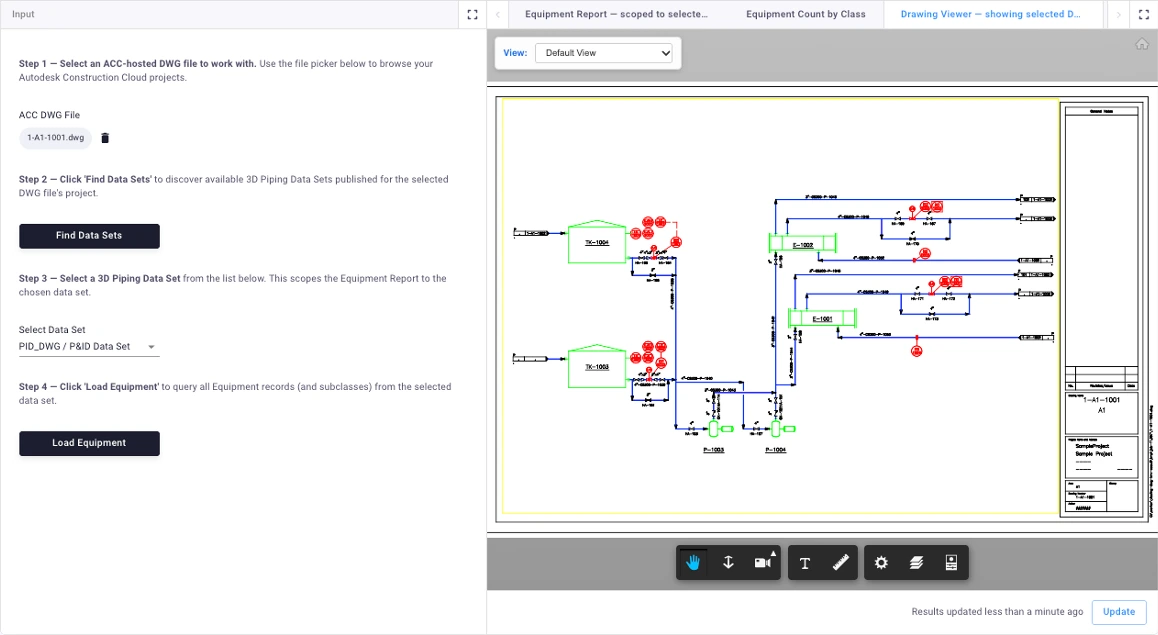
Click Find data sets, choose a P&ID Data Set, then load the equipment. Open the table to inspect Tags and classes across the selected data set.
Open the chart to compare the equipment counts by concrete class. It uses the same records as the table.
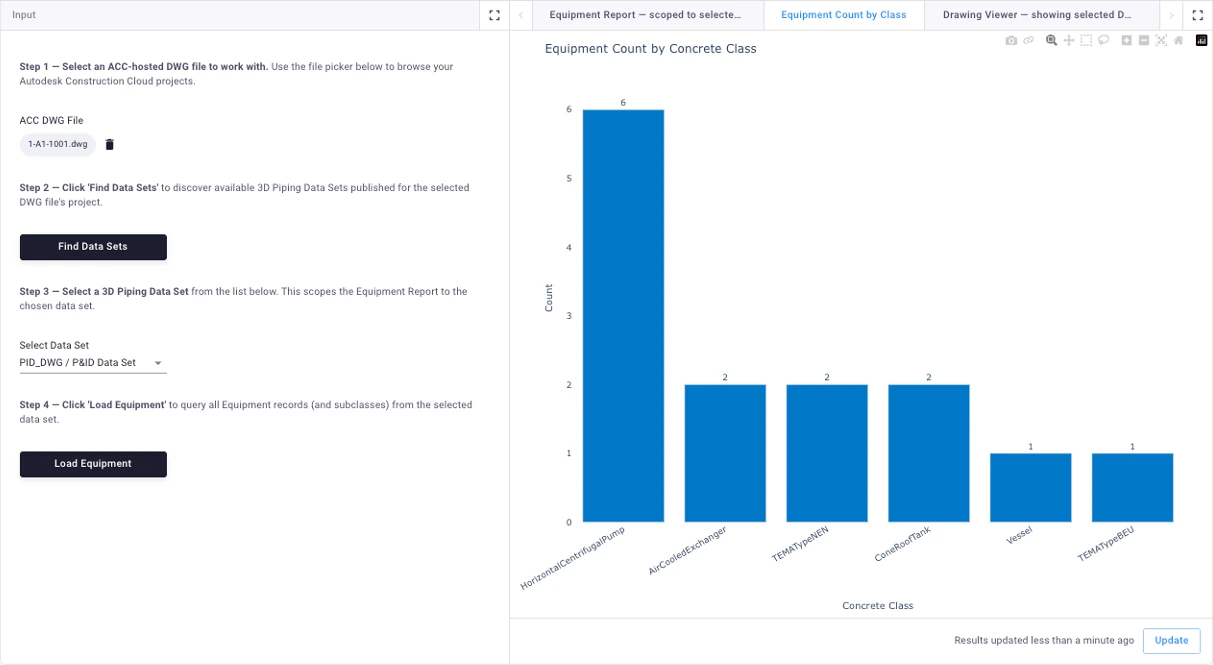
The report covers the selected data set even when the viewer shows only one of its drawings. To request a drawing-only equipment report, replace the scope instruction with: “Retrieve only equipment linked to the selected DWG.”
Prompt 2: Color valves in one drawing
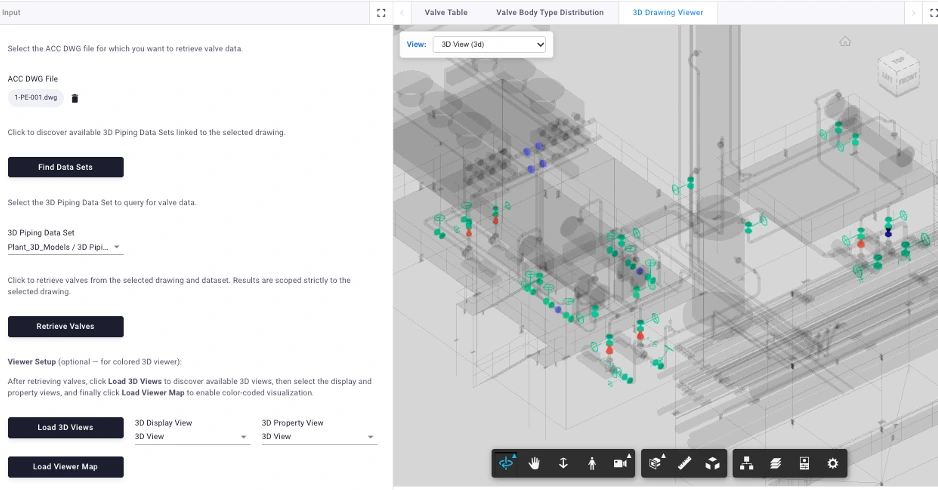
Build a valve review app for one 3D Plant drawing. Review valve properties in a table, compare counts by body type in a pie chart, and locate the valves by color in the APS viewer.
The table, pie chart and viewer use the same valves linked to the selected DWG. Each body type has one color, shared by the chart and viewer legend.
Plant 3D valve overview
When the app is ready, select the DWG and data set, then retrieve the valves. If the generated app has separate viewer setup buttons, load the available 3D views, select the display and property views, then load the viewer map. This connects the report records to the objects that can be colored.
Open the pie chart to compare valve body types in the selected drawing.
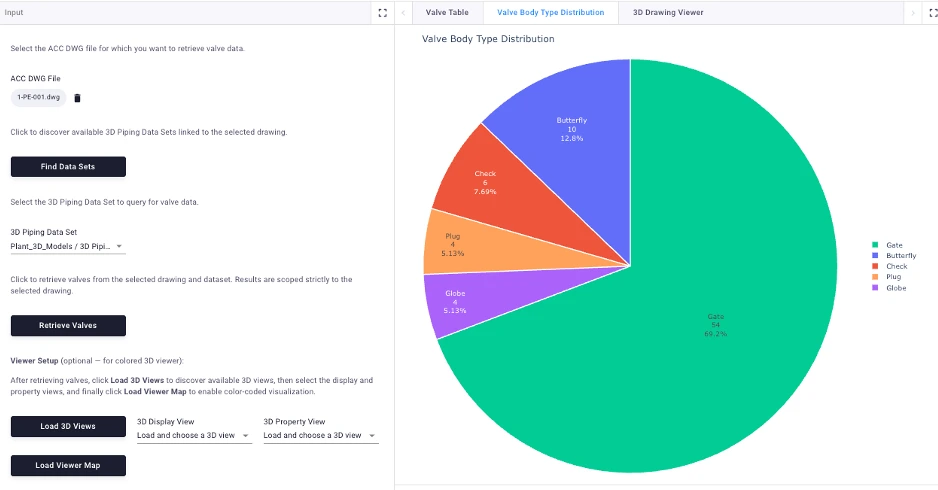
If you find “Not specified” in the results, the property is missing. If you find “Unmapped”, the report record could not be matched to a viewer object. Keep these records visible in the table even when they cannot receive a viewer color.
Prompt 3: Prepare a data-set quantity takeoff
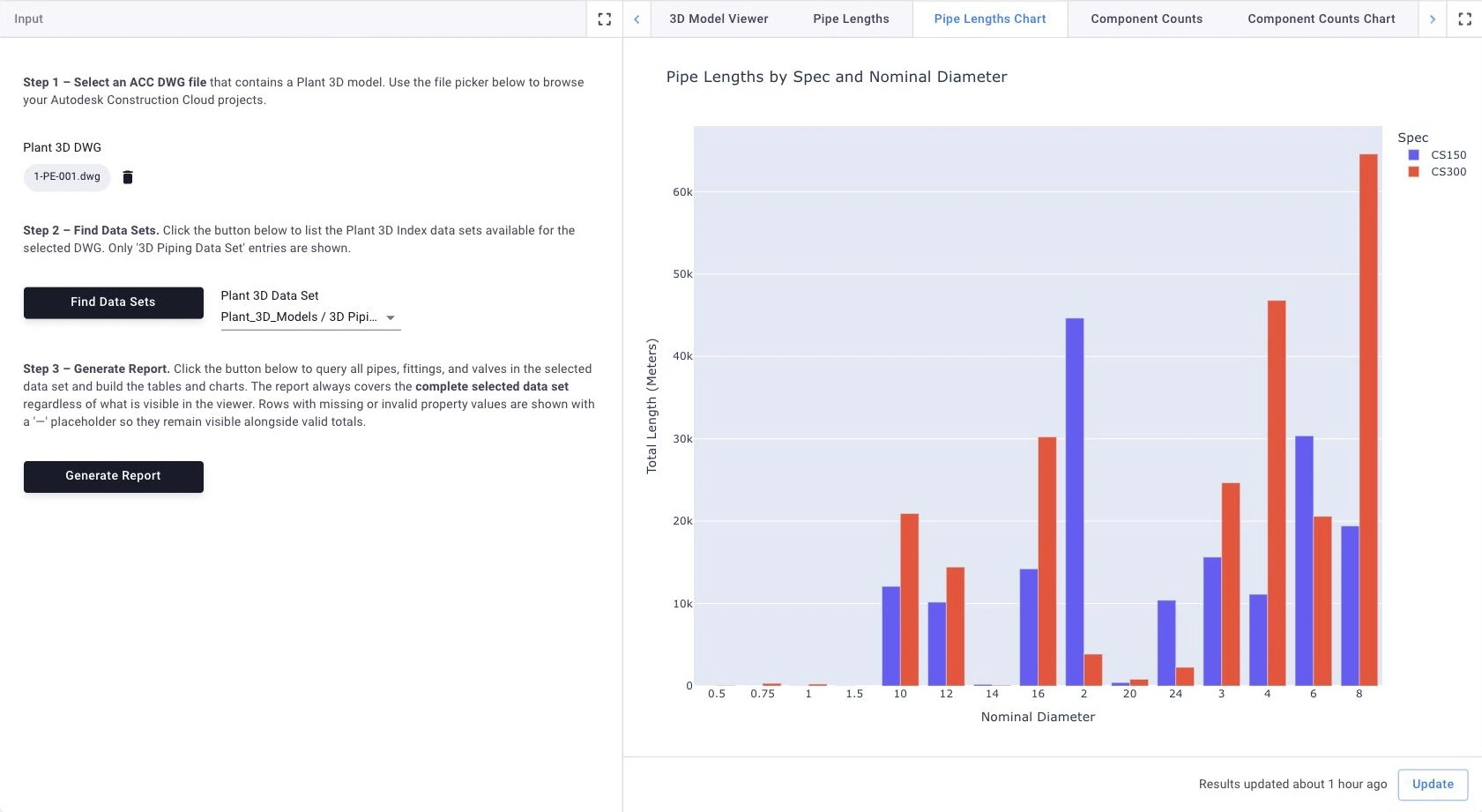
The next example creates a quantity takeoff app for a 3D Piping Data Set. Use it to total pipe lengths by their assigned piping specification (Spec) and nominal pipe size (nominal diameter), and count fittings and valves by concrete class. Review the quantities in VIKTOR tables and Plotly charts.
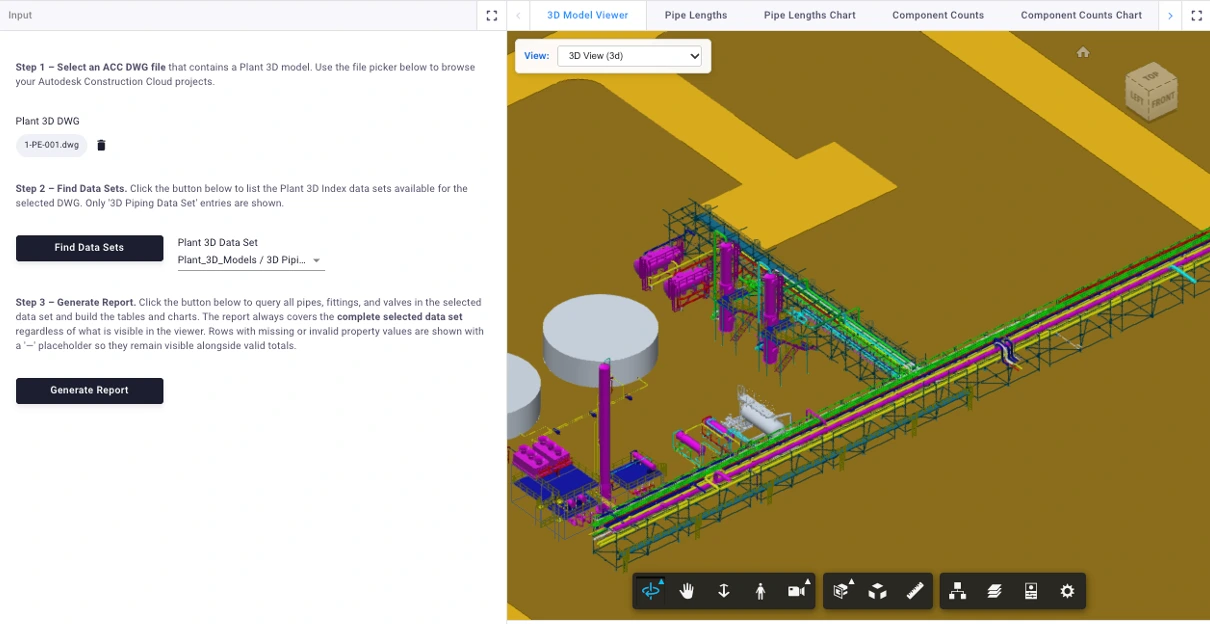
The report covers the complete selected data set, while the viewer displays one DWG.
Plant 3D quantity takeoff
When the app is ready, select a data set and generate the report. Inspect the contributing records and their published units before using the totals. A missing length does not remove a pipe from the record count, and an invalid value must not hide valid subtotals.
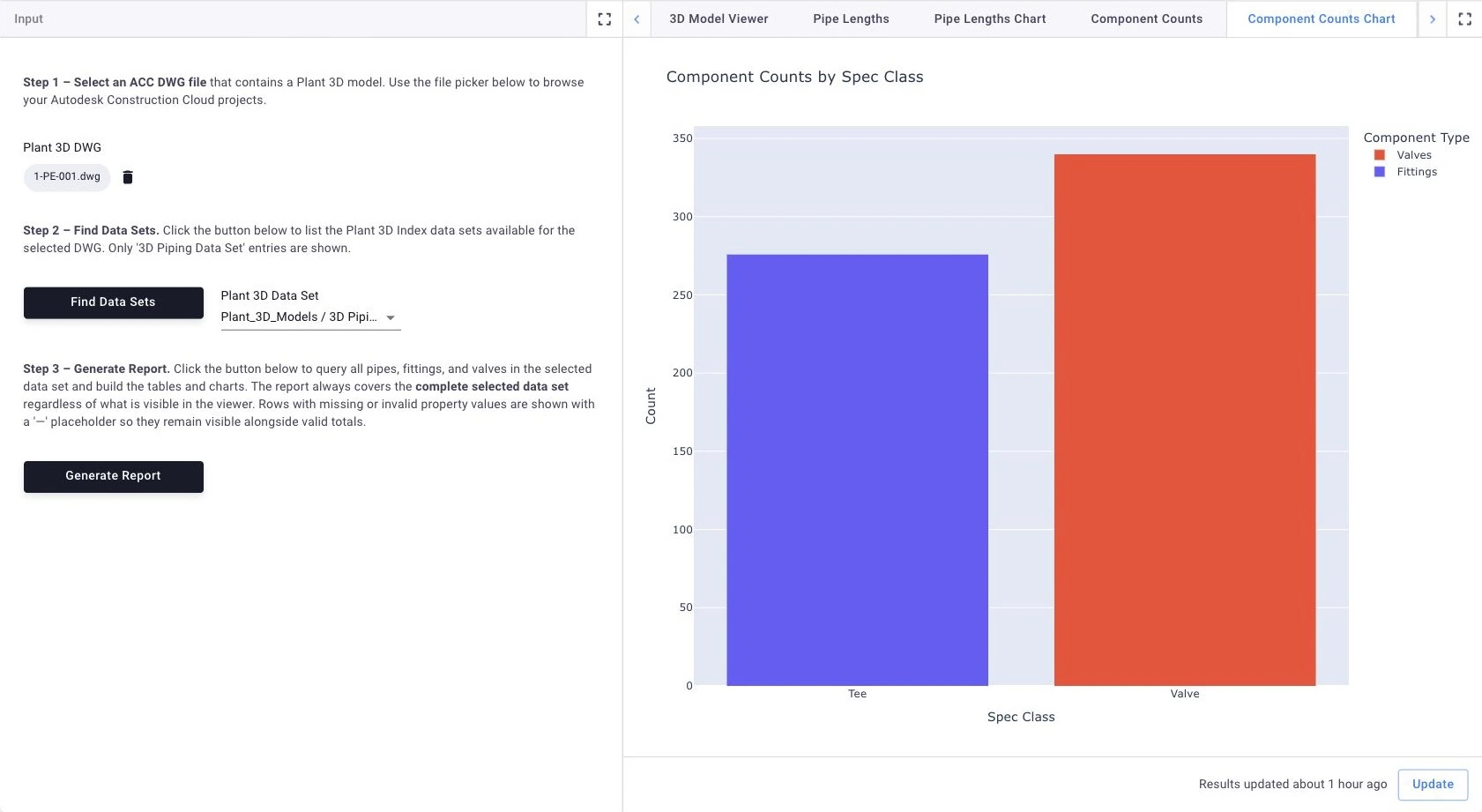
Open the pipe-length chart to compare specifications and sizes. Component counts are a separate quantity; they are not added to pipe lengths.
The component chart covers the selected data set. Its valve count can therefore differ from the drawing-only count in prompt 2.
Prompt 4: Explore asset relationships across a data set
The final example creates an asset relationship explorer for a Plant 3D data set. Find an asset by its Tag, review related objects and their roles in a VIKTOR table, and see the connections in a Plotly diagram. Use the APS viewer to inspect the selected DWG.
The table and diagram use relationships from the selected data set. Choose how far to follow them with the depth input: one hop follows one relationship link, while four hops can reach objects through up to four links.
Plant 3D asset relationship explorer
When the app is ready, select the DWG and data set, enter an asset Tag, then find and select the matching asset. Open the DWG viewer to inspect the drawing.
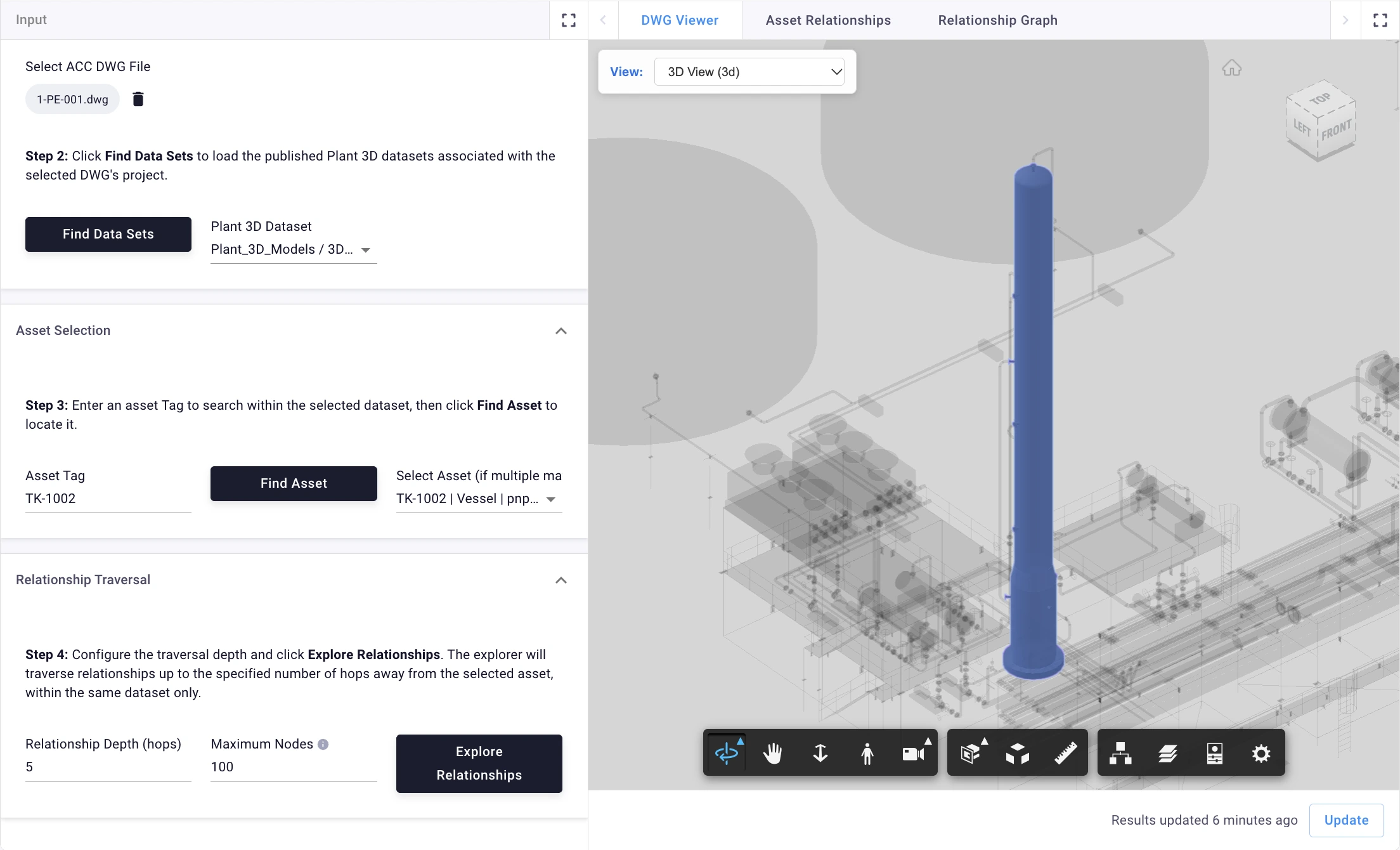
Choose how many relationship links to follow and how many objects to show, then explore the results. The table lists the related objects and their roles. Use the graph to see how they connect, and hover over an object to view its properties.
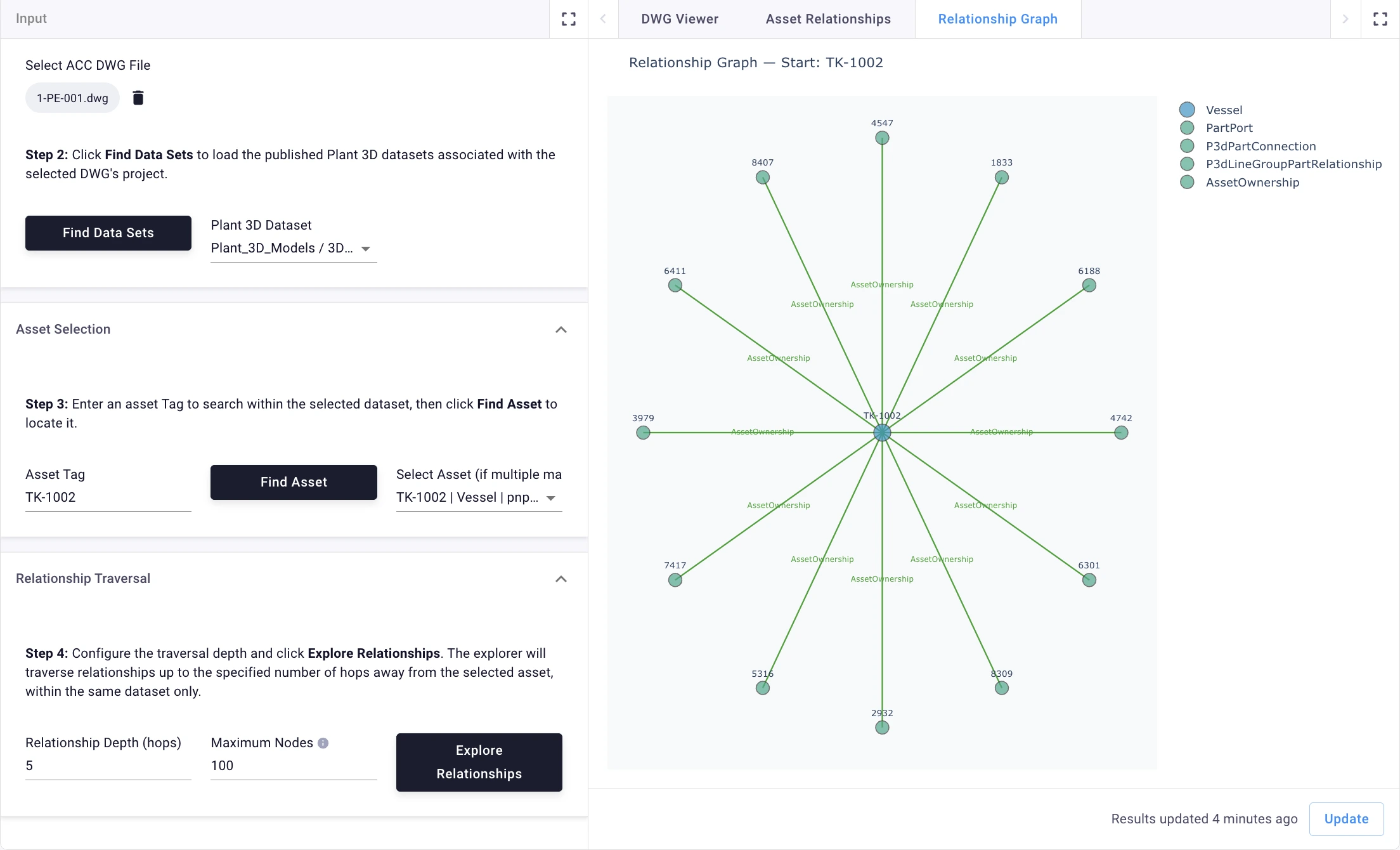
A higher depth does not guarantee more results: expansion stops when there are no new peers or the node limit is reached. The graph shows published relationships, not pipe routing or flow direction.
Create a new VIKTOR app
Want to start with the finished app? Jump to the complete app.py. The phases below build that same file step by step.
Let's build a 3D version of the equipment app from prompt 1. This example uses a 3D Piping Data Set instead of a P&ID Data Set. Select a 3D Plant DWG for the viewer, discover the project's published data sets, then choose a 3D Piping Data Set. Load its equipment into a table and a class-count chart. The report covers the selected data set; the viewer displays the selected 3D drawing.
Keep all Python code in one app.py. In later blocks, ... marks code from an earlier phase. Keep that code instead of replacing it with dots. Highlighted lines show what you add.
Install the VIKTOR CLI if needed, then create an editor app:
viktor-cli create-app "Plant 3D Equipment Tutorial" --init --app-type editor --registered-name plant3d-equipment-tutorial
Open the new app folder in your code editor.
Configure the app and dependencies
Keep your registered name if you chose a different one. Replace the integration placeholder with the exact OAuth integration name configured in your VIKTOR environment:
app_type = "editor"
python_version = "3.12"
registered_name = "plant3d-equipment-tutorial"
oauth2_integrations = ["[YOUR-APS-INTEGRATION-NAME-HERE]"]
Add these packages to requirements.txt:
viktor==14.37.0
requests==2.32.5
plotly>=5.24,<7
aps-viewer-sdk==0.1.4
VIKTOR provides the inputs, buttons and result views. Requests reads the Autodesk APIs, Plotly creates the chart, and the APS Viewer SDK displays the DWG.
1. Add the inputs and app structure
Start app.py with the imports, selection helpers and inputs below. Replace OAUTH2_INTEGRATION with the same integration name used in the configuration.
The file picker selects a DWG. Find data sets fills a separate dropdown, and Load equipment retrieves the report. Hidden fields keep discovered choices and report rows between button clicks. The buttons will call the Controller methods added in the next phases.
import json
from collections import Counter
from collections.abc import Iterator
from datetime import datetime, timezone
from typing import Any
from urllib.parse import quote
import plotly.graph_objects as go
import requests
import viktor as vkt
from aps_viewer_sdk import APSViewer

OAUTH2_INTEGRATION = "[YOUR-APS-INTEGRATION-NAME-HERE]"
NO_DATASET = "__choose_dataset__"


def selection_key(params: Any) -> list[str]:
    selected = params.plant_drawing
    return [selected.project_id, selected.urn, params.plant_dataset or ""] if selected else []


def dataset_choices(params: Any, **kwargs: Any) -> list[Any]:
    discovery = json.loads(params.datasets_json or "{}")
    selected = params.plant_drawing
    key = [selected.project_id, selected.urn] if selected else []
    options = discovery.get("groups", []) if discovery.get("drawing") == key else []
    choices = [vkt.OptionListElement(NO_DATASET, label="Choose a data set")]
    choices += [vkt.OptionListElement(item["id"], label=item["label"]) for item in options]
    if params.plant_dataset and params.plant_dataset not in {item.value for item in choices}:
        choices.append(vkt.OptionListElement(params.plant_dataset, label="Saved selection: click Find data sets"))
    return choices


class Parametrization(vkt.Parametrization):
    intro = vkt.Text("# Plant 3D equipment overview\nReview equipment across one published 3D Piping Data Set. The drawing viewer is independent.")
    drawing_help = vkt.Text("**1. Select a drawing.** Browse to a published Plant DWG in ACC. This file supplies the project context and the viewer.")
    plant_drawing = vkt.AutodeskFileField("ACC DWG", oauth2_integration=OAUTH2_INTEGRATION)
    discover_help = vkt.Text("**2. Find data sets.** Discover the 3D Piping Data Sets published for this Plant project.")
    find = vkt.SetParamsButton("Find data sets", method="find_datasets", longpoll=True)
    dataset_help = vkt.Text("**3. Select one data set.** Equipment records and class counts cover this complete data set, not only the selected drawing.")
    plant_dataset = vkt.OptionField("3D Piping Data Set", options=dataset_choices, default=NO_DATASET)
    load_help = vkt.Text("**4. Load equipment.** Read equipment IDs, Tags and concrete classes, then open the table or chart. Load again after changing a source selection.")
    load = vkt.SetParamsButton("Load equipment", method="load_equipment", longpoll=True)
    viewer_help = vkt.Text("**Drawing viewer.** Open Selected drawing after choosing a DWG. The viewer works without loading equipment; it does not restrict the report.")
    status_text = vkt.HiddenField("Status")
    status = vkt.OutputField("Report status", value=vkt.Lookup("status_text"))
    datasets_json = vkt.HiddenField("Data set choices")
    report_json = vkt.HiddenField("Equipment report")


class Controller(vkt.Controller):
    parametrization = Parametrization
2. Connect to the Autodesk APIs
Add these constants and functions above selection_key(). gql() sends a request to the AEC Data Model API. pages() follows each returned cursor so the app reads all matching records.
...

AEC_GRAPHQL_URL = "https://developer.api.autodesk.com/aec/graphql"
PUBLICATION_FOLDERS = {"pid_dwg", "plant_3d_models"}
DATASET_NAMES = {"3D Piping Data Set"}
HUBS_QUERY = 'query PlantHubs($pagination: PaginationInput) { hubs(pagination: $pagination) { pagination { cursor } results { id } } }'
PROJECTS_QUERY = 'query PlantProjects($hubId: ID!, $pagination: PaginationInput) { projects(hubId: $hubId, pagination: $pagination) { pagination { cursor } results { id alternativeIdentifiers { dataManagementAPIProjectId } } } }'
FOLDERS_QUERY = 'query PlantFolders($projectId: ID!, $folderId: ID!, $pagination: PaginationInput) { foldersByFolder(projectId: $projectId, folderId: $folderId, pagination: $pagination) { pagination { cursor } results { id name } } }'
GROUPS_QUERY = 'query PlantDatasetGroups( $projectId: ID!, $folderId: ID!, $filter: ElementGroupFilterInput, $pagination: PaginationInput ) { elementGroupsByFolder( projectId: $projectId, folderId: $folderId, filter: $filter, pagination: $pagination ) { pagination { cursor } results { id name alternativeIdentifiers { fileUrn fileVersionUrn } } } }'
DEFINITIONS_QUERY = 'query PlantDefinitions($groupId: ID!, $pagination: PaginationInput) { propertyDefinitionsByElementGroup( elementGroupId: $groupId, pagination: $pagination ) { pagination { cursor } results { id name specification units { name } } } }'
ELEMENTS_QUERY = 'query PlantElements( $groupId: ID!, $filter: ElementFilterInput, $pagination: PaginationInput, $propertyFilter: PropertyFilterInput ) { elementsByElementGroup( elementGroupId: $groupId, filter: $filter, pagination: $pagination ) { pagination { cursor } results { id name alternativeIdentifiers { externalElementId } properties(filter: $propertyFilter, pagination: {limit: 100}) { pagination { cursor } results { name value displayValue definition { id name specification units { name } } } } } } }'
PROPERTIES_QUERY = 'query PlantProperties( $elementId: ID!, $propertyFilter: PropertyFilterInput, $pagination: PaginationInput ) { elementAtTip(elementId: $elementId) { properties(filter: $propertyFilter, pagination: $pagination) { pagination { cursor } results { name value displayValue definition { id name specification units { name } } } } } }'


def gql( query: str, token: str, region: str, variables: dict[str, Any] ) -> dict[str, Any]:
    response = requests.post(
        AEC_GRAPHQL_URL,
        headers={
            "Authorization": f"Bearer {token}",
            "Content-Type": "application/json",
            "Region": region,
        },
        json={"query": query, "variables": variables},
        timeout=60,
    )
    response.raise_for_status()
    body = response.json()
    if body.get("errors"):
        messages = [error.get("message", "Unknown error") for error in body["errors"]]
        raise RuntimeError("AEC query failed: " + "; ".join(messages))
    data = body.get("data")
    if not isinstance(data, dict):
        raise RuntimeError("AEC query returned no data object.")
    return data


def pages( query: str, path: tuple[str, ...], token: str, region: str, variables: dict[str, Any], limit: int = 25, cursor: str | None = None, ) -> Iterator[dict[str, Any]]:
    seen = {cursor} if cursor else set()
    while True:
        pagination: dict[str, Any] = {"limit": limit}
        if cursor:
            pagination["cursor"] = cursor
        block = gql(query, token, region, {**variables, "pagination": pagination})
        for key in path:
            block = block[key]
        if not isinstance(block, dict) or not isinstance(block.get("results"), list):
            raise RuntimeError("AEC query returned no result page.")
        yield from block["results"]
        cursor = block["pagination"]["cursor"]
        if not cursor:
            return
        if cursor in seen:
            raise RuntimeError("AEC query returned a repeated cursor.")
        seen.add(cursor)
3. Find the published data sets
Add these module functions above selection_key(). They locate the selected DWG's Plant project and find its published 3D Piping Data Sets. This discovery reads publication metadata; it does not load the project's equipment records.
...

def dm_get(path: str, token: str) -> dict[str, Any]:
    response = requests.get(
        "https://developer.api.autodesk.com/data/v1/" + path,
        headers={"Authorization": f"Bearer {token}"}, timeout=60,
    )
    response.raise_for_status()
    return response.json()


def parent_id(resource: dict[str, Any]) -> str | None:
    parent = resource.get("relationships", {}).get("parent", {}).get("data")
    return parent.get("id") if isinstance(parent, dict) else None


def plant_root(selected: Any, token: str) -> str:
    prefix = f"projects/{quote(selected.project_id, safe='')}/"
    item = dm_get(prefix + "items/" + quote(selected.urn, safe=""), token)["data"]
    folder_id = parent_id(item)
    seen: set[str] = set()
    while folder_id and len(seen) < 12:
        if folder_id in seen:
            raise vkt.UserError("The drawing folder path contains a cycle.")
        seen.add(folder_id)
        folder = dm_get(prefix + "folders/" + quote(folder_id, safe=""), token)["data"]
        parent = parent_id(folder)
        if folder["attributes"]["name"].casefold() in PUBLICATION_FOLDERS:
            if not parent:
                break
            return parent
        folder_id = parent
    raise vkt.UserError(
        "Select a published DWG below PID_DWG or Plant_3D_Models. "
        "This app cannot locate a Plant project for this file."
    )


def aec_project_id(token: str, region: str, dm_project_id: str) -> str:
    for hub in pages(HUBS_QUERY, ("hubs",), token, region, {}, limit=20):
        for project in pages(
            PROJECTS_QUERY, ("projects",), token, region, {"hubId": hub["id"]}, limit=20,
        ):
            alternative = project.get("alternativeIdentifiers") or {}
            if alternative.get("dataManagementAPIProjectId") == dm_project_id:
                return project["id"]
    raise vkt.UserError("The selected ACC project is not available in AEC Data Model.")


def discover_datasets(params: Any, token: str) -> tuple[str, list[dict[str, Any]]]:
    selected = params.plant_drawing
    if not selected:
        raise vkt.UserError("Select a Plant drawing first.")
    version = selected.get_latest_version(token)
    if not str(version.attributes.get("displayName", "")).lower().endswith(".dwg"):
        raise vkt.UserError("Select a Plant DWG file.")
    region = selected.get_region(token)
    root_id = plant_root(selected, token)
    project_id = aec_project_id(token, region, selected.project_id)
    groups: dict[str, dict[str, Any]] = {}
    for folder in pages(
        FOLDERS_QUERY, ("foldersByFolder",), token, region,
        {"projectId": project_id, "folderId": root_id},
    ):
        if folder["name"].casefold() not in PUBLICATION_FOLDERS:
            continue
        for group in pages(
            GROUPS_QUERY, ("elementGroupsByFolder",), token, region,
            {"projectId": project_id, "folderId": folder["id"],
             "filter": {"searchType": "ALL"}},
        ):
            if group["name"] in DATASET_NAMES:
                groups[group["id"]] = {**group, "folderName": folder["name"]}
    if not groups:
        raise vkt.UserError("No published Plant data set was found for this drawing's project.")
    return region, list(groups.values())
Now add find_datasets() inside the existing Controller. It saves the choices for the dropdown and clears the previous report when discovery runs again:
class Parametrization(vkt.Parametrization):
    ...


class Controller(vkt.Controller):
    parametrization = Parametrization
    ...

    def find_datasets(self, params: Any, **kwargs: Any) -> Any:
        token = vkt.external.OAuth2Integration(OAUTH2_INTEGRATION).get_access_token()
        region, groups = discover_datasets(params, token)
        drawing = params.plant_drawing
        choices = [{"id": group["id"], "label": f"{group['folderName']} / {group['name']}"} for group in groups]
        return vkt.SetParamsResult({
            "datasets_json": json.dumps({"drawing": [drawing.project_id, drawing.urn], "region": region, "groups": choices}),
            "plant_dataset": NO_DATASET,
            "report_json": "{}",
            "status_text": "Select a 3D Piping Data Set, then click Load equipment.",
        })
4. Load equipment from the selected data set
Add these module functions above selection_key(). The first reads the published property dictionary. The second retrieves matching elements and follows both element and property pages.
...

def definitions(token: str, region: str, group_id: str) -> list[dict[str, Any]]:
    return list(pages(
        DEFINITIONS_QUERY, ("propertyDefinitionsByElementGroup",), token, region,
        {"groupId": group_id}, limit=100,
    ))


def elements( token: str, region: str, group_id: str, rsql: str | None = None, verified_display_names: list[str] | None = None, page_size: int = 25, ) -> list[dict[str, Any]]:
    property_filter = {"names": verified_display_names} if verified_display_names is not None else None
    variables = {
        "groupId": group_id,
        "filter": {"query": rsql} if rsql else None,
        "propertyFilter": property_filter,
    }
    output: dict[str, dict[str, Any]] = {}
    for element in pages(
        ELEMENTS_QUERY, ("elementsByElementGroup",), token, region, variables, limit=page_size,
    ):
        block = element["properties"]
        properties = list(block["results"])
        cursor = block["pagination"]["cursor"]
        if cursor:
            properties.extend(pages(
                PROPERTIES_QUERY, ("elementAtTip", "properties"), token, region,
                {"elementId": element["id"], "propertyFilter": property_filter},
                limit=100, cursor=cursor,
            ))
        if not properties:
            raise RuntimeError(
                "An element has no extracted properties. Check the property filter and publication."
            )
        element["properties"] = {"results": properties}
        if element["id"] in output and output[element["id"]] != element:
            raise RuntimeError("An element changed during extraction. Run the scan again.")
        output[element["id"]] = element
    return list(output.values())
Add the following property and identity helpers below them. They read values by their full property ID, identify the concrete class and count each logical equipment asset once.
...

def property_id(key: str) -> str:
    return f"autodesk.plant3d.parameter:{key}-1.0.0"


def literal(value: str) -> str:
    return "'" + value.replace("\\", "\\\\").replace("'", "\\'") + "'"


def selector(key: str) -> str:
    return "property.id." + property_id(key)


def class_filter(class_token: str) -> str:
    return f"{selector('tableNames')}=contains={literal(class_token)}"


def property_record(element: dict[str, Any], definition_id: str) -> dict[str, Any] | None:
    matches = [
        prop for prop in element["properties"]["results"]
        if prop["definition"]["id"] == definition_id
    ]
    if len(matches) > 1:
        raise ValueError(f"Ambiguous property {definition_id} on {element['id']}.")
    return matches[0] if matches else None


def raw(element: dict[str, Any], key: str) -> Any:
    prop = property_record(element, property_id(key))
    return prop["value"] if prop else None


def missing_value(value: Any) -> bool:
    return value is None or (isinstance(value, str) and value.strip().lower() in {"", "null"})


def class_name(element: dict[str, Any]) -> str | None:
    value = raw(element, "pnpClassName")
    if not missing_value(value):
        return str(value).strip()
    chain = raw(element, "tableNames")
    if isinstance(chain, str) and not missing_value(chain):
        return next((part.strip() for part in chain.split(",") if part.strip()), None)
    value = raw(element, "className")
    return None if missing_value(value) else str(value).strip()


def plant_id(value: Any) -> str | None:
    if isinstance(value, bool):
        return None
    if isinstance(value, int):
        return str(value) if value > 0 else None
    if isinstance(value, str) and value.isascii() and value.isdigit() and int(value) > 0:
        return str(int(value))
    return None


def unique_assets(rows: list[dict[str, Any]]) -> dict[str, dict[str, Any]]:
    result: dict[str, dict[str, Any]] = {}
    for row in rows:
        key = plant_id(raw(row, "pnpId"))
        if key is None:
            raise ValueError(f"Missing or invalid pnpId on {row['id']}.")
        if key in result and result[key]["id"] != row["id"]:
            raise ValueError(f"More than one element has pnpId {key} in this group.")
        result[key] = row
    return result
The equipment query uses Table Names with =contains= because that property contains an object's class inheritance chain. This includes Equipment and its child classes.
Add load_equipment() inside Controller. It requests the identity, class and Tag properties, then saves the rows for the table and chart:
class Parametrization(vkt.Parametrization):
    ...


class Controller(vkt.Controller):
    parametrization = Parametrization
    ...

    def load_equipment(self, params: Any, **kwargs: Any) -> Any:
        drawing = params.plant_drawing
        discovery = json.loads(params.datasets_json or "{}")
        key = [drawing.project_id, drawing.urn] if drawing else []
        if not key or discovery.get("drawing") != key:
            raise vkt.UserError("Select a DWG and click Find data sets.")
        group = next((item for item in discovery.get("groups", []) if item["id"] == params.plant_dataset), None)
        if group is None:
            raise vkt.UserError("Select a discovered 3D Piping Data Set.")
        token = vkt.external.OAuth2Integration(OAUTH2_INTEGRATION).get_access_token()
        dictionary = definitions(token, discovery["region"], group["id"])
        required = {property_id(key) for key in ("pnpId", "pnpClassName", "tableNames")}
        if required - {item["id"] for item in dictionary}:
            raise vkt.UserError("The data set is missing Plant identity or class definitions.")
        wanted = required | {property_id("tag"), property_id("className")}
        names = sorted({item["name"] for item in dictionary if item["id"] in wanted})
        source = elements(token, discovery["region"], group["id"], class_filter("Equipment"), names, page_size=500)
        rows = [{"id": row["id"], "pnp_id": raw(row, "pnpId"), "tag": raw(row, "tag"), "class": class_name(row)}
                for row in unique_assets(source).values()]
        missing = " Tag is not published." if property_id("tag") not in {item["id"] for item in dictionary} else ""
        report = {"selection": selection_key(params), "label": group["label"], "rows": rows,
                  "loaded_at": datetime.now(timezone.utc).isoformat(), "note": missing}
        return vkt.SetParamsResult({"report_json": json.dumps(report), "status_text": f"Data set scope: {group['label']} | {len(rows)} equipment records.{missing}"})
5. Add the equipment table and chart
Add these methods inside the same Controller. loaded() checks that the saved report matches the current selections. Both views use those same saved rows, so switching tabs does not repeat the Autodesk query.
class Parametrization(vkt.Parametrization):
    ...


class Controller(vkt.Controller):
    parametrization = Parametrization
    ...

    def loaded(self, params: Any) -> dict[str, Any]:
        report = json.loads(params.report_json or "{}")
        if report and report.get("selection") != selection_key(params):
            raise vkt.UserError("Source selection changed. Find data sets and load equipment again.")
        return report

    @vkt.TableView("Equipment records - data set", duration_guess=1)
    def equipment_table(self, params: Any, **kwargs: Any) -> Any:
        report = self.loaded(params)
        rows = [[row["id"], row["pnp_id"], row["tag"], row["class"]] for row in report.get("rows", [])]
        if not rows:
            message = "No equipment found in the selected data set." if report else "Select a data set and click Load equipment."
            rows = [[None, None, None, message]]
        return vkt.TableResult(rows, column_headers=["AEC ID", "PnP ID", "Tag", "Concrete class"])

    @vkt.PlotlyView("Equipment counts - data set", duration_guess=1)
    def equipment_chart(self, params: Any, **kwargs: Any) -> Any:
        report = self.loaded(params)
        counts = Counter(row["class"] or "Not specified" for row in report.get("rows", []))
        labels = sorted(counts, key=lambda label: (-counts[label], label))
        figure = go.Figure(go.Bar(x=labels, y=[counts[label] for label in labels], text=[counts[label] for label in labels],
                                 textposition="outside", marker_color="#007bc2"))
        figure.update_layout(title="Equipment count by concrete class", template="plotly_white",
                             xaxis_title="Concrete class", yaxis_title="Equipment count", yaxis={"dtick": 1})
        if not report:
            figure.add_annotation(text="Select a data set and click Load equipment.", showarrow=False, x=0.5, y=0.5, xref="paper", yref="paper")
        elif not counts:
            figure.add_annotation(text="No equipment found in the selected data set.", showarrow=False, x=0.5, y=0.5, xref="paper", yref="paper")
        return vkt.PlotlyResult(figure.to_json())
6. Add the independent drawing viewer
Add this WebView method inside Controller. It only needs the selected DWG and a current access token. It can display the model before data-set discovery or equipment loading.
class Parametrization(vkt.Parametrization):
    ...


class Controller(vkt.Controller):
    parametrization = Parametrization
    ...

    @vkt.WebView("Selected drawing - independent", duration_guess=20)
    def drawing(self, params: Any, **kwargs: Any) -> Any:
        selected = params.plant_drawing
        if not selected:
            return vkt.WebResult(html="<p>Select an ACC DWG to open the drawing viewer.</p>")
        token = vkt.external.OAuth2Integration(OAUTH2_INTEGRATION).get_access_token()
        version = selected.get_latest_version(token)
        if not str(version.attributes.get("displayName", "")).lower().endswith(".dwg"):
            raise vkt.UserError("Select a DWG file.")
        viewer = APSViewer(urn=version.urn, token=token, region=selected.get_region(token), views_selector=True)
        return vkt.WebResult(html=viewer.write())
This viewer uses the DWG's source colors. Prompt 2 adds the record-to-viewer mapping needed to apply colors from queried properties.
7. Run the app
After adding all the code, run this command from your app folder:
viktor-cli clean-start
Open the development URL printed by the CLI, then:
- Connect your configured Autodesk integration.
- Select a published Plant DWG in ACC.
- Open Selected drawing and choose 3D View to inspect the model first.
- Click Find data sets and select one 3D Piping Data Set.
- Click Load equipment, then open the equipment table and chart.
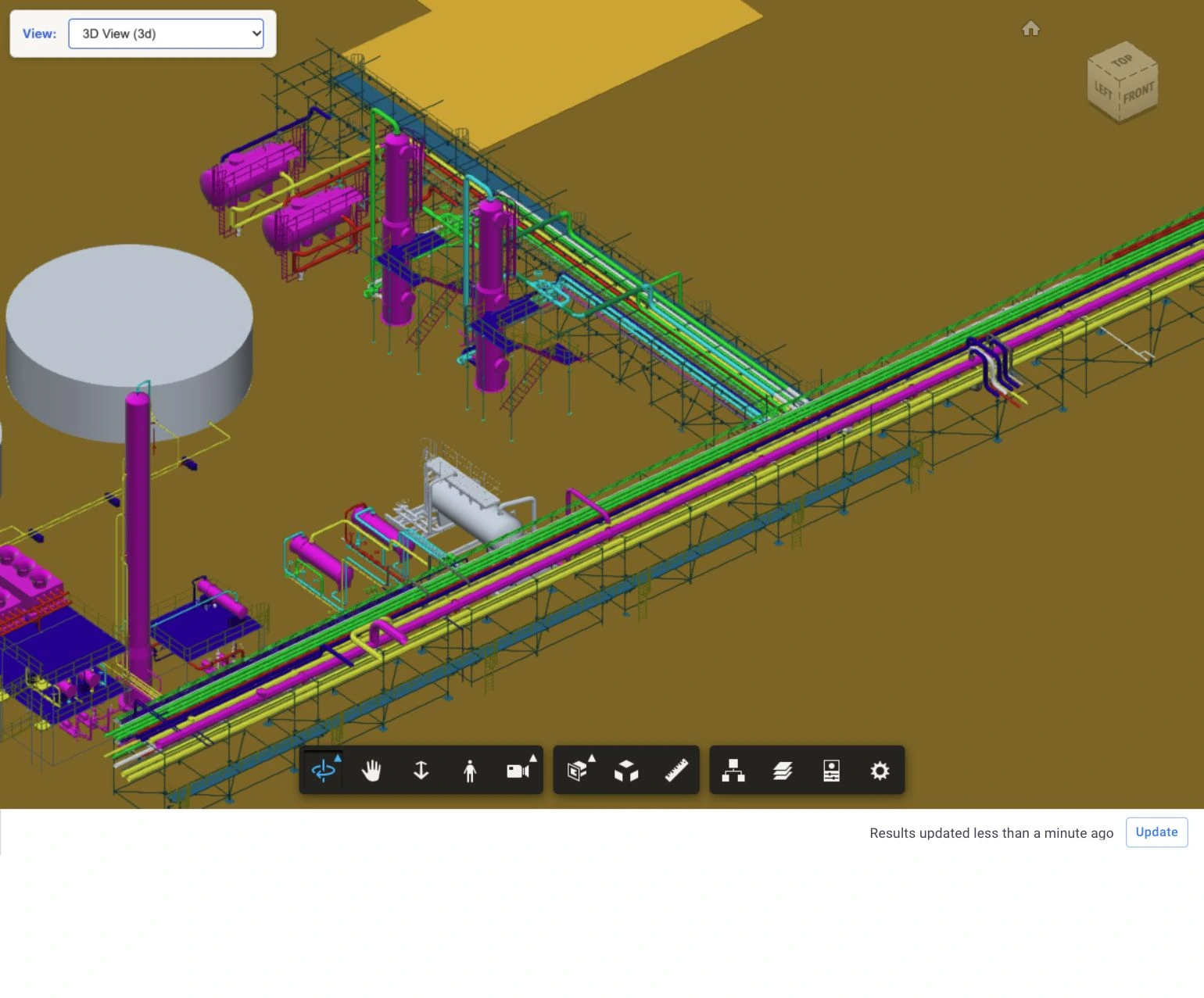
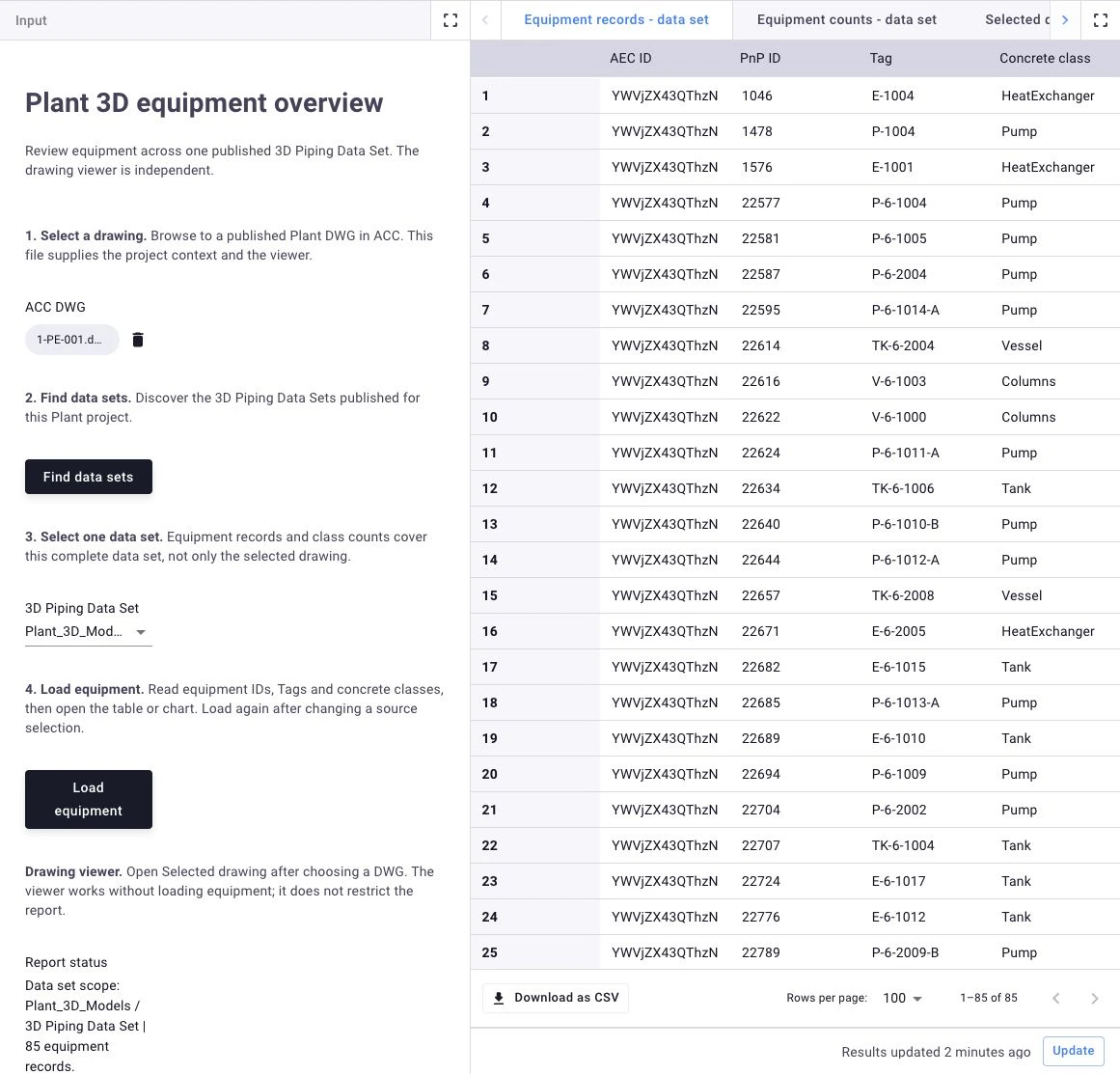
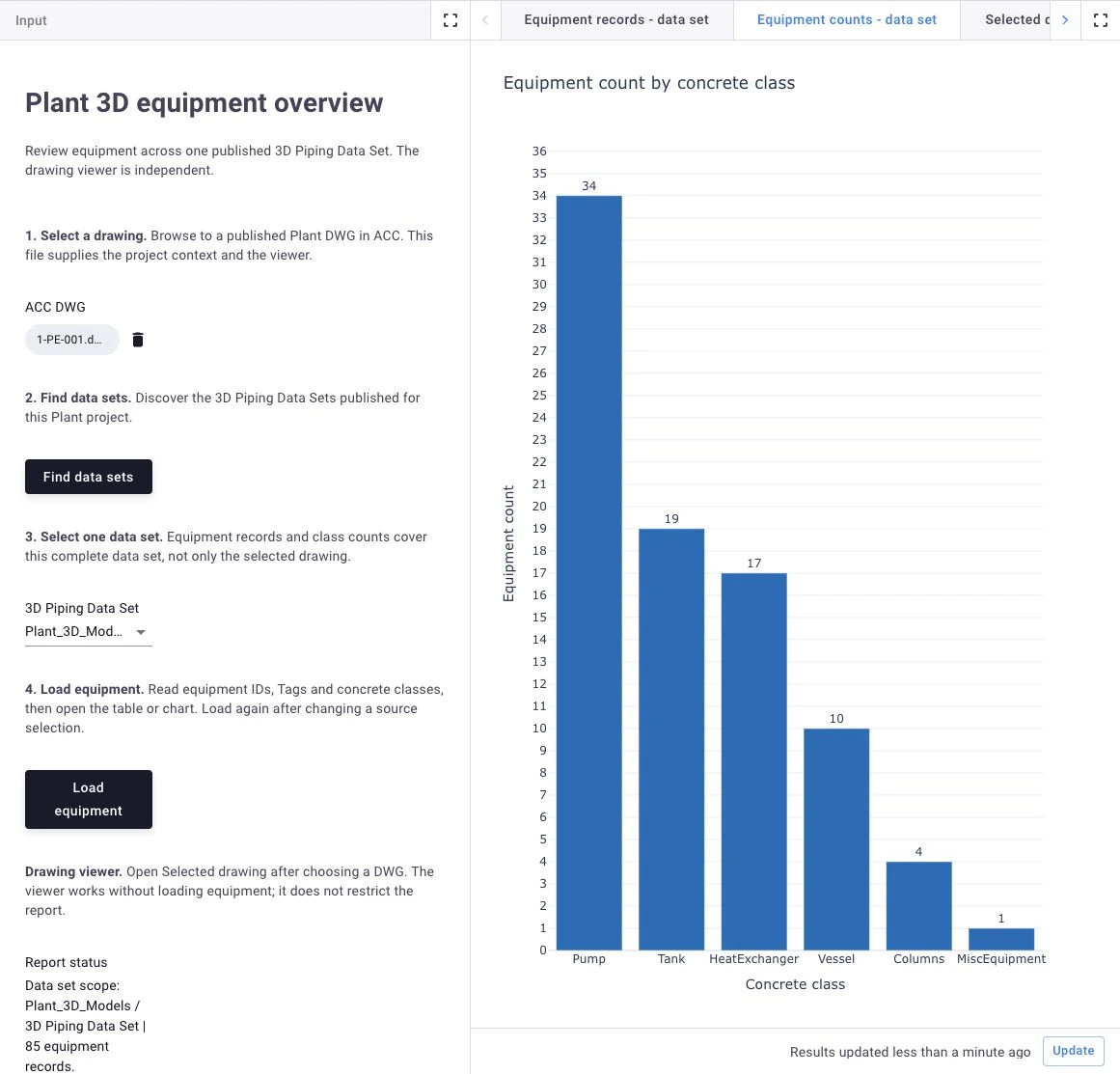
After changing a source selection, find the data sets and load the equipment again. Empty equipment results remain valid results; they do not trigger a broader project scan.
Complete code
Show complete app.py
import json
from collections import Counter
from collections.abc import Iterator
from datetime import datetime, timezone
from typing import Any
from urllib.parse import quote

import plotly.graph_objects as go
import requests
import viktor as vkt
from aps_viewer_sdk import APSViewer

OAUTH2_INTEGRATION = "[YOUR-APS-INTEGRATION-NAME-HERE]"
NO_DATASET = "__choose_dataset__"
AEC_GRAPHQL_URL = "https://developer.api.autodesk.com/aec/graphql"
PUBLICATION_FOLDERS = {"pid_dwg", "plant_3d_models"}
DATASET_NAMES = {"3D Piping Data Set"}
HUBS_QUERY = 'query PlantHubs($pagination: PaginationInput) { hubs(pagination: $pagination) { pagination { cursor } results { id } } }'
PROJECTS_QUERY = 'query PlantProjects($hubId: ID!, $pagination: PaginationInput) { projects(hubId: $hubId, pagination: $pagination) { pagination { cursor } results { id alternativeIdentifiers { dataManagementAPIProjectId } } } }'
FOLDERS_QUERY = 'query PlantFolders($projectId: ID!, $folderId: ID!, $pagination: PaginationInput) { foldersByFolder(projectId: $projectId, folderId: $folderId, pagination: $pagination) { pagination { cursor } results { id name } } }'
GROUPS_QUERY = 'query PlantDatasetGroups( $projectId: ID!, $folderId: ID!, $filter: ElementGroupFilterInput, $pagination: PaginationInput ) { elementGroupsByFolder( projectId: $projectId, folderId: $folderId, filter: $filter, pagination: $pagination ) { pagination { cursor } results { id name alternativeIdentifiers { fileUrn fileVersionUrn } } } }'
DEFINITIONS_QUERY = 'query PlantDefinitions($groupId: ID!, $pagination: PaginationInput) { propertyDefinitionsByElementGroup( elementGroupId: $groupId, pagination: $pagination ) { pagination { cursor } results { id name specification units { name } } } }'
ELEMENTS_QUERY = 'query PlantElements( $groupId: ID!, $filter: ElementFilterInput, $pagination: PaginationInput, $propertyFilter: PropertyFilterInput ) { elementsByElementGroup( elementGroupId: $groupId, filter: $filter, pagination: $pagination ) { pagination { cursor } results { id name alternativeIdentifiers { externalElementId } properties(filter: $propertyFilter, pagination: {limit: 100}) { pagination { cursor } results { name value displayValue definition { id name specification units { name } } } } } } }'
PROPERTIES_QUERY = 'query PlantProperties( $elementId: ID!, $propertyFilter: PropertyFilterInput, $pagination: PaginationInput ) { elementAtTip(elementId: $elementId) { properties(filter: $propertyFilter, pagination: $pagination) { pagination { cursor } results { name value displayValue definition { id name specification units { name } } } } } }'


def gql( query: str, token: str, region: str, variables: dict[str, Any] ) -> dict[str, Any]:
    response = requests.post(
        AEC_GRAPHQL_URL,
        headers={
            "Authorization": f"Bearer {token}",
            "Content-Type": "application/json",
            "Region": region,
        },
        json={"query": query, "variables": variables},
        timeout=60,
    )
    response.raise_for_status()
    body = response.json()
    if body.get("errors"):
        messages = [error.get("message", "Unknown error") for error in body["errors"]]
        raise RuntimeError("AEC query failed: " + "; ".join(messages))
    data = body.get("data")
    if not isinstance(data, dict):
        raise RuntimeError("AEC query returned no data object.")
    return data


def pages( query: str, path: tuple[str, ...], token: str, region: str, variables: dict[str, Any], limit: int = 25, cursor: str | None = None, ) -> Iterator[dict[str, Any]]:
    seen = {cursor} if cursor else set()
    while True:
        pagination: dict[str, Any] = {"limit": limit}
        if cursor:
            pagination["cursor"] = cursor
        block = gql(query, token, region, {**variables, "pagination": pagination})
        for key in path:
            block = block[key]
        if not isinstance(block, dict) or not isinstance(block.get("results"), list):
            raise RuntimeError("AEC query returned no result page.")
        yield from block["results"]
        cursor = block["pagination"]["cursor"]
        if not cursor:
            return
        if cursor in seen:
            raise RuntimeError("AEC query returned a repeated cursor.")
        seen.add(cursor)


def dm_get(path: str, token: str) -> dict[str, Any]:
    response = requests.get(
        "https://developer.api.autodesk.com/data/v1/" + path,
        headers={"Authorization": f"Bearer {token}"}, timeout=60,
    )
    response.raise_for_status()
    return response.json()


def parent_id(resource: dict[str, Any]) -> str | None:
    parent = resource.get("relationships", {}).get("parent", {}).get("data")
    return parent.get("id") if isinstance(parent, dict) else None


def plant_root(selected: Any, token: str) -> str:
    prefix = f"projects/{quote(selected.project_id, safe='')}/"
    item = dm_get(prefix + "items/" + quote(selected.urn, safe=""), token)["data"]
    folder_id = parent_id(item)
    seen: set[str] = set()
    while folder_id and len(seen) < 12:
        if folder_id in seen:
            raise vkt.UserError("The drawing folder path contains a cycle.")
        seen.add(folder_id)
        folder = dm_get(prefix + "folders/" + quote(folder_id, safe=""), token)["data"]
        parent = parent_id(folder)
        if folder["attributes"]["name"].casefold() in PUBLICATION_FOLDERS:
            if not parent:
                break
            return parent
        folder_id = parent
    raise vkt.UserError(
        "Select a published DWG below PID_DWG or Plant_3D_Models. "
        "This app cannot locate a Plant project for this file."
    )


def aec_project_id(token: str, region: str, dm_project_id: str) -> str:
    for hub in pages(HUBS_QUERY, ("hubs",), token, region, {}, limit=20):
        for project in pages(
            PROJECTS_QUERY, ("projects",), token, region, {"hubId": hub["id"]}, limit=20,
        ):
            alternative = project.get("alternativeIdentifiers") or {}
            if alternative.get("dataManagementAPIProjectId") == dm_project_id:
                return project["id"]
    raise vkt.UserError("The selected ACC project is not available in AEC Data Model.")


def discover_datasets(params: Any, token: str) -> tuple[str, list[dict[str, Any]]]:
    selected = params.plant_drawing
    if not selected:
        raise vkt.UserError("Select a Plant drawing first.")
    version = selected.get_latest_version(token)
    if not str(version.attributes.get("displayName", "")).lower().endswith(".dwg"):
        raise vkt.UserError("Select a Plant DWG file.")
    region = selected.get_region(token)
    root_id = plant_root(selected, token)
    project_id = aec_project_id(token, region, selected.project_id)
    groups: dict[str, dict[str, Any]] = {}
    for folder in pages(
        FOLDERS_QUERY, ("foldersByFolder",), token, region,
        {"projectId": project_id, "folderId": root_id},
    ):
        if folder["name"].casefold() not in PUBLICATION_FOLDERS:
            continue
        for group in pages(
            GROUPS_QUERY, ("elementGroupsByFolder",), token, region,
            {"projectId": project_id, "folderId": folder["id"],
             "filter": {"searchType": "ALL"}},
        ):
            if group["name"] in DATASET_NAMES:
                groups[group["id"]] = {**group, "folderName": folder["name"]}
    if not groups:
        raise vkt.UserError("No published Plant data set was found for this drawing's project.")
    return region, list(groups.values())


def definitions(token: str, region: str, group_id: str) -> list[dict[str, Any]]:
    return list(pages(
        DEFINITIONS_QUERY, ("propertyDefinitionsByElementGroup",), token, region,
        {"groupId": group_id}, limit=100,
    ))


def elements( token: str, region: str, group_id: str, rsql: str | None = None, verified_display_names: list[str] | None = None, page_size: int = 25, ) -> list[dict[str, Any]]:
    property_filter = {"names": verified_display_names} if verified_display_names is not None else None
    variables = {
        "groupId": group_id,
        "filter": {"query": rsql} if rsql else None,
        "propertyFilter": property_filter,
    }
    output: dict[str, dict[str, Any]] = {}
    for element in pages(
        ELEMENTS_QUERY, ("elementsByElementGroup",), token, region, variables, limit=page_size,
    ):
        block = element["properties"]
        properties = list(block["results"])
        cursor = block["pagination"]["cursor"]
        if cursor:
            properties.extend(pages(
                PROPERTIES_QUERY, ("elementAtTip", "properties"), token, region,
                {"elementId": element["id"], "propertyFilter": property_filter},
                limit=100, cursor=cursor,
            ))
        if not properties:
            raise RuntimeError(
                "An element has no extracted properties. Check the property filter and publication."
            )
        element["properties"] = {"results": properties}
        if element["id"] in output and output[element["id"]] != element:
            raise RuntimeError("An element changed during extraction. Run the scan again.")
        output[element["id"]] = element
    return list(output.values())


def property_id(key: str) -> str:
    return f"autodesk.plant3d.parameter:{key}-1.0.0"


def literal(value: str) -> str:
    return "'" + value.replace("\\", "\\\\").replace("'", "\\'") + "'"


def selector(key: str) -> str:
    return "property.id." + property_id(key)


def class_filter(class_token: str) -> str:
    return f"{selector('tableNames')}=contains={literal(class_token)}"


def property_record(element: dict[str, Any], definition_id: str) -> dict[str, Any] | None:
    matches = [
        prop for prop in element["properties"]["results"]
        if prop["definition"]["id"] == definition_id
    ]
    if len(matches) > 1:
        raise ValueError(f"Ambiguous property {definition_id} on {element['id']}.")
    return matches[0] if matches else None


def raw(element: dict[str, Any], key: str) -> Any:
    prop = property_record(element, property_id(key))
    return prop["value"] if prop else None


def missing_value(value: Any) -> bool:
    return value is None or (isinstance(value, str) and value.strip().lower() in {"", "null"})


def class_name(element: dict[str, Any]) -> str | None:
    value = raw(element, "pnpClassName")
    if not missing_value(value):
        return str(value).strip()
    chain = raw(element, "tableNames")
    if isinstance(chain, str) and not missing_value(chain):
        return next((part.strip() for part in chain.split(",") if part.strip()), None)
    value = raw(element, "className")
    return None if missing_value(value) else str(value).strip()


def plant_id(value: Any) -> str | None:
    if isinstance(value, bool):
        return None
    if isinstance(value, int):
        return str(value) if value > 0 else None
    if isinstance(value, str) and value.isascii() and value.isdigit() and int(value) > 0:
        return str(int(value))
    return None


def unique_assets(rows: list[dict[str, Any]]) -> dict[str, dict[str, Any]]:
    result: dict[str, dict[str, Any]] = {}
    for row in rows:
        key = plant_id(raw(row, "pnpId"))
        if key is None:
            raise ValueError(f"Missing or invalid pnpId on {row['id']}.")
        if key in result and result[key]["id"] != row["id"]:
            raise ValueError(f"More than one element has pnpId {key} in this group.")
        result[key] = row
    return result


def selection_key(params: Any) -> list[str]:
    selected = params.plant_drawing
    return [selected.project_id, selected.urn, params.plant_dataset or ""] if selected else []


def dataset_choices(params: Any, **kwargs: Any) -> list[Any]:
    discovery = json.loads(params.datasets_json or "{}")
    selected = params.plant_drawing
    key = [selected.project_id, selected.urn] if selected else []
    options = discovery.get("groups", []) if discovery.get("drawing") == key else []
    choices = [vkt.OptionListElement(NO_DATASET, label="Choose a data set")]
    choices += [vkt.OptionListElement(item["id"], label=item["label"]) for item in options]
    if params.plant_dataset and params.plant_dataset not in {item.value for item in choices}:
        choices.append(vkt.OptionListElement(params.plant_dataset, label="Saved selection: click Find data sets"))
    return choices


class Parametrization(vkt.Parametrization):
    intro = vkt.Text("# Plant 3D equipment overview\nReview equipment across one published 3D Piping Data Set. The drawing viewer is independent.")
    drawing_help = vkt.Text("**1. Select a drawing.** Browse to a published Plant DWG in ACC. This file supplies the project context and the viewer.")
    plant_drawing = vkt.AutodeskFileField("ACC DWG", oauth2_integration=OAUTH2_INTEGRATION)
    discover_help = vkt.Text("**2. Find data sets.** Discover the 3D Piping Data Sets published for this Plant project.")
    find = vkt.SetParamsButton("Find data sets", method="find_datasets", longpoll=True)
    dataset_help = vkt.Text("**3. Select one data set.** Equipment records and class counts cover this complete data set, not only the selected drawing.")
    plant_dataset = vkt.OptionField("3D Piping Data Set", options=dataset_choices, default=NO_DATASET)
    load_help = vkt.Text("**4. Load equipment.** Read equipment IDs, Tags and concrete classes, then open the table or chart. Load again after changing a source selection.")
    load = vkt.SetParamsButton("Load equipment", method="load_equipment", longpoll=True)
    viewer_help = vkt.Text("**Drawing viewer.** Open Selected drawing after choosing a DWG. The viewer works without loading equipment; it does not restrict the report.")
    status_text = vkt.HiddenField("Status")
    status = vkt.OutputField("Report status", value=vkt.Lookup("status_text"))
    datasets_json = vkt.HiddenField("Data set choices")
    report_json = vkt.HiddenField("Equipment report")


class Controller(vkt.Controller):
    parametrization = Parametrization

    def find_datasets(self, params: Any, **kwargs: Any) -> Any:
        token = vkt.external.OAuth2Integration(OAUTH2_INTEGRATION).get_access_token()
        region, groups = discover_datasets(params, token)
        drawing = params.plant_drawing
        choices = [{"id": group["id"], "label": f"{group['folderName']} / {group['name']}"} for group in groups]
        return vkt.SetParamsResult({
            "datasets_json": json.dumps({"drawing": [drawing.project_id, drawing.urn], "region": region, "groups": choices}),
            "plant_dataset": NO_DATASET,
            "report_json": "{}",
            "status_text": "Select a 3D Piping Data Set, then click Load equipment.",
        })

    def load_equipment(self, params: Any, **kwargs: Any) -> Any:
        drawing = params.plant_drawing
        discovery = json.loads(params.datasets_json or "{}")
        key = [drawing.project_id, drawing.urn] if drawing else []
        if not key or discovery.get("drawing") != key:
            raise vkt.UserError("Select a DWG and click Find data sets.")
        group = next((item for item in discovery.get("groups", []) if item["id"] == params.plant_dataset), None)
        if group is None:
            raise vkt.UserError("Select a discovered 3D Piping Data Set.")
        token = vkt.external.OAuth2Integration(OAUTH2_INTEGRATION).get_access_token()
        dictionary = definitions(token, discovery["region"], group["id"])
        required = {property_id(key) for key in ("pnpId", "pnpClassName", "tableNames")}
        if required - {item["id"] for item in dictionary}:
            raise vkt.UserError("The data set is missing Plant identity or class definitions.")
        wanted = required | {property_id("tag"), property_id("className")}
        names = sorted({item["name"] for item in dictionary if item["id"] in wanted})
        source = elements(token, discovery["region"], group["id"], class_filter("Equipment"), names, page_size=500)
        rows = [{"id": row["id"], "pnp_id": raw(row, "pnpId"), "tag": raw(row, "tag"), "class": class_name(row)}
                for row in unique_assets(source).values()]
        missing = " Tag is not published." if property_id("tag") not in {item["id"] for item in dictionary} else ""
        report = {"selection": selection_key(params), "label": group["label"], "rows": rows,
                  "loaded_at": datetime.now(timezone.utc).isoformat(), "note": missing}
        return vkt.SetParamsResult({"report_json": json.dumps(report), "status_text": f"Data set scope: {group['label']} | {len(rows)} equipment records.{missing}"})

    def loaded(self, params: Any) -> dict[str, Any]:
        report = json.loads(params.report_json or "{}")
        if report and report.get("selection") != selection_key(params):
            raise vkt.UserError("Source selection changed. Find data sets and load equipment again.")
        return report

    @vkt.TableView("Equipment records - data set", duration_guess=1)
    def equipment_table(self, params: Any, **kwargs: Any) -> Any:
        report = self.loaded(params)
        rows = [[row["id"], row["pnp_id"], row["tag"], row["class"]] for row in report.get("rows", [])]
        if not rows:
            message = "No equipment found in the selected data set." if report else "Select a data set and click Load equipment."
            rows = [[None, None, None, message]]
        return vkt.TableResult(rows, column_headers=["AEC ID", "PnP ID", "Tag", "Concrete class"])

    @vkt.PlotlyView("Equipment counts - data set", duration_guess=1)
    def equipment_chart(self, params: Any, **kwargs: Any) -> Any:
        report = self.loaded(params)
        counts = Counter(row["class"] or "Not specified" for row in report.get("rows", []))
        labels = sorted(counts, key=lambda label: (-counts[label], label))
        figure = go.Figure(go.Bar(x=labels, y=[counts[label] for label in labels], text=[counts[label] for label in labels],
                                 textposition="outside", marker_color="#007bc2"))
        figure.update_layout(title="Equipment count by concrete class", template="plotly_white",
                             xaxis_title="Concrete class", yaxis_title="Equipment count", yaxis={"dtick": 1})
        if not report:
            figure.add_annotation(text="Select a data set and click Load equipment.", showarrow=False, x=0.5, y=0.5, xref="paper", yref="paper")
        elif not counts:
            figure.add_annotation(text="No equipment found in the selected data set.", showarrow=False, x=0.5, y=0.5, xref="paper", yref="paper")
        return vkt.PlotlyResult(figure.to_json())

    @vkt.WebView("Selected drawing - independent", duration_guess=20)
    def drawing(self, params: Any, **kwargs: Any) -> Any:
        selected = params.plant_drawing
        if not selected:
            return vkt.WebResult(html="<p>Select an ACC DWG to open the drawing viewer.</p>")
        token = vkt.external.OAuth2Integration(OAUTH2_INTEGRATION).get_access_token()
        version = selected.get_latest_version(token)
        if not str(version.attributes.get("displayName", "")).lower().endswith(".dwg"):
            raise vkt.UserError("Select a DWG file.")
        viewer = APSViewer(urn=version.urn, token=token, region=selected.get_region(token), views_selector=True)
        return vkt.WebResult(html=viewer.write())
Next steps
Use these apps as a starting point for your own Plant 3D tasks. Ask the App Builder to review different assets or properties, change how results are grouped, or color objects by another property. Make one change at a time and check the results. Specify which drawings or data sets the report should cover.
Continue with the Autodesk Forma / ACC tutorial or explore the other VIKTOR tutorials.