Creating a simple-type app
In this tutorial we will create a simple-type application; an app that consists of only one single entity type.
The main difference with the editor-type app is that with the simple-type app you can create as many objects (entities) as you want. Each object editor stores its own (unique) data.
The app visualizes world population and life expectancy data in a few different ways:
- bar chart of the Netherlands
- animated scatter plot per continent
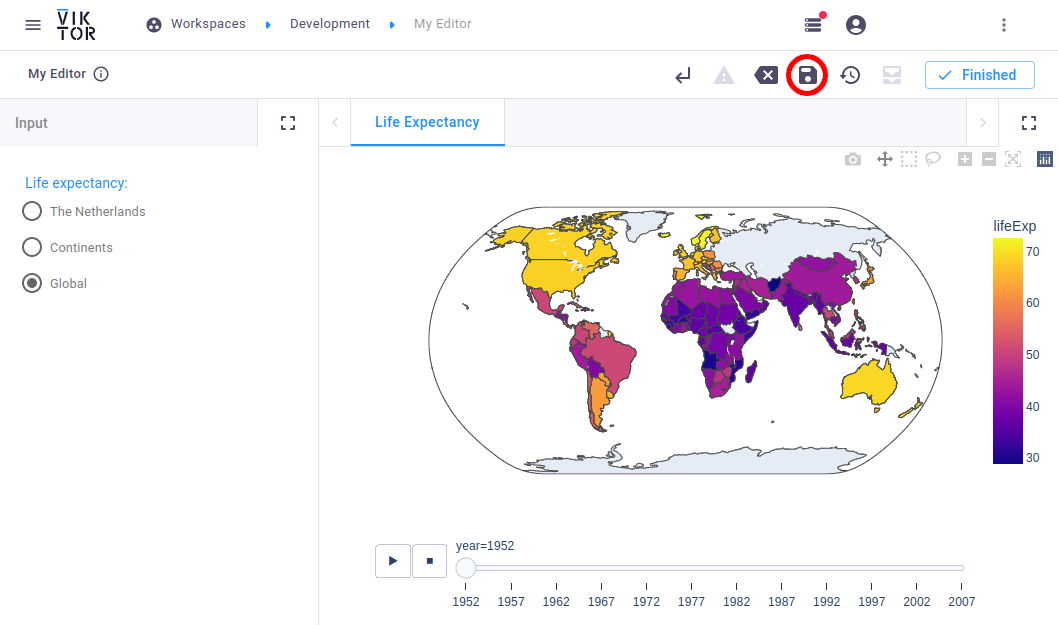
- world map surface plot
The end result can be downloaded here.
For more examples of applications, please visit the sample apps
Creating an empty app
Let's create, install and start an empty app. This will be the starting point for the rest of the tutorial.
But before we start, make sure to shut down any app that is running (like the demo app) by closing the command-line shell
(for example Powershell) or end the process using Ctrl + C.
Follow these steps to create, install and start an empty app:
-
Open a terminal and run the following command to create the app on the VIKTOR platform and generate the initial code locally:
viktor-cli create-app "Simple tutorial" --init --app-type simple -
Open the newly created folder in your code editor and run
viktor-cli clean-startin the terminal to install dependencies and connect the app to the platform.
If all went well, your empty app is installed and connected to your development workspace. Do not close the terminal as this will break the connection with your app. The terminal in your code editor should show something like this:
INFO    : Connecting to cloud.viktor.ai...
INFO    : Connection is established (use Ctrl+C to close)
INFO    :
INFO    : Navigate to the link below to see your app in the browser
INFO    :     https://cloud.viktor.ai/workspaces/XXX/app
INFO    :
INFO    : App code loaded, waiting for jobs...
- You only need to create an app template and install it once for each new app you want to make.
- The app will update automatically once you start adding code in
app.py, as long as you don't close the terminal or your code editor. - Did you close your code editor? Use
viktor-cli startto start the app again. No need to install, clear, etc.
Folder structure
The app has the following folder structure:
simple-tutorial
├── app.py
├── CHANGELOG.md
├── README.md
├── requirements.txt
├── tests
│   └── __init__.py
└── viktor.config.toml
Note that the app type ('simple') has been defined in viktor.config.toml:
Dependencies
Navigate to the newly created folder and open requirements.txt and add plotly as additional requirement. We will
use this package to create the (interactive) visualizations.
viktor==X.X.X
plotly
Installation
After adding the additional requirement the app needs to be installed again. Navigate to your terminal in the code editor, close the connection using Ctrl+C and enter the following command:
viktor-cli install
And afterwards:
viktor-cli start
Go to your browser and refresh the page to verify that the app is installed and running as expected. You should see the app's editor, which is currently a blank page.
If you see the "Workspaces" menu upon logging in, click the "Open" button on the "Development" workspace. After opening, you will be redirected to the app's editor.
Defining the editor (input / output)
Open app.py and replace it with the following code:
import viktor as vkt
import plotly.express as px


class Parametrization(vkt.Parametrization):
    graph = vkt.OptionField(
        "Life expectancy:",
        options=["The Netherlands", "Continents", "Global"],
        default="Continents",
        variant="radio",
        flex=100
    )


class Controller(vkt.Controller):
    parametrization = Parametrization(width=20)

    @vkt.PlotlyView("Life Expectancy")
    def plotly_view(self, params, **kwargs):
        df = px.data.gapminder()
        if params.graph == 'The Netherlands':
            data = df.query("country == 'Netherlands' ")
            fig = px.bar(data, x='year', y='pop', color='lifeExp')
        elif params.graph == 'Continents':
            fig = px.scatter(
                df, x="gdpPercap", y="lifeExp", animation_frame="year", animation_group="country",
                size="pop", color="continent", hover_name="country", facet_col="continent",
                log_x=True, size_max=75, range_x=[100, 100000], range_y=[25, 90]
            )
        elif params.graph == 'Global':
            fig = px.choropleth(
                df, locations='iso_alpha', color='lifeExp', hover_name='country',
                animation_frame='year', color_continuous_scale=px.colors.sequential.Plasma,
                projection='natural earth'
            )
        else:
            raise NotImplementedError
        return vkt.PlotlyResult(fig)
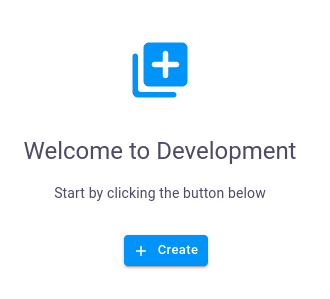
In your browser, click on "+ Create", as shown in the image below.
Fill in a name in the pop-up, and click “Create and open”, to create the object (entity) and open its editor.
On the left side, you will now see radio buttons with the defined options. Go ahead and select another option and see how it influences the results on the right-hand side. Save your changes by clicking the disk icon in the top-right corner of the screen (encircled in red in the image below).