Visualize Autodesk model
New in v14.25.0
This guide explains how to add an AutodeskView, to visualize a model from Autodesk cloud storage directly in
the editor. For the AutodeskView an access token is required, meaning that an
Autodesk integration should be set up beforehand.
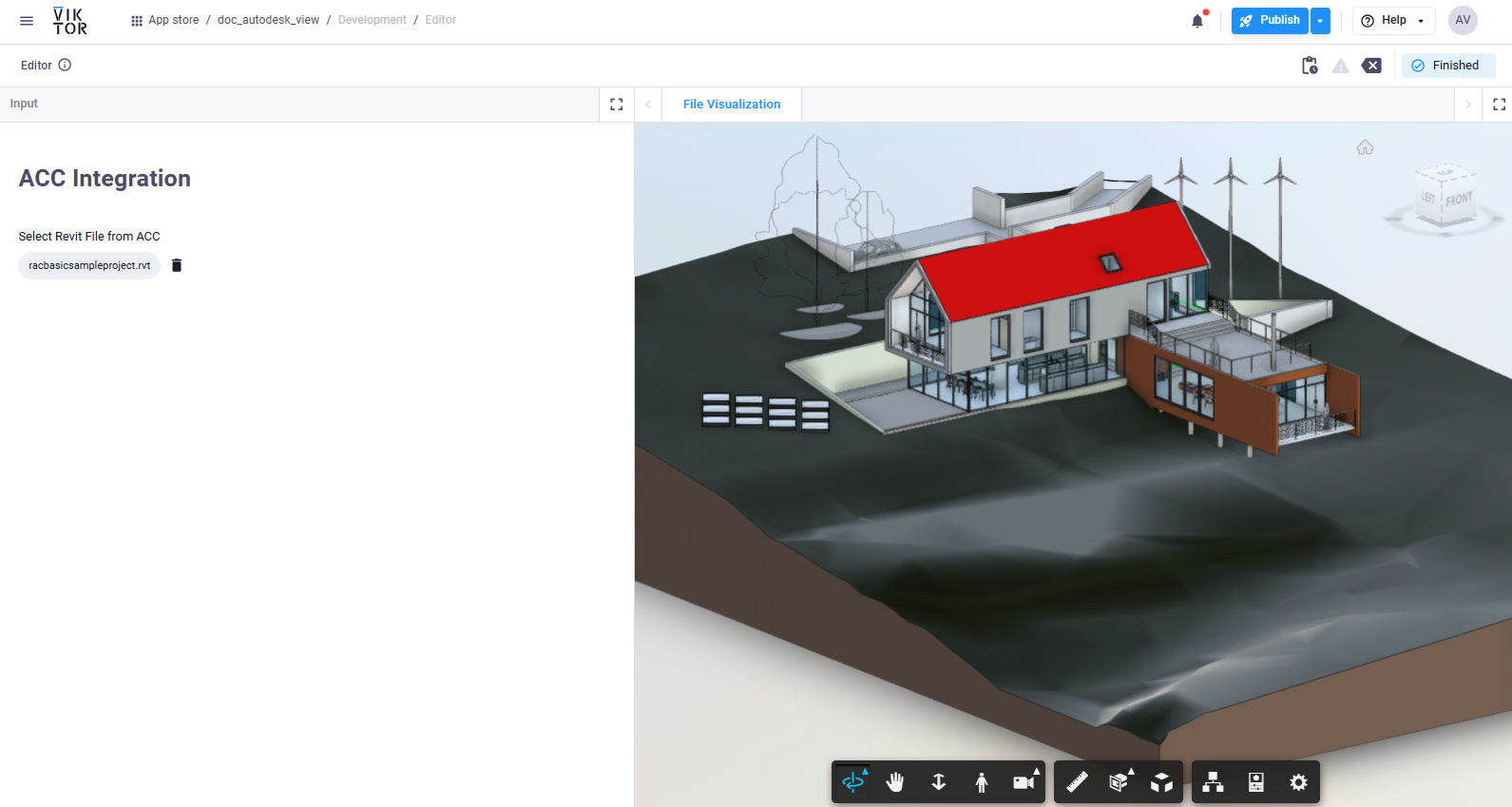
Implementation
The AutodeskView both accepts an AutodeskFile (e.g. from an AutodeskFileField), or a version URN (of the form "urn:XXX?version=Y") directly:
import viktor as vkt

class Parametrization(vkt.Parametrization):
    title = vkt.Text("# AutodeskView Sample App")
    autodesk_file = vkt.AutodeskFileField(
        "Select model from ACC",
        oauth2_integration="autodesk-integration",
    )

class MyEntityTypeController(vkt.Controller):
    parametrization = Parametrization

    @vkt.AutodeskView("Autodesk")
    def autodesk_view(self, params, **kwargs):
        integration = vkt.external.OAuth2Integration("autodesk-integration")
        token = integration.get_access_token()
        autodesk_file = params.autodesk_file
        if not autodesk_file:
            raise vkt.UserError("Please select a model in the Autodesk file field")
        return vkt.AutodeskResult(autodesk_file, access_token=token)
The AutodeskView allows you to perform measurements, navigate model properties, and, in a typical workflow, it helps collect inputs or verify outputs for more complex applications.
Testing
Methods decorated with a view like @AutodeskView must be mocked within the context of (automated) testing.
import unittest

import viktor as vkt

from app.my_entity_type.controller import MyEntityTypeController

class TestMyEntityTypeController(unittest.TestCase):

    @vkt.testing.mock_View(MyEntityTypeController)
    def test_autodesk_view(self):
        params = ...
        result = MyEntityTypeController().autodesk_view(params=params)
        self.assertEqual(result._autodesk_file, ...)