Labels
Labels are a powerful feature in VIKTOR apps that allow you to organize, categorize, and streamline the discovery of your applications. By leveraging labels, users can quickly find relevant tools, enhancing both app management and user adoption.
What are labels for?
Labels serve multiple purposes within VIKTOR apps:
- Organization & categorization: Group apps into meaningful categories to help users navigate the app store more efficiently.
- Discovery: Enable users to find relevant apps quickly through filtering and search in the app store.
- Filtering: Allow users to narrow down app options based on multiple criteria.
- VIKTOR is currently is available in the following regions:
Create a label
Creating a label in VIKTOR is straightforward:
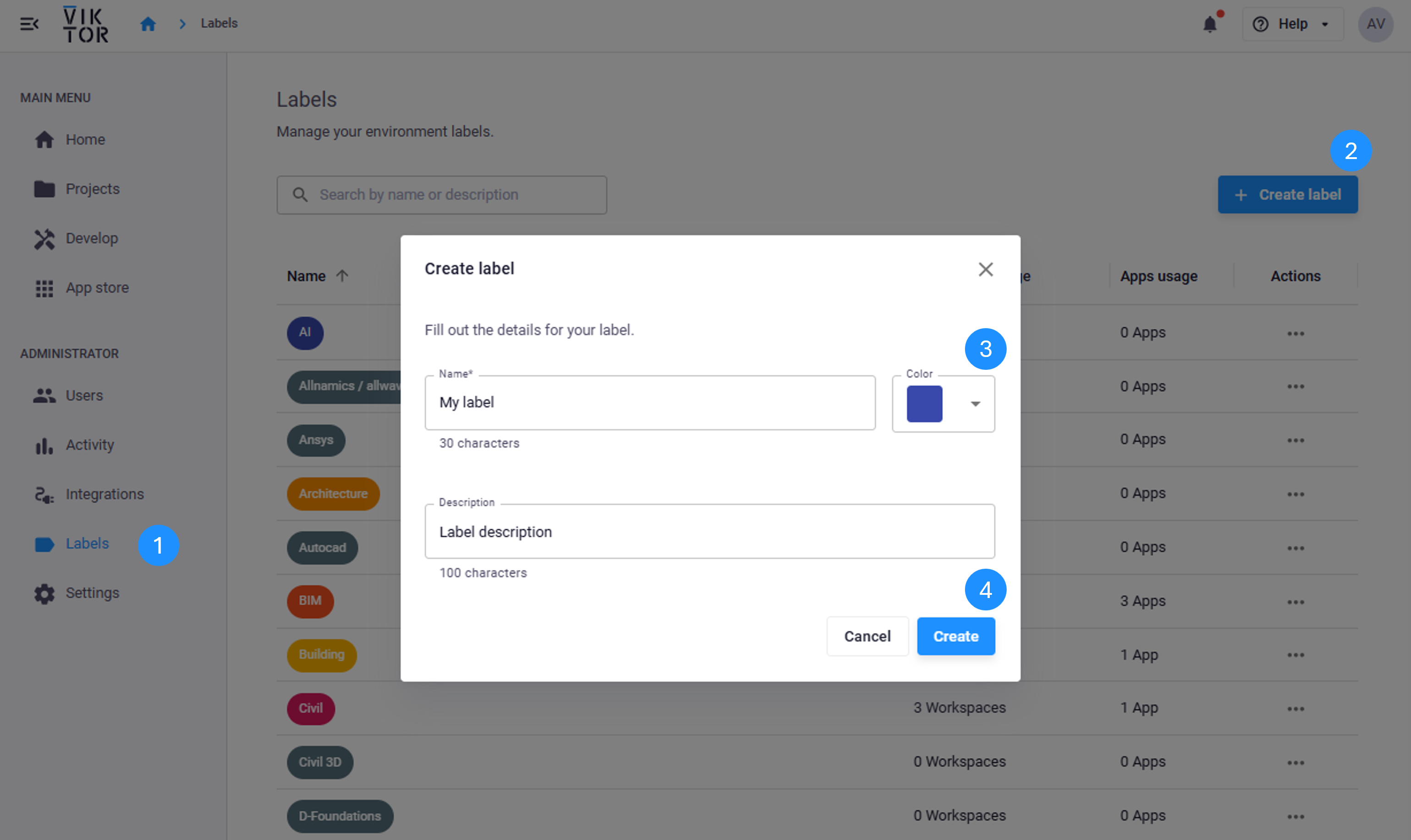
- Navigate to the Administrator panel, and select Labels
- Click "Create label"
- Fill in a name, description, and choose a color for your new label
- Click "Create"
Add a label to an app
Adding a label to an app ensures it is properly categorized and discoverable:
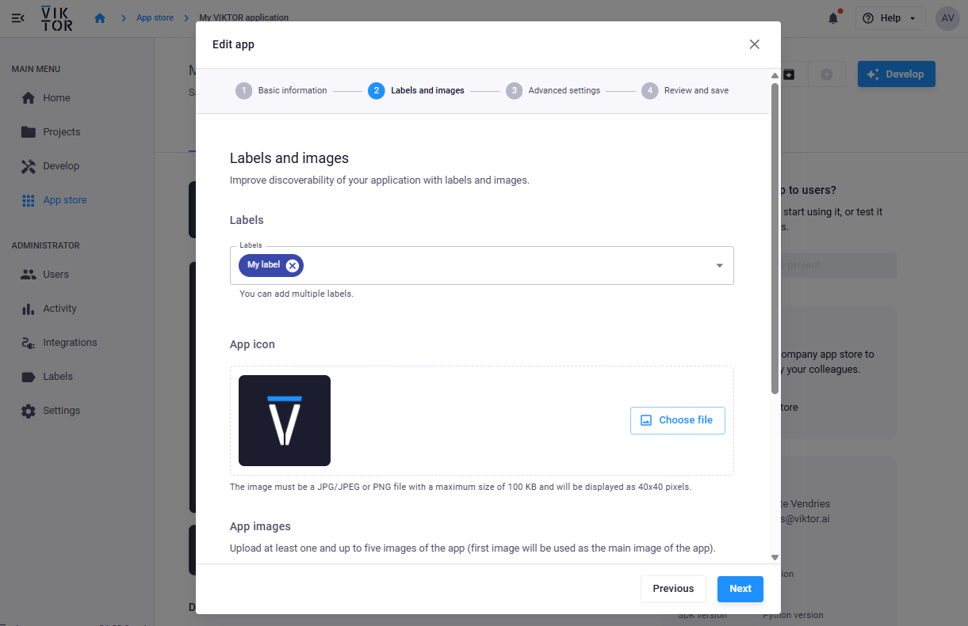
- Navigate to your "My apps" page in your Develop dashboard or the "All apps" page in the Administrator panel.
- Select the app you'd like to add the labels to and click on "Details"
- Click on the "Edit" icon
- Click through to step 2 and add the new label(s)
- "Review and save" your changes
FAQs
Can I delete a label?
Yes. You can delete a label. Deleting a label will removed it from any of the apps that it is assigned to. You will no longer be able to filter by that label.
Can I edit a label?
Yes, you can edit a label after it has been created. Here's how:
- Navigate to the Administrator panel and select Labels from the menu.
- Find the label you wish to edit and click on the three dots next to it.
- Click Edit.
- Make the necessary changes to the label details.
- Save your changes.
Your label will now be updated with the new information.