Labels
Labels are a powerful feature in VIKTOR apps that allow you to organize, categorize, and streamline the discovery of your applications. By leveraging labels, users can quickly find relevant tools, enhancing both app management and user adoption.
What are labels for?
Labels serve multiple purposes within VIKTOR apps:
- Organization & categorization: Group apps into meaningful categories to help users navigate the Library more efficiently.
- Discovery: Enable users to find relevant apps quickly through filtering and search in the Library.
- Filtering: Allow users to narrow down app options based on multiple criteria.
Labels on apps
Labels can be added to apps. The labels on an app are pre-selected when a new workspace is created from that app. Besides filtering on labels, users can also filter on workspace visibility, app name and the maintainer(s) of the app.
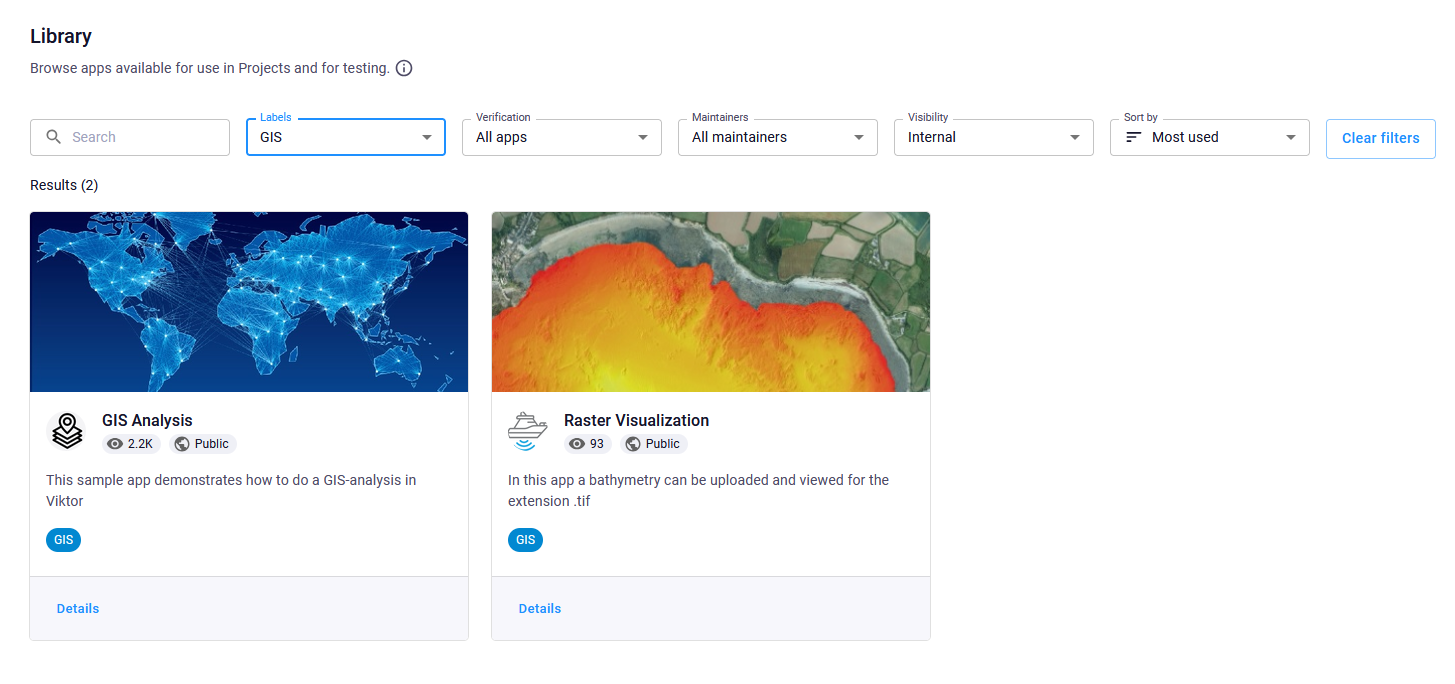
Create a label
Creating a label in VIKTOR is straightforward:
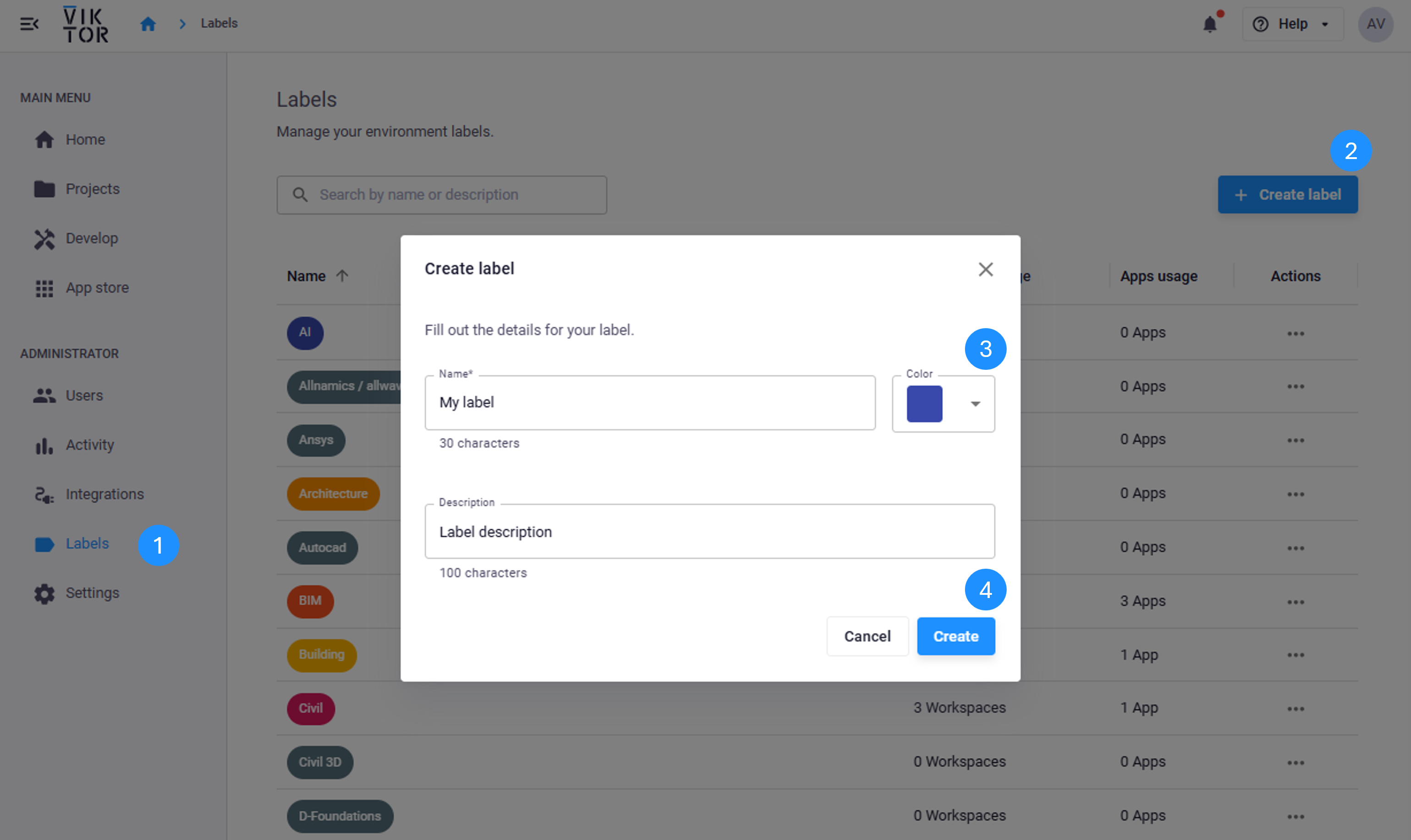
- Navigate to the Administrator panel, and select Labels
- Click "Create label"
- Fill in a name, description, and choose a color for your new label
- Click "Create"
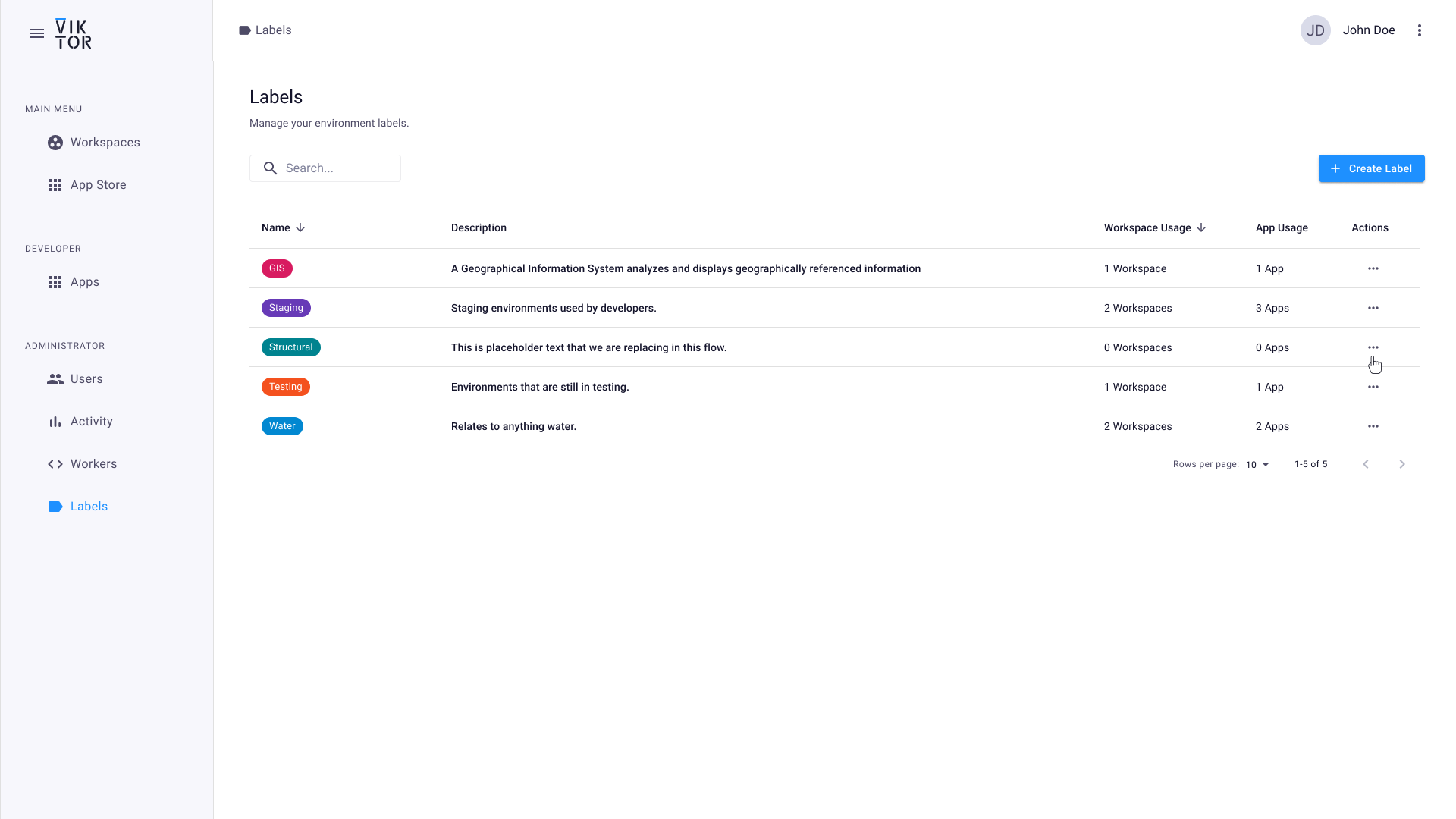
Your environment comes with a starting list of labels. In the enterprise tier these labels can be edited and removed, and new labels can be created.
Add a label to an app
Adding a label to an app ensures it is properly categorized and discoverable:
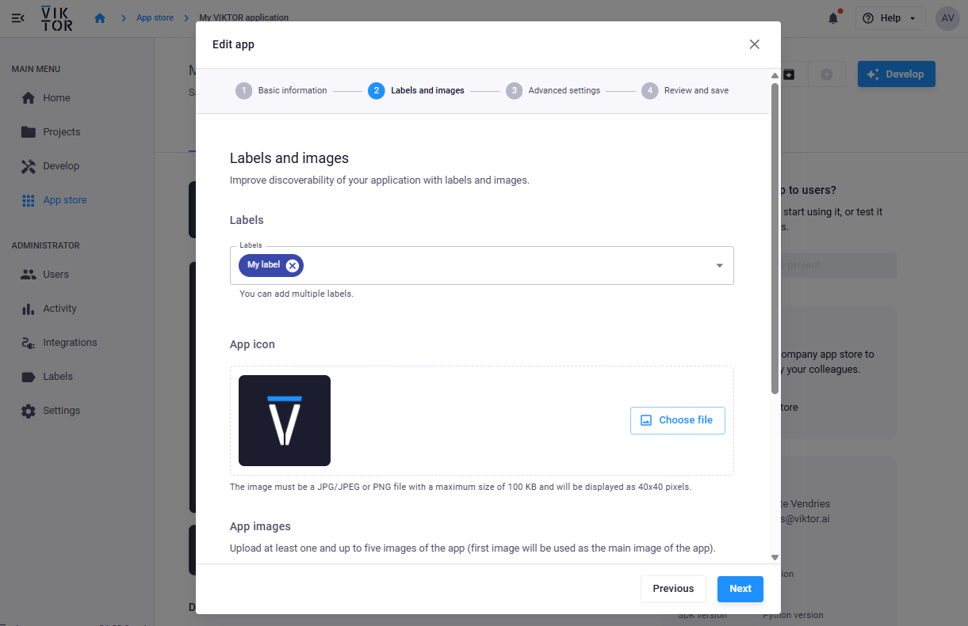
- Navigate to your "Develop" page
- For the app you'd like to add the labels to, click on "Details"
- Click on the three dots in the top-right corner, and select "Edit app"
- Click through to step 2 and add the new label(s)
- "Review and save" your changes
As an administrator you can label any app in the organization, also the ones you do not maintain. Start from the "All apps" page in the Administrator panel instead of the "Develop" page, the remaining steps are the same.
Label inspiration
In the enterprise tier, labels can freely be generated and changed to meet specific needs of your company. To give some inspiration on potential use cases:
- industry (in the starting list)
- discipline (in the starting list)
- integration/software package (in the starting list)
- project name (on workspace)
- development status (on app)
FAQs
Can I delete a label?
Yes. You can delete a label. Deleting a label will removed it from any of the apps that it is assigned to. You will no longer be able to filter by that label.
Can I edit a label?
Yes, you can edit a label after it has been created. Here's how:
- Navigate to the Administrator panel and select Labels from the menu.
- Find the label you wish to edit and click on the three dots next to it.
- Click Edit.
- Make the necessary changes to the label details.
- Save your changes.
Your label will now be updated with the new information.