Vision
VIKTOR includes a built-in vision model that lets you analyze images directly in your app. Upload an image, send it to the model, and get a text description back — no external API key or third-party account needed. For basic text chat, see the Viktor LLM overview.
The built-in vision model is only supported via the Chat Completions API. The Responses API is not supported for this model.
Example
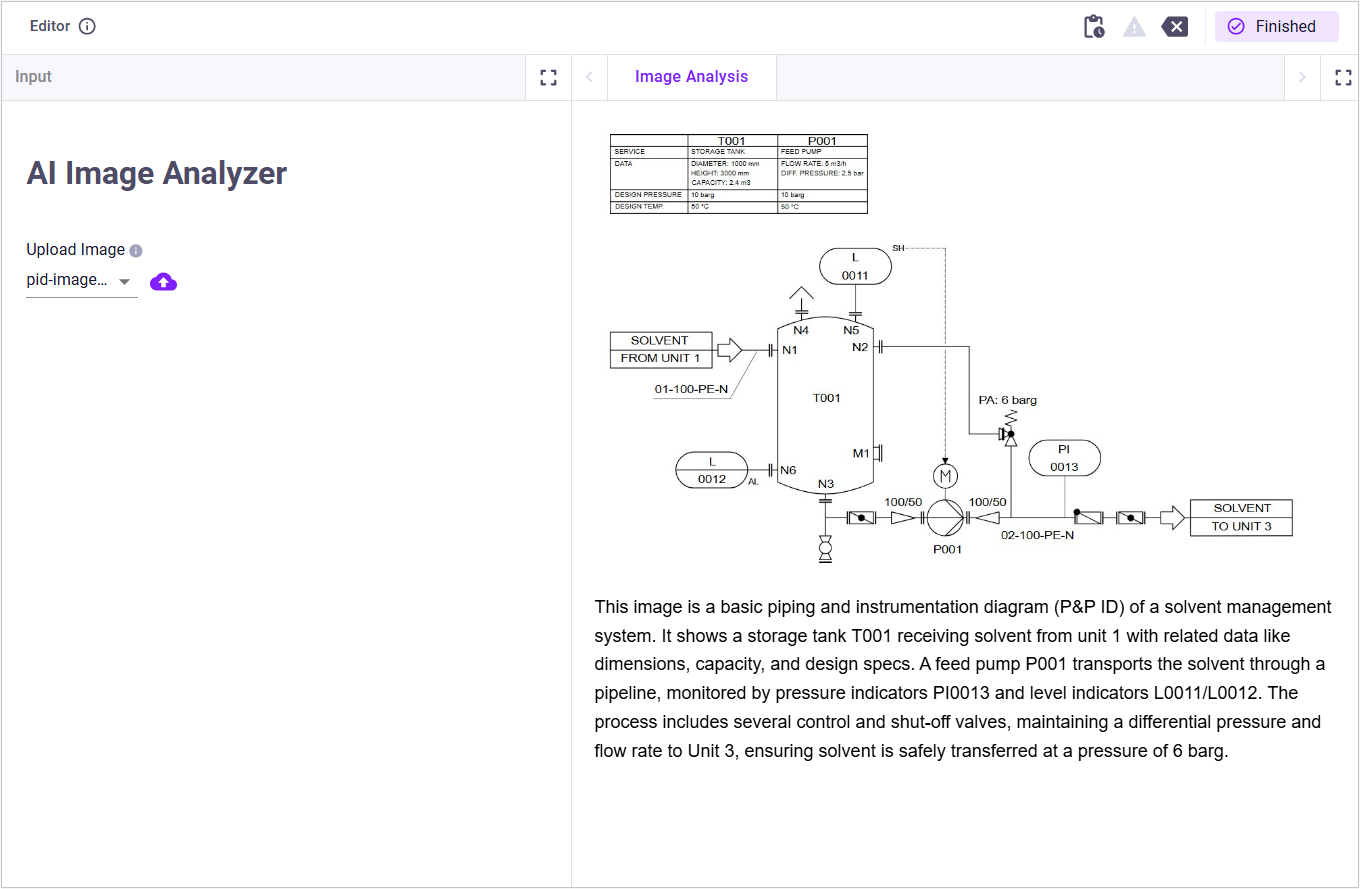
The following example shows a complete app that accepts an image upload and sends it to the vision model for analysis. Note that vkt.ViktorOpenAI handles authentication automatically — no API key setup is required on your end:
import base64

import viktor as vkt
from openai import OpenAI

client = OpenAI(
    base_url=vkt.ViktorOpenAI.get_base_url(version="v1"),
    api_key=vkt.ViktorOpenAI.get_api_key(),
)

class Parametrization(vkt.Parametrization):
    title = vkt.Text("# AI Image Analyzer")
    image_file = vkt.FileField(
        "Upload Image",
        file_types=[".jpg", ".jpeg"],
        description="Upload a JPG image to be analyzed by the AI model.",
    )


class Controller(vkt.Controller):
    parametrization = Parametrization

    @vkt.WebView("Image Analysis")
    def analyze_image(self, params, **kwargs):
        if not params.image_file:
            return vkt.WebResult(html="<p>Please upload an image to get started.</p>")

        image_bytes = params.image_file.file.getvalue_binary()
        base64_image = base64.b64encode(image_bytes).decode("utf-8")
        image_url = f"data:image/jpeg;base64,{base64_image}"

        messages = [
            {
                "role": "user",
                "content": [
                    {"type": "text", "text": "Describe what is shown in this image."},
                    {"type": "image_url", "image_url": {"url": image_url}},
                ],
            }
        ]

        response = client.chat.completions.create(
            model="mistral.ministral-3-14b-instruct",
            messages=messages,
        )

        result_text = response.choices[0].message.content
        html = f"""
        <html><body style="font-family:sans-serif;max-width:900px;margin:auto;padding:20px">
            <img src="{image_url}" style="max-width:100%;border-radius:8px">
            <p style="margin-top:16px;line-height:1.6">{result_text}</p>
        </body></html>
        """
        return vkt.WebResult(html=html)
This is how your application should look:
Key patterns
- Base64 encoding — read the image as bytes, encode with
base64.b64encode, and wrap in adata:image/jpeg;base64,...data URI. - Vision message format — the
contentfield is a list containing atextitem (your prompt) and animage_urlitem (the base64 data URI). - Model — use
mistral.ministral-3-14b-instructas the model ID.
Image extension and MIME type
VIKTOR's LLM endpoint supports different image formats. For example, to use a PNG in the previous example, keep the base64 encoding the same and change the MIME type in image_url from image/jpeg to image/png.
Use the matching MIME type for other supported formats:
- JPG / JPEG →
image/jpeg - PNG →
image/png - WEBP →
image/webp
image_url = f"data:image/png;base64,{base64_image}"
image_url = f"data:image/webp;base64,{base64_image}"
Make sure the FileField also allows these file types.
Limitations
- VIKTOR's LLM endpoint only supports base64-encoded data URIs for images. HTTP URLs, such as
https://example.com/image.jpg, are not supported. Images must be encoded inline. - Although the
chat.completionsendpoint supports the optionaldetailfield inimage_url, VIKTOR's LLM endpoint does not support detail levels such as"low","high", or"original". - The service enforces fair-usage limits. If your app exceeds the allowed token usage, the API returns a
429 Too Many Requestsresponse, which theopenailibrary raises asopenai.RateLimitError. Catch it and raise aUserErrorto show a clear message, as shown above.