Manage projects
This page explains what projects are on VIKTOR, how they work, and who can create or manage these projects.
What are projects?
Think of projects as folders designed to organize and manage your apps efficiently. Each project acts as a dedicated container where you can have various apps. You can add specific applications that are relevant to your work. Each app will contain data unique to that project.
Project visibility
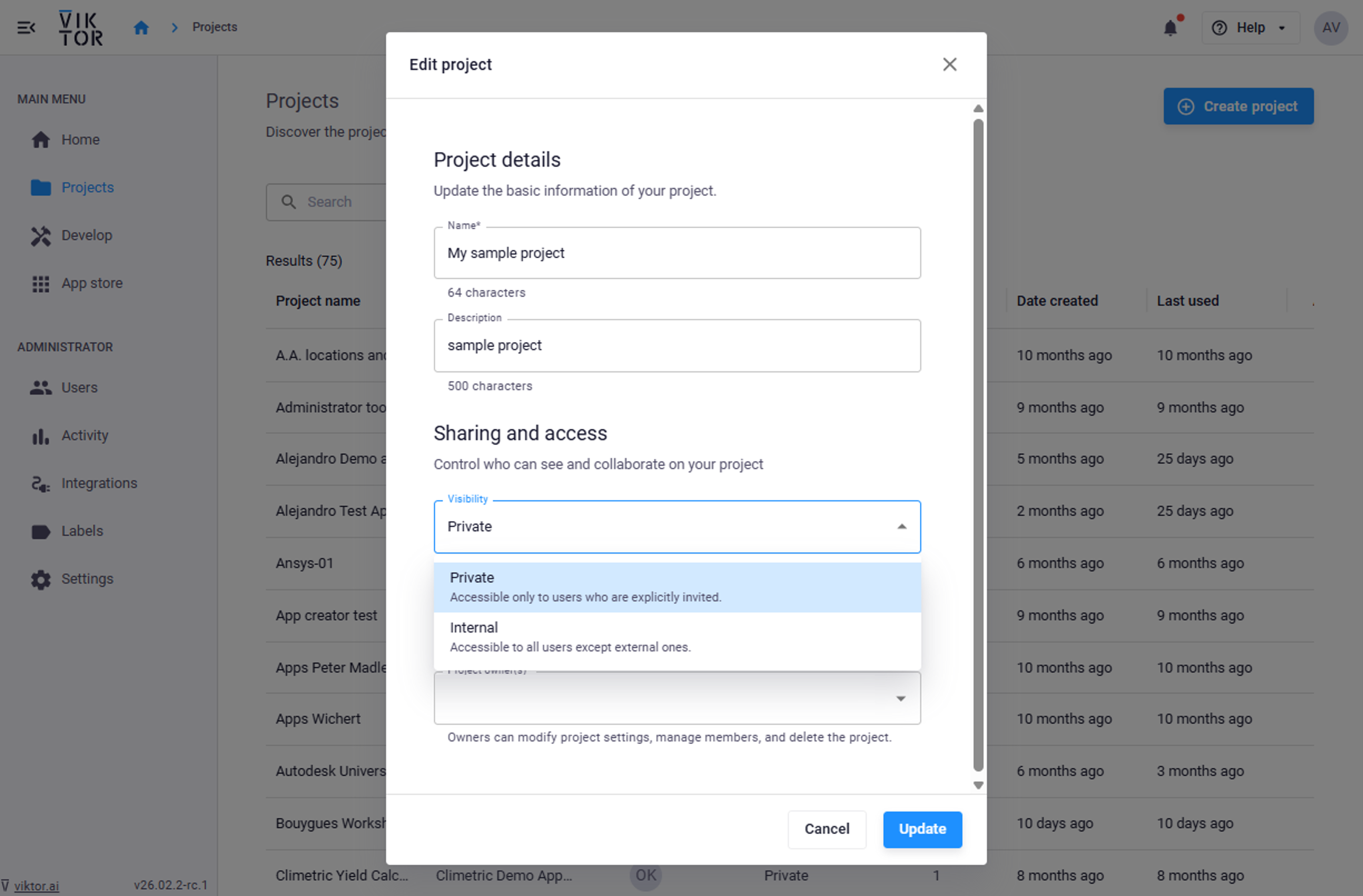
Project visibility refers to the level of access and information available to different users within an environment. It ensures that relevant parties can view project details and apps. Visibility can be controlled to maintain confidentiality and ensure data security. Levels of project visibility include:
- Private: Accessible only to users who are explicitly invited.
- Internal: Accessible to all users except external ones.
Project visibility can be set during the creation of a project or updated by following these steps:
- Navigate to Projects and find the project you wish to edit
- Click on the three dots and select "Edit"
- Change the visibility and click "update"
Create and share projects
Projects are a way for you to collaborate with users. You can create a project, add apps to it and share the project with your colleagues so that they can collaborate with you on your project.
Create a project
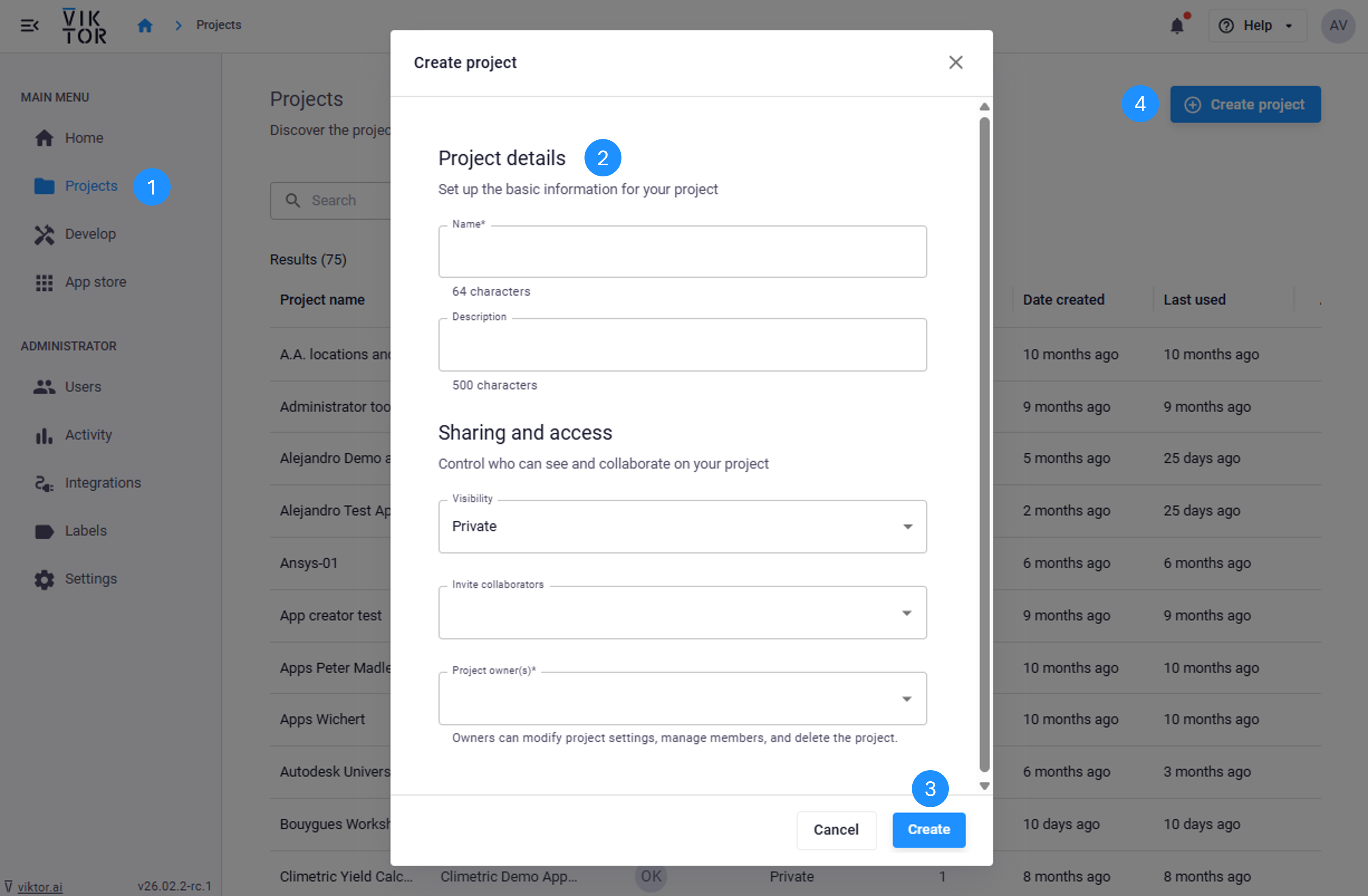
A project can be created by following these steps:
- Navigate to Projects and click on the "Create project" button in the top right hand corner.
- Add the details of your project like name and description, choose the project's visibility and who you'd like to have access.
- Click "Create"
- Your project will automatically open and you can start adding tools and inviting colleagues
Add apps to a project
You can add apps, that are available in your company app store, to your project. You can add apps to your project by following these steps:
- Navigate to Projects and find the project you wish to add apps to. If you are creating a new project, follow the steps in how to create a project first.
- Open the project and click on "Add app" in the top right of the screen.
- In the pop up, select the app you would like to add to you project.
- Click "Add to project"
Share a project
You can invite your colleagues to collaborate on your project. Inviting your colleagues means that they will have access to view your project details and use the apps that you have added to your project.
You can share a project by following these steps
- Navigate to Projects and find the project you wish to share. If you are creating a new project, follow the steps in how to create a project - you are able to add people you'd like to give access to your project.
- Click on the three dots and select "Invite user".
- Search for and select the users you'd like to share your project with.
- Click "Invite".
Roles in projects
Projects have 2 roles.
- Project owner: responsible for managing the project, with permissions to access and use all project apps, edit project details, invite and manage users, and assign additional project owners.
- Member: can access and use the project apps and view project details, but cannot make any changes to the project settings or manage other users.*
*External users on the environment can be added as members to a project but cannot by made a project owner.
Editing project details
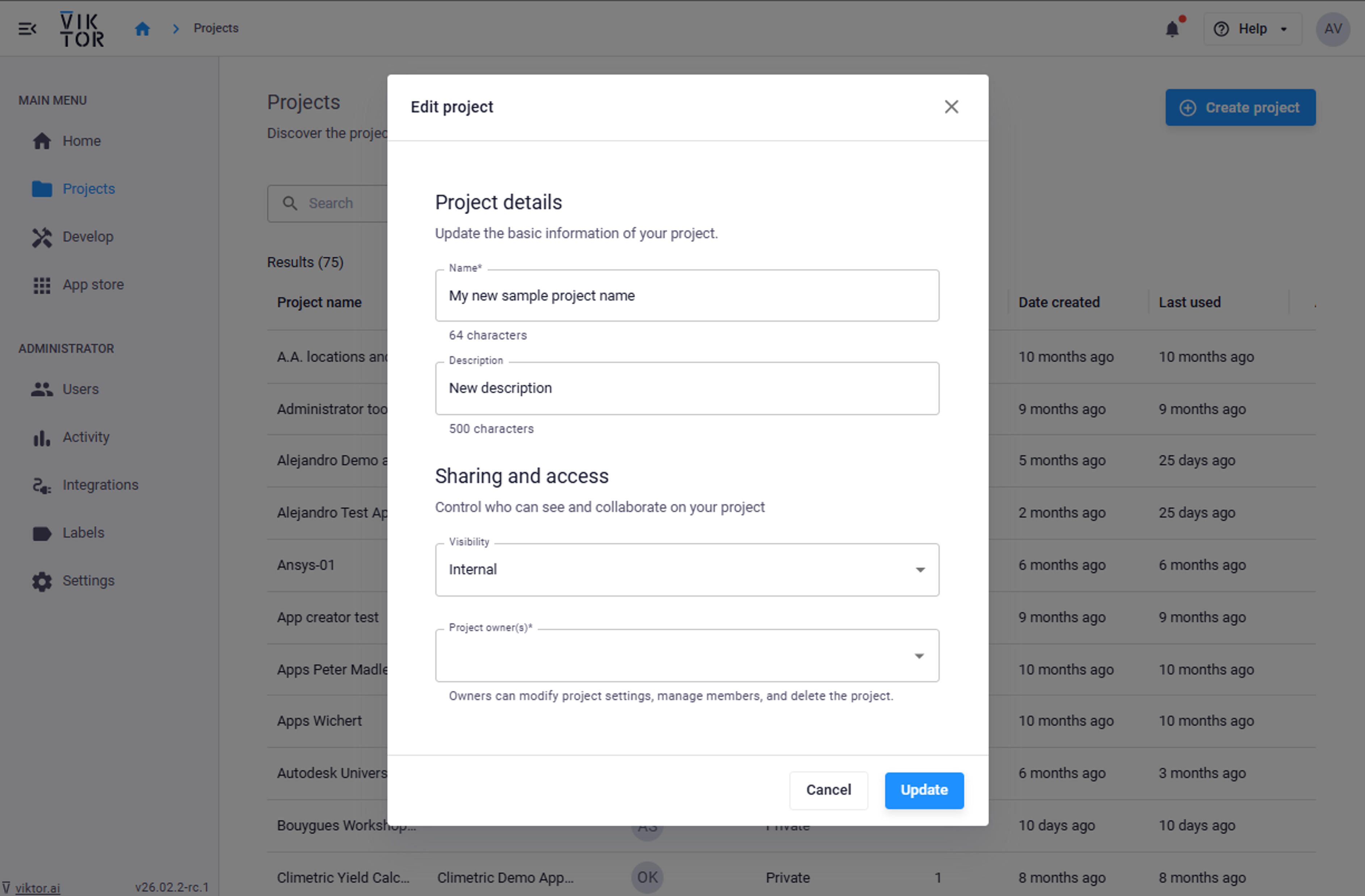
You can edit the project name, description, and visibility after a project has been created.
Project visibility can be set during the creation of a project or updated by following these steps:
- Navigate to Projects and find the project you wish to edit
- Click on the three dots and select "Edit"
- Change the desired details and click "update"
FAQs
Can I delete a project?
Yes. You can delete a project. To delete a project you will first need to archive the tools in it. Once you have done this you can delete the project.
Can I enforce a naming convention on projects?
No. Unfortunately you cannot enforce naming conventions on projects.
I don't see a "Create project" button
The ability to create projects may be controlled by your environment administrators. If you cannot find the "Create Project" button, it is likely that this feature has been disabled on your environment. If you believe this feature should be available to you, please reach out to your environment administrators for further assistance. They can confirm whether project creation is disabled and help you enable it if necessary.